
The Quiz Submitted trigger is a workflow entry condition that fires whenever a contact completes and submits a published quiz in Captivation Hub. It gives businesses, educators, and marketers a powerful way to streamline engagement, automate responses, and improve quiz-based interactions. Once this trigger is added, contacts can be enrolled into a workflow the moment their quiz data is captured, making real-time engagement and personalized follow-up possible.
Filter Options
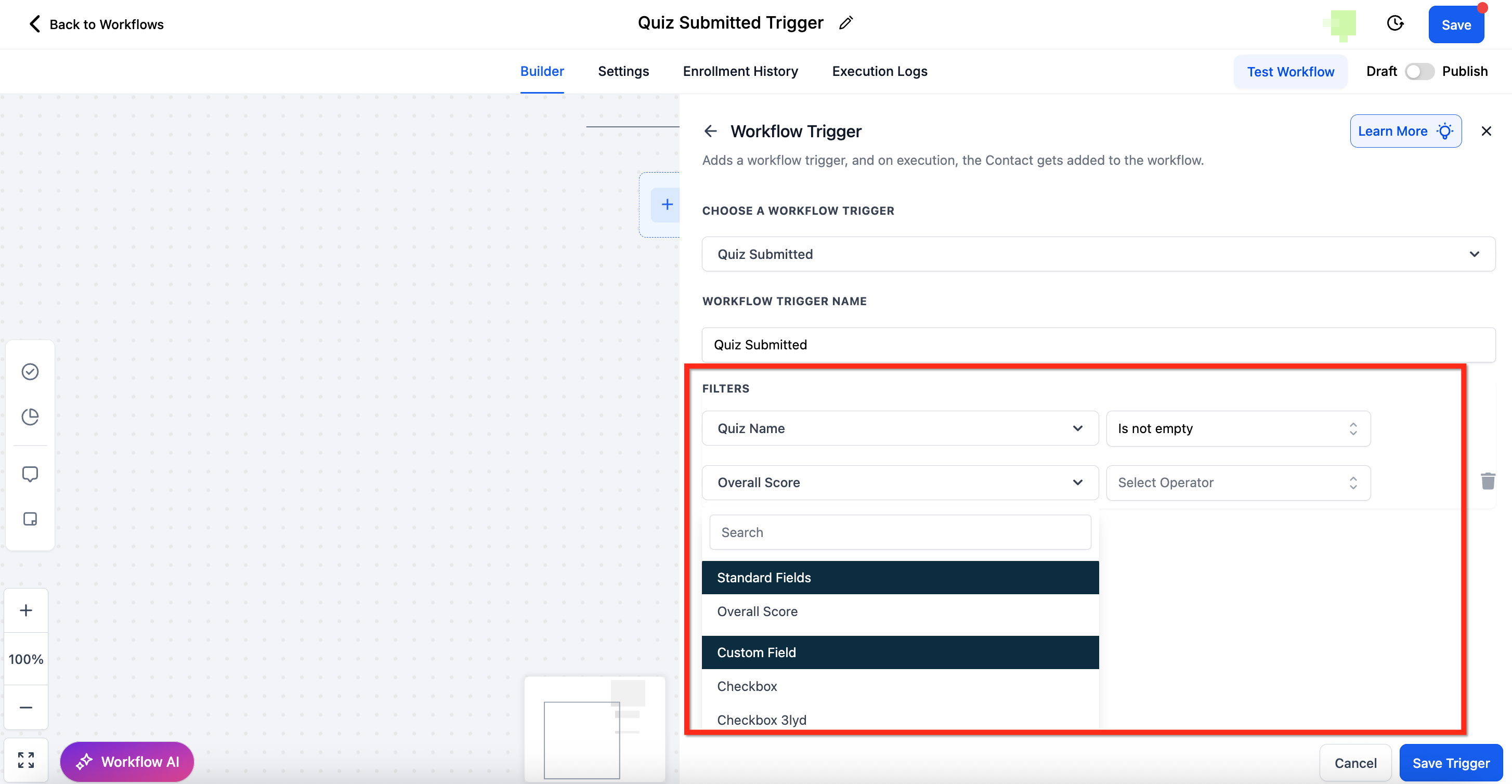
Filters control when the trigger should fire, giving you detailed control over which quiz submissions start a workflow. With advanced filtering, you can define conditions such as quiz name, overall score thresholds, category score thresholds, or custom field values, allowing you to target specific audiences and control exactly when the workflow begins.
Below is a breakdown of the available filter types:
Quiz Name: Choose a specific quiz, use Any to include all quizzes, or use Is Not to exclude certain quizzes.
Overall Score: Build rules such as is greater than 80 or between 50 and 70 to segment contacts based on their total score.
Category Score: Target users who performed especially well, or poorly, in a specific category or section of the quiz.
Custom Field: Reference custom score-related fields that were created as part of your quiz setup.
Use Case Examples
Personalized Feedback for Learners: Automatically send feedback emails to students based on their quiz results to support their learning journey.
Lead Scoring and Segmentation: Group quiz takers into different segments based on their scores and update CRM records for more targeted marketing.
Course or Product Recommendations: Recommend relevant courses or products based on quiz performance to drive better engagement and conversions.
Automated Follow-Ups for Sales Teams: Assign high-scoring quiz takers to a sales rep for more personalized outreach and follow-up.
Event Participation Tracking: Trigger actions such as sending certificates, rewards, or other follow-up materials based on quiz completion and score requirements.
How to Set Up the Quiz Submitted Trigger
The trigger activates when a quiz is completed and supports the following:
Conditional Filtering: Apply rules based on quiz name, score thresholds, or category-based performance.
Automated Actions: Send emails, SMS messages, assign tasks, or launch additional workflow steps automatically.
Seamless Integration: Connect quiz activity with your CRM, marketing automation, and lead management processes.
Follow the steps below to set up a Quiz Submitted workflow trigger.
Step 1: Access Workflow Settings
- Navigate to Automation using the left-hand navigation bar
- Click on Create Workflow or edit an existing one by clicking the 3 dots icon next to workflow's name then selecting Edit Workflow
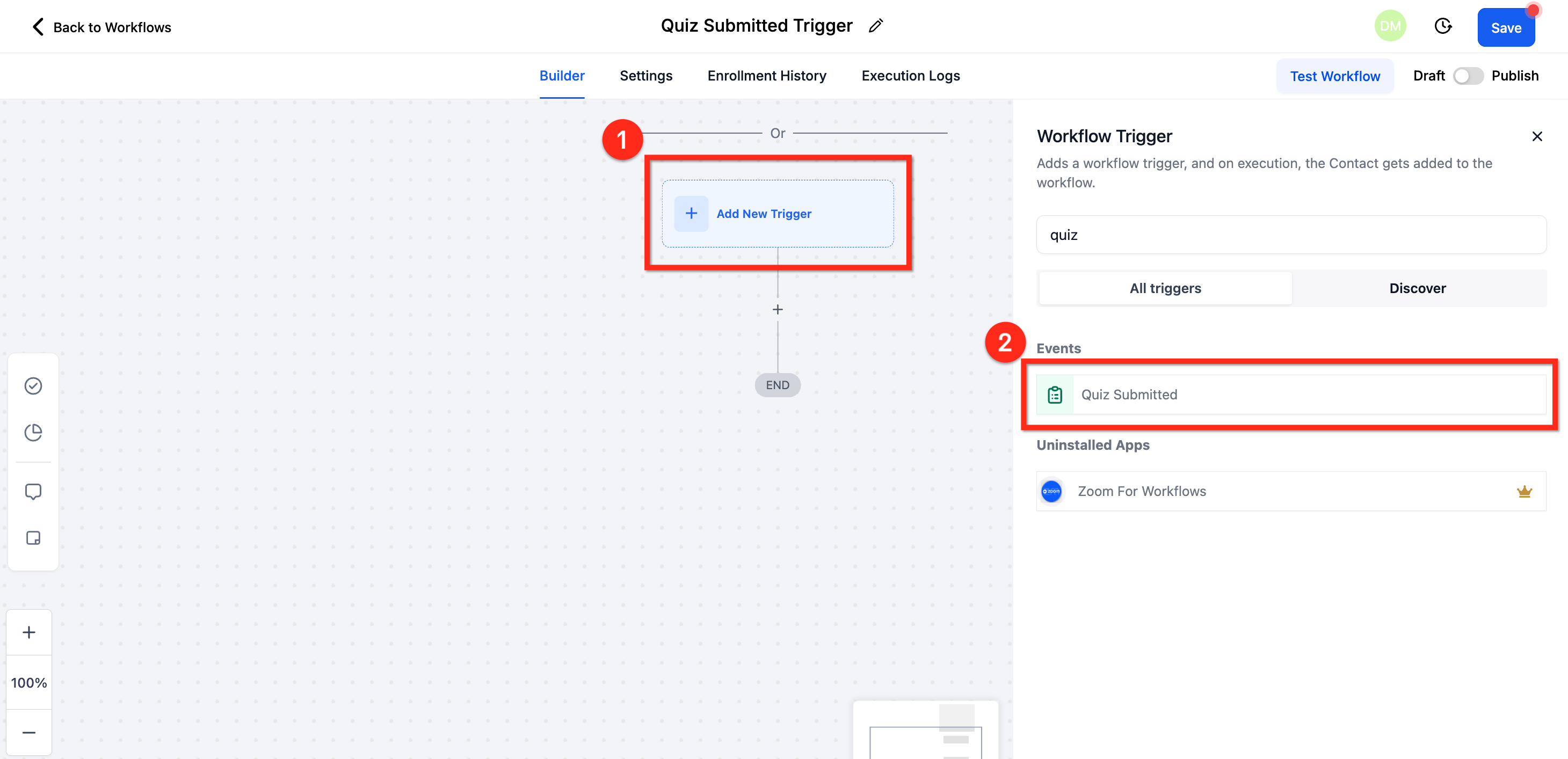
Step 2: Add the Quiz Submission Trigger
- In the workflow editor, click on Add Trigger
- Select Quiz Submitted from the list of available triggers
Step 3: Define Conditions
Specify filters to determine when the trigger should activate, such as:
- Quiz Name: Select the specific quiz
- Score Thresholds: Set minimum or maximum score conditions
- Category-Based Scores: Apply logic to responses within quiz sections
Step 4: Configure Actions
Once the trigger conditions are set, define the automated actions:
- Send an Email: Deliver personalized emails based on scores
- Send an SMS: Notify users immediately after submission
- Assign a Task: Create a follow-up task for the team
- Update CRM Data: Log quiz results into your CRM system
Step 5: Save and Activate
- Click Save to store the workflow
- Publish the workflow to start automating actions based on quiz submissions
Frequently Asked Questions
Q: Does this trigger work for all quizzes?
Yes. This trigger can be used with any quiz created within the platform.
Q: Can I integrate this with third-party tools?
Yes. You can connect the quiz submission trigger with external tools such as CRM systems, email marketing platforms, and other automation tools through available integrations.
Q: Can I use multiple actions in one workflow?
Yes. A single workflow can include multiple actions based on quiz results, such as sending emails, updating CRM records, and notifying internal teams.
Q: Can I add a quiz into a website page or funnel step?
Yes. Open the quiz you want to use, click the Embed button, and copy the embed code. Then go to the website page or funnel step where you want the quiz to appear, add a custom code element, and paste the embed code into it. Preview the page to confirm the quiz is displaying correctly.
Comments
0 comments
Article is closed for comments.