
Field Mapping stores a contact’s quiz results in CRM custom fields. This can include details such as the overall score and tier, per-category scores and tiers, as well as the highest and lowest category results.
Once quiz data is mapped into the CRM, you can put it to work in several ways:
Segment Contacts: Organize and filter contacts based on how they performed on the quiz. For example, you can create a Smart List of users with an Overall Score of 80 or higher, or group contacts by a field like Fitness Tier = Beginner for more targeted messaging.
Personalize Automations: Use quiz outcomes to shape follow-up workflows based on each contact’s results. For example, you can send different nurture emails depending on a contact’s highest or lowest category, or trigger actions when a category score reaches a specific threshold.
Auto-Generated Quiz Result Fields
Captivation Hub scans the quiz on first submission and builds contact fields that follow a predictable naming pattern. This structure keeps data tidy and searchable. View the examples below:
- {{quiz_name}} – Overall Score
- {{quiz_name}} – Overall Score – Tier
- {{quiz_name}} – {{category_name}} – Score
Default Data Types
- Scores are stored as Number fields.
- Tiers and Category Names are stored as Text fields.
This makes the data compatible with all standard CRM filters, workflow conditions, and personalization tools.
Real-Time Field Updates on Resubmission
Every time a contact retakes the same quiz, HighLevel overwrites the existing values instead of creating duplicates. This ensures that automations always reference the latest scores without extra cleanup rules.
Using Quiz Result Fields in Workflows & Automations
Once quiz data is mapped into the CRM, you can use it in multiple ways:
1. Segment Contacts
Filter or group contacts based on their quiz performance.
Example:
- Create a Smart List of users with “Overall Score ≥ 80.”
- Group users by “Fitness Tier = Beginner” for targeted messages.
2. Personalize Automations
Use quiz results to tailor follow-up workflows.
Example:
- Send different nurture emails depending on the highest or lowest category.
- Trigger actions when a category score crosses a threshold.
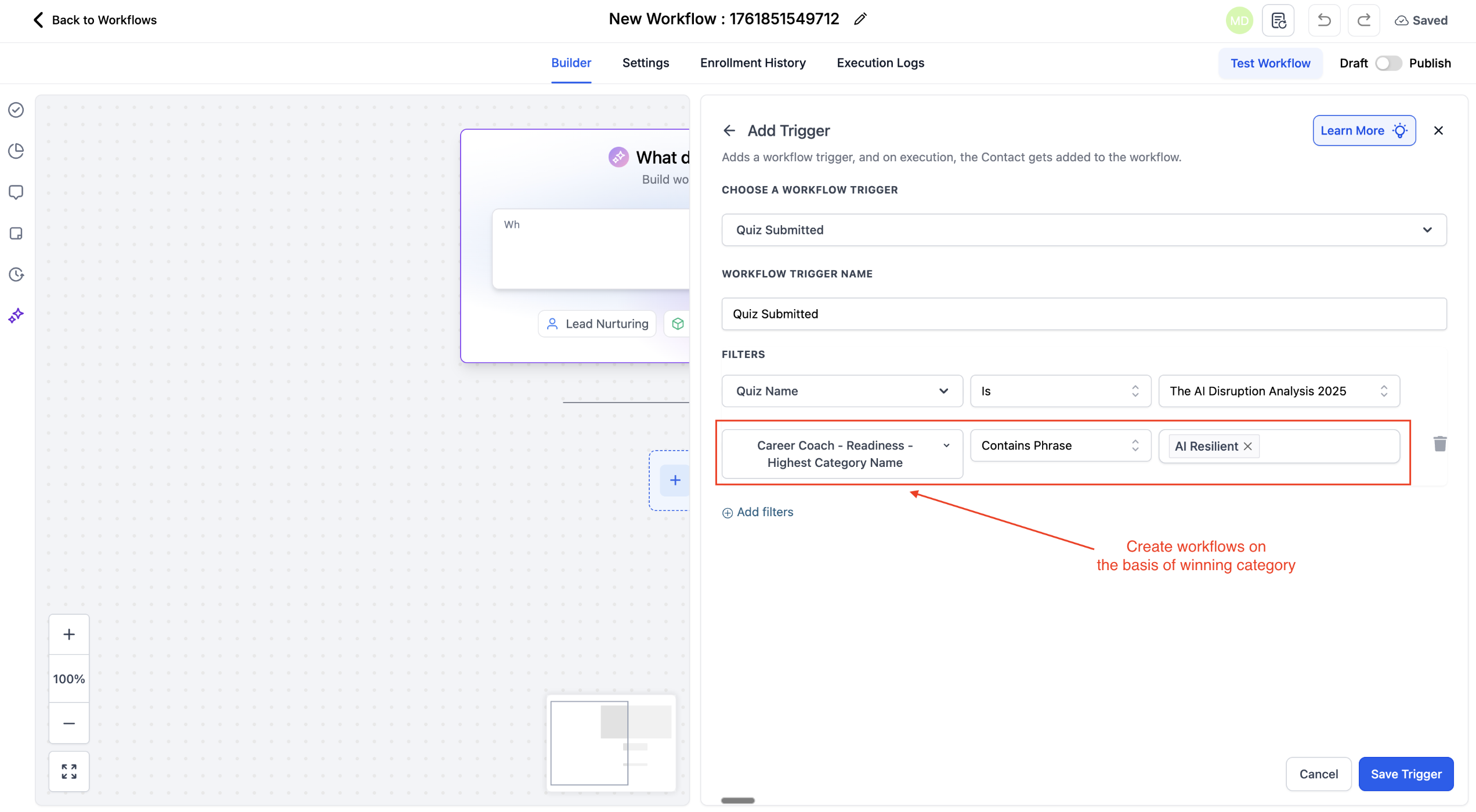
3. Power Conditional Logic
In workflows or campaigns, use mapped fields to create dynamic paths.
Example:
- If “{{quiz_name}} - Diet Tier = Advanced,” send an advanced guide.
- If “{{quiz_name}} - Fitness Score < 50,” enroll the contact in a beginner plan.
How To Setup Quiz Result → CRM Field Mapping
Step 1: Open a Quiz
- Navigate to Funnels → Quizzes.
- Select an existing Quiz or click the blue + Add Quiz button to Create a new one.
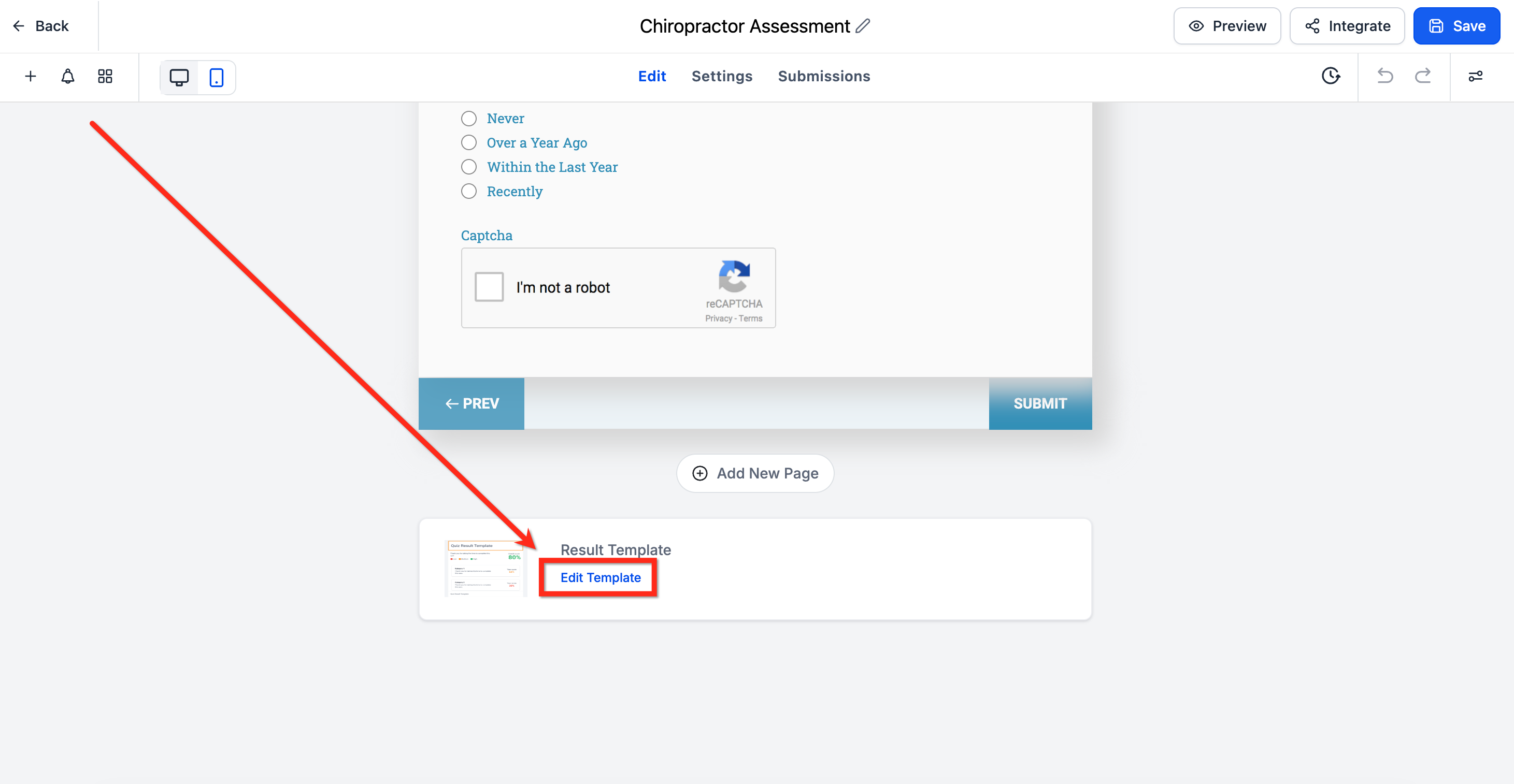
Step 2: Open Results Page
Scroll to the end of the quiz to the Results Template. Click on Edit Template.
Step 3: Enable Custom Fields
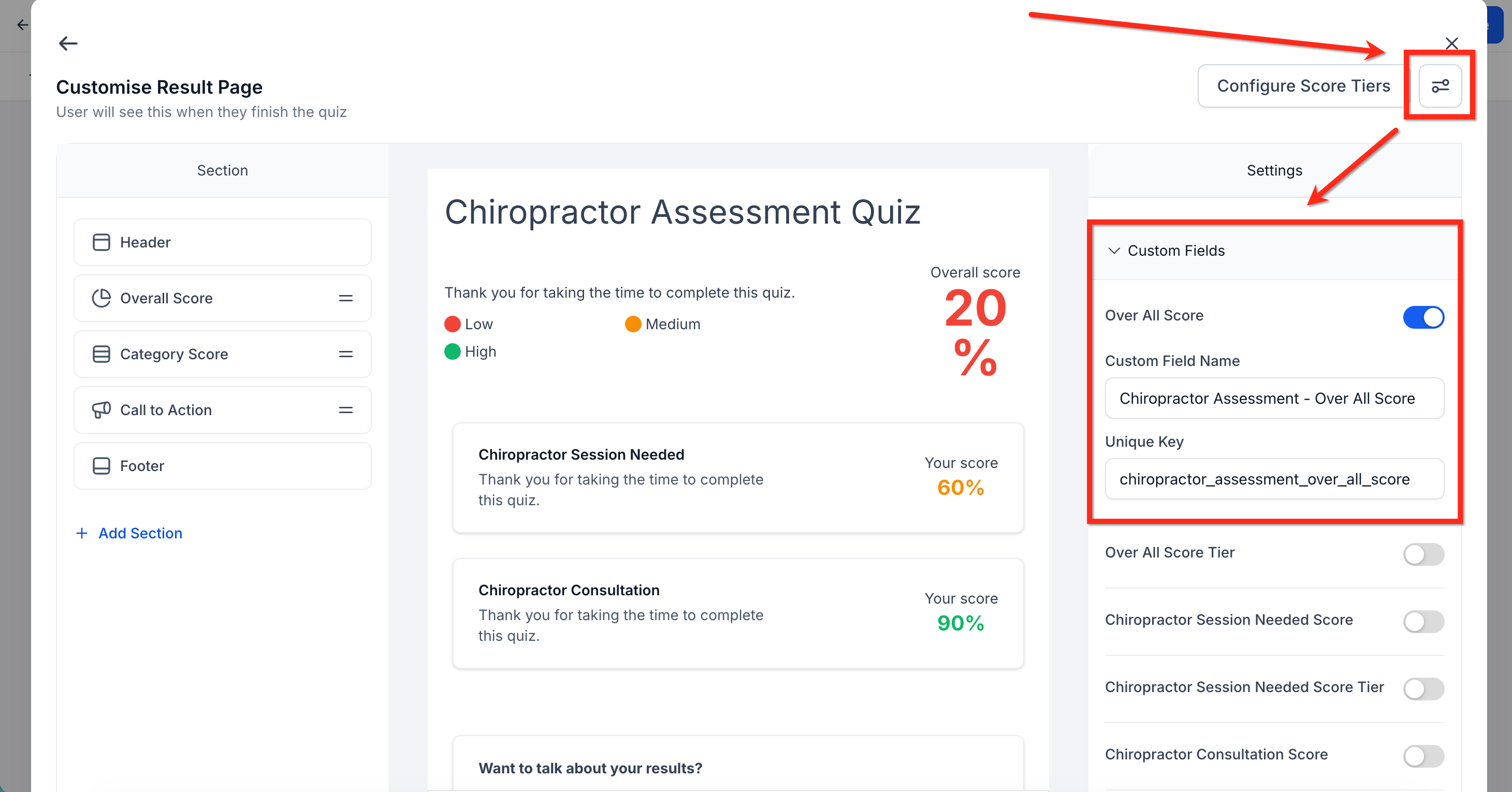
- Click the Settings button in the upper right corner and expand the Custom Fields dropdown to see the automatically created custom fields.
Under Custom Fields, turn on the toggles for the fields you want to sync, such as:
Overall Score
Overall Score Tier
Category-wise Scores and Tiers
Highest and Lowest Scoring Categories
The system will automatically assign a Custom Field Name and Unique Key for each enabled field.
Click Save once you’ve enabled the fields.
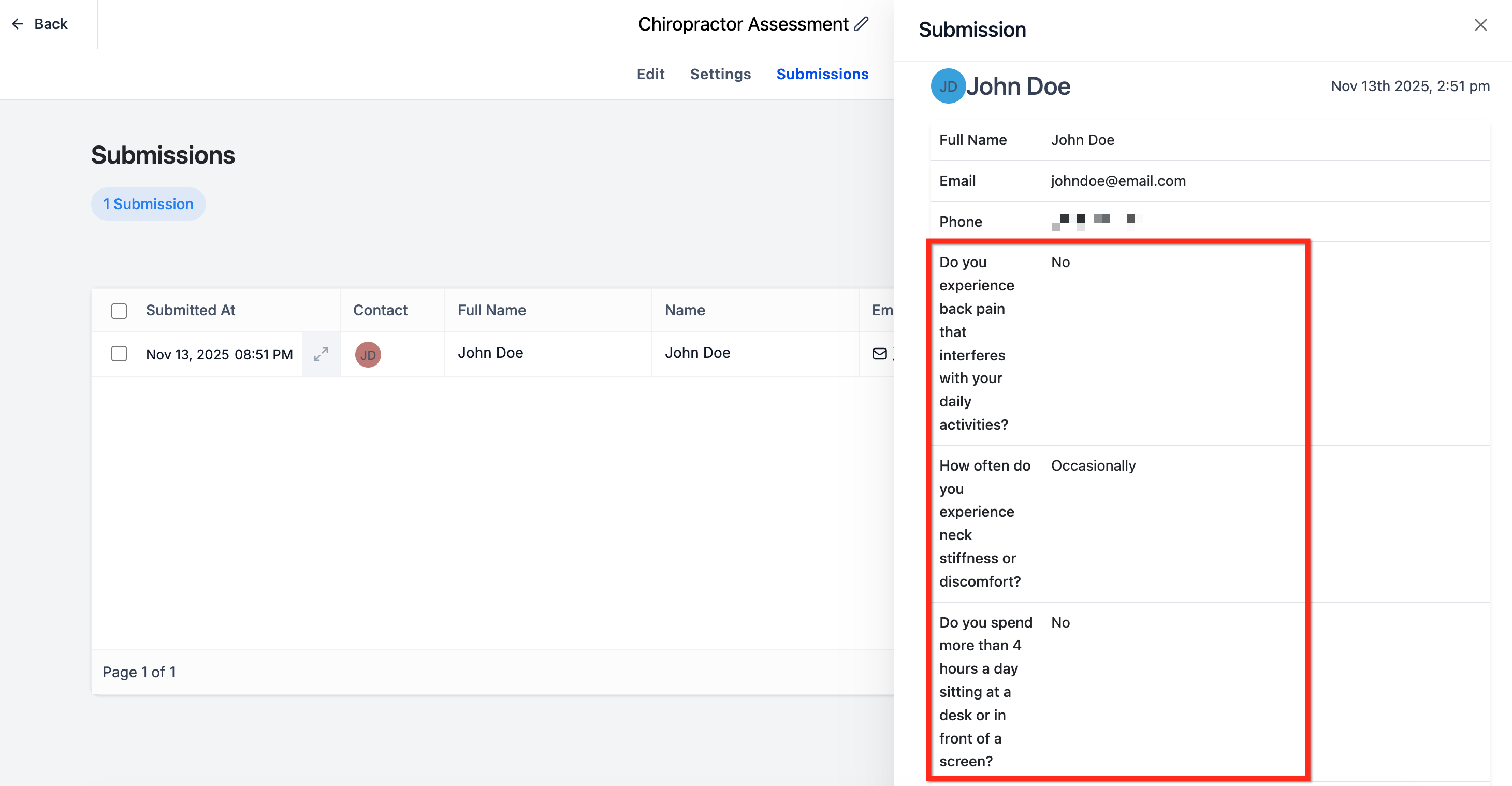
Step 4: Contact Submits a Quiz
When a user completes a quiz, their scores and tiers are automatically captured.
Step 5: Data is Written to CRM Fields
After a quiz is submitted, the selected fields are created and updated in the contact record.
Example field names:
- {{quiz_name}} - Overall Score
- {{quiz_name}} - {{category_name}} - Tier
- {{quiz_name}} - Highest Category - Score
If a contact retakes the same quiz, the existing data is overwritten — not duplicated. This keeps contact records clean and accurate.
Frequently Asked Questions
Q: Can I rename or delete the auto-generated fields?
You can rename or move them into groups, but deleting a field removes historical quiz data from all contacts.
Q: Does the feature work with existing quizzes?
Yes, as long as the custom fields are toggled on within the quiz settings. Once a contact submits any quiz (new or old), HighLevel creates the fields on the fly.
Q: Are these contact or opportunity fields?
They are Contact Custom Fields, making them usable in forms, Smart Lists, and contact workflows.
Q: Can I export quiz fields to CSV?
Absolutely! Exporting contacts includes every custom field, including quiz scores and tiers.
Comments
0 comments
Article is closed for comments.