
The Quiz Builder lets you create interactive quizzes that capture lead information, gauge buyer intent, and deliver a personalized result at the end. You can build quizzes with multiple pages, a variety of question types, optional scoring and category logic, and a fully customizable results page with tailored messaging and calls to action.
You can start from scratch or use a template, and speed up setup by importing questions through CSV. Once your quiz is ready, you can publish it with either an embed code or a shareable link. Quiz responses can also be mapped to CRM custom fields and used to trigger workflows for more personalized follow-up.
Key Benefits of the Quiz Builder
- Audience Segmentation: Use quiz responses and scoring to group contacts based on outcomes and intent.
- Automation-Ready Follow-Up: Trigger workflows immediately when a quiz is submitted for real-time engagement.
- Bulk Question Creation: Import multiple quiz questions into a page at once using CSV upload to save time.
- Personalized Experience: Customize the results page with score tiers, sections, and CTAs to guide next steps.
- CRM Mapping: Map quiz outcomes (scores, tiers, categories) into CRM custom fields for ongoing segmentation and reporting.
Quiz Builder Layout and Navigation
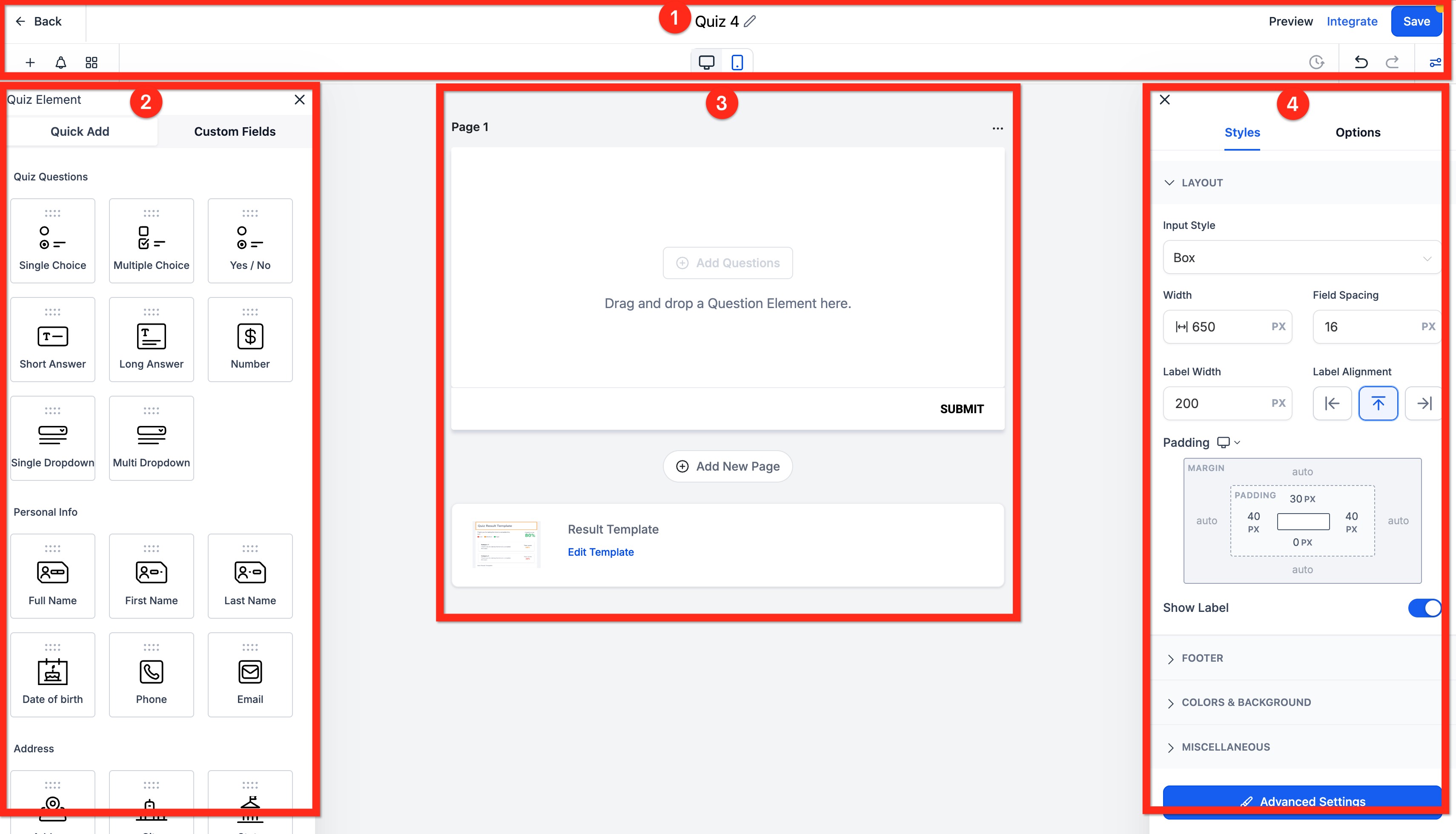
Top Panel: This is where you’ll find the Back button to return to the Quizzes list, the Title of the quiz, the Preview button to view how the quiz will appear, the Integrate button to place the quiz on a page, and the Save button. You’ll also see the switcher for the left panel, the Desktop and Mobile view toggle, the Versions list, Undo/Redo, and the switcher for the Right Panel.
Left Panel: This area displays all available Elements, such as Single Choice or Multiple Choice, along with Notification settings and Categories.
Center Panel: The middle section contains the list of Pages, which include the various Elements, as well as the Results Template.
Right Panel: This is where you can access the settings for the overall Quiz or for the currently selected Element.
Quiz Elements
There are many prebuilt quiz elements to drag & drop. In addition to the quick add elements, you can also add any Contact or Opportunity Custom Field to the quiz.
| Type | Name | Description |
|---|---|---|
| Quick Add > Questions | Single Choice | Many options visible, one selection. |
| Quick Add > Questions | Multiple Choice | Many options visible, multiple selections. |
| Quick Add > Questions | Yes / No | Yes or No, select one. |
| Quick Add > Questions | Short Answer | A small text entry field. |
| Quick Add > Questions | Long Answer | A large text entry field that scrolls. |
| Quick Add > Questions | Number | A field that allows only numbers (positive or negative) with up/down arrows to add or subtract 1. |
| Quick Add > Questions | Single Dropdown | Many options in dropdown, one selection. |
| Quick Add > Questions | Multi Dropdown | Many options in dropdown, multiple selection. |
| Quick Add > Personal Info | Full Name | Text field |
| Quick Add > Personal Info | First Name | Text field |
| Quick Add > Personal Info | Last Name | Text field |
| Quick Add > Personal Info | Date of birth | Date picker |
| Quick Add > Personal Info | Phone | Validated phone field |
| Quick Add > Personal Info | Validated email field | |
| Quick Add > Address | Address | Text field |
| Quick Add > Address | City | Text field |
| Quick Add > Address | State | Text field |
| Quick Add > Address | Country | Country dropdown search |
| Quick Add > Address | Postal Code | Text field |
| Quick Add > Address | Organization | Text field |
| Quick Add > Address | Website | Validated URL field |
| Quick Add > Rating | Rating | 5 stars |
| Quick Add > Customized | Text | Not an input field, just a way to add text to the quiz without adding a question. |
| Quick Add > Customized | Html | Add a 3rd party html script to the quiz. |
| Quick Add > Customized | Captcha | I'm not a robot |
| Quick Add > Customized | Source | Add a custom value to be tracked as the source of the lead. |
| Quick Add > Customized | T & C | Checkbox with customizable "I agree..." field. |
| Quick Add > Customized | Score | Number field |
| Quick Add > Other | Image | Not an input field, just a way to add an image to the quiz. |
| Quick Add > Other | File Upload | File picker |
| Quick Add > Other | Monetary | Entry field |
| Quick Add > Other | Signature | Drawing pad |
Scoring and Categories
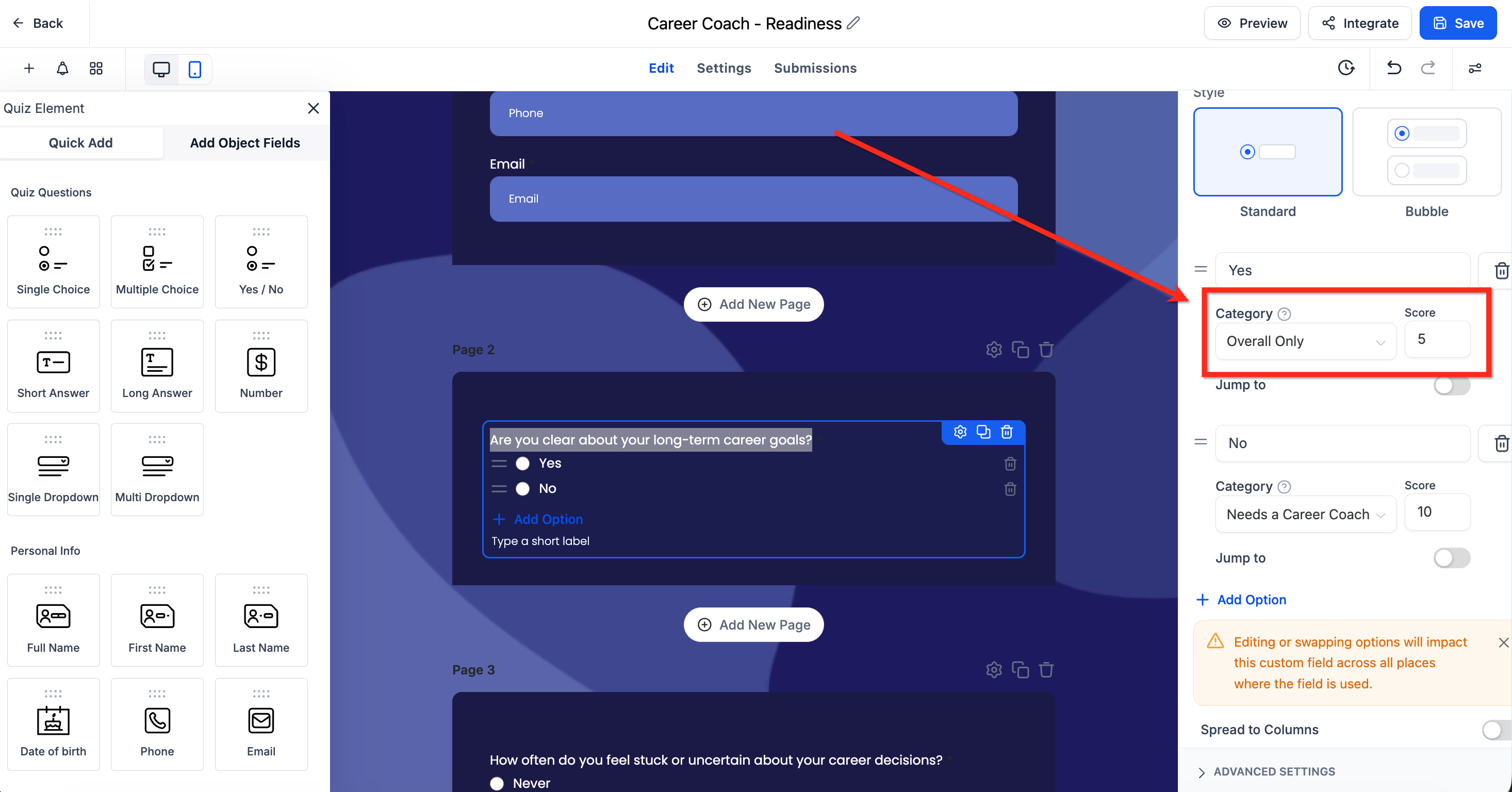
Scoring and Categories make up the logic layer of a quiz. They turn each answer into a meaningful result, so the contact sees the outcome that best matches them on the results page.
Categories are the possible outcome groups your quiz can produce. Think of them as labels for the final result, such as Beginner, Intermediate, Advanced, or Service A vs Service B. Answers can be connected to a category so the quiz can identify which outcome best fits the contact.
Scoring is the points system used to calculate a numerical result. Points are assigned to answer choices and then added together to determine a total score, a category-based score, or a score tier, such as 0 to 10 = Starter, 11 to 20 = Growth, and 21 to 30 = Scale.
Results Page
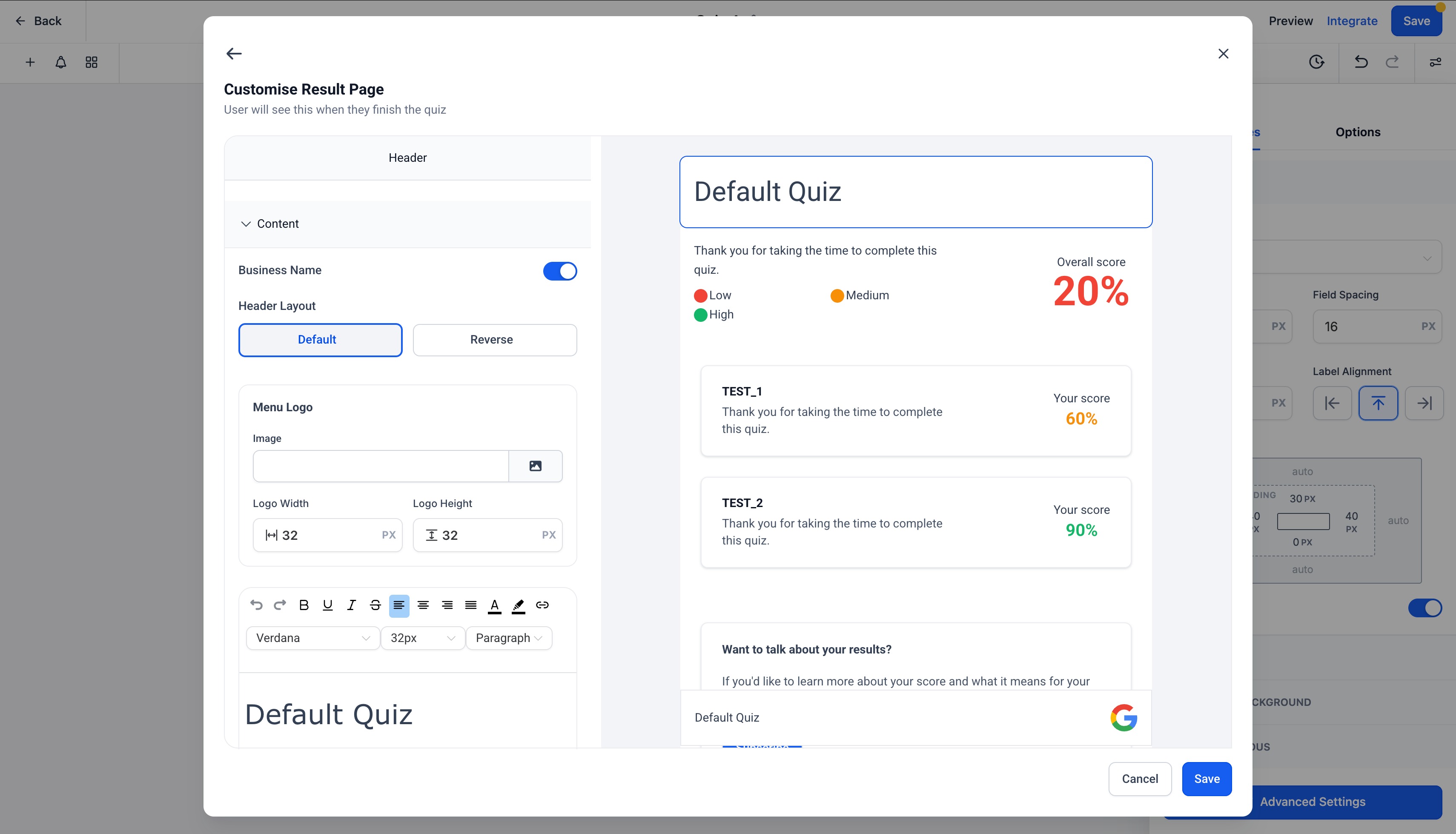
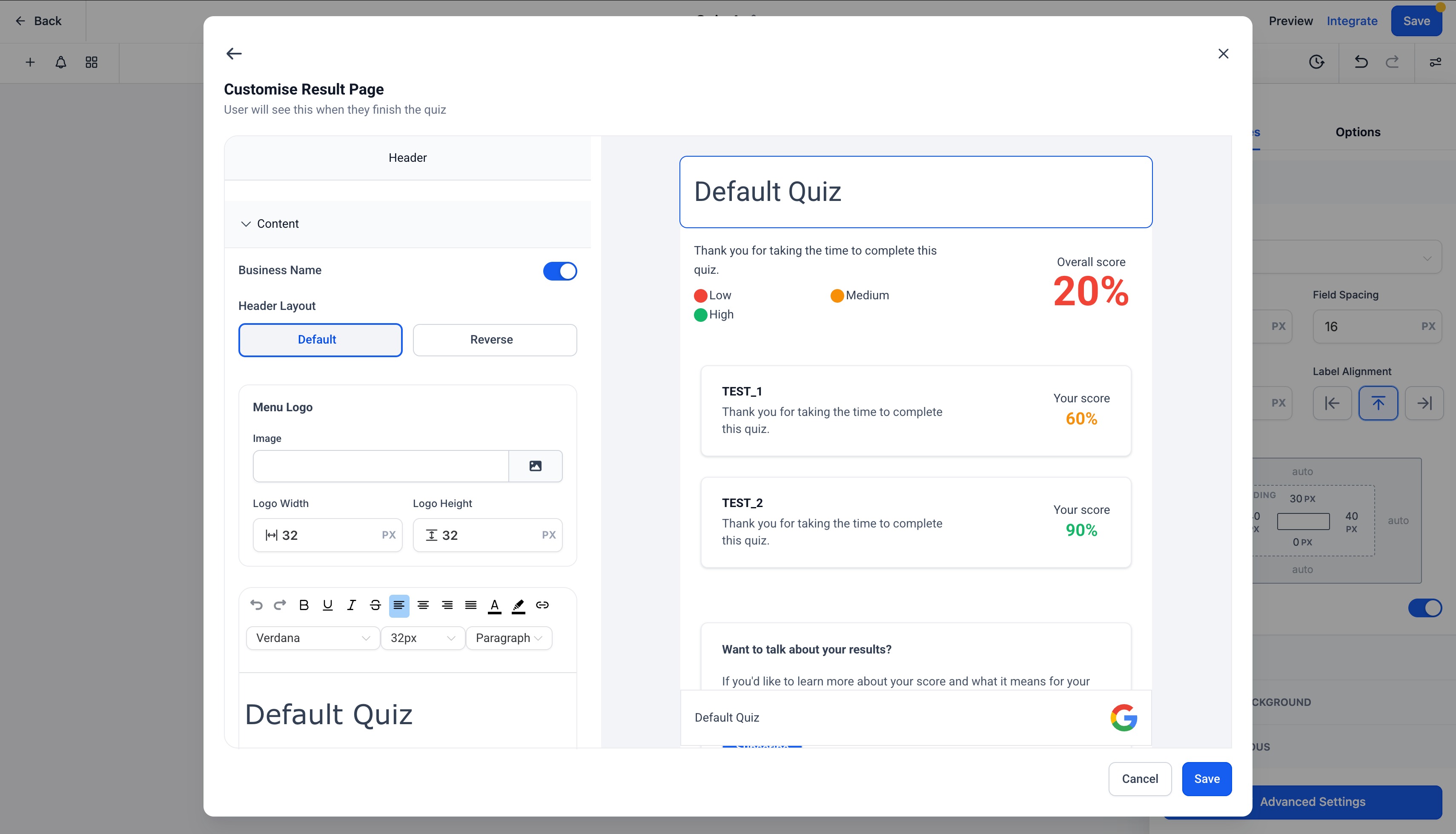
The results page is the final step a contact sees after submitting a quiz. This is where you display their outcome, such as a score, tier, or category, explain what that result means, and direct them toward the most relevant next step.
A strong results page can boost conversions because it ties the quiz outcome to a clear recommendation, such as booking a call, selecting the right offer, or entering the most suitable nurture path. You can fully customize the page to fit your brand and intended use:
Edit the Header: Add your logo, business name, and custom text. You can also adjust the layout, padding, and background color.
Configure Scores: Results are powered by dynamic content, allowing you to customize the messaging shown for each score tier, such as Low, Medium, or High.
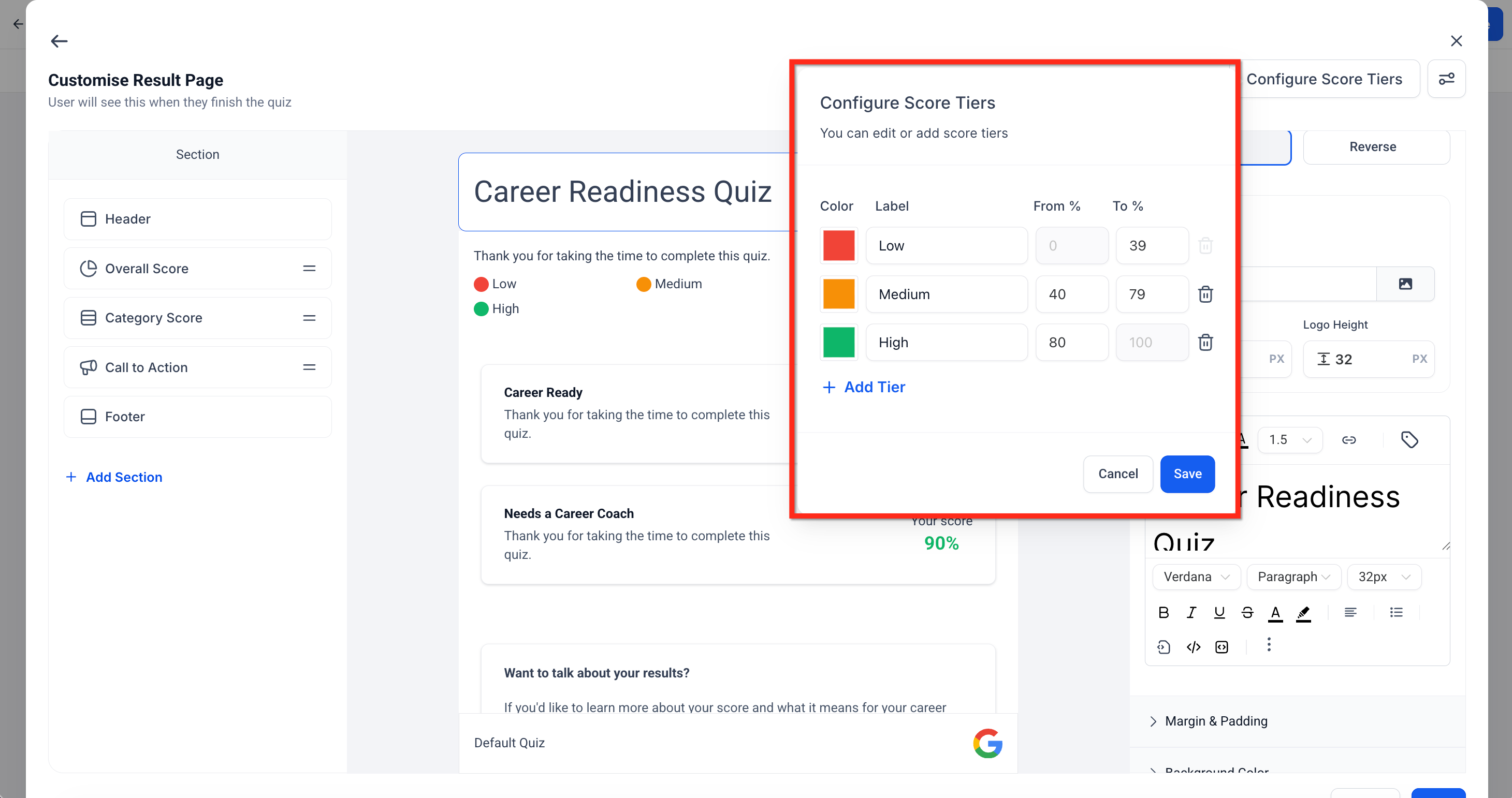
Adjust Tiers: Define the percentage range for each tier, such as Low = 0 to 39% and Medium = 40 to 79%. You can also assign colors to each tier to visually reinforce the result, like red for lower scores and green for higher scores.
Add a Call-to-Action (CTA): Customize the CTA section to guide the contact to their next step. For example, you might say, “Want to talk about your results? Book a call.” You can then link the button to your calendar, a product page, or another helpful resource.
Customize the Footer: Add a footer logo, include social media links, and even choose to make the footer sticky.
How to Configure Score Tiers on the Results Page
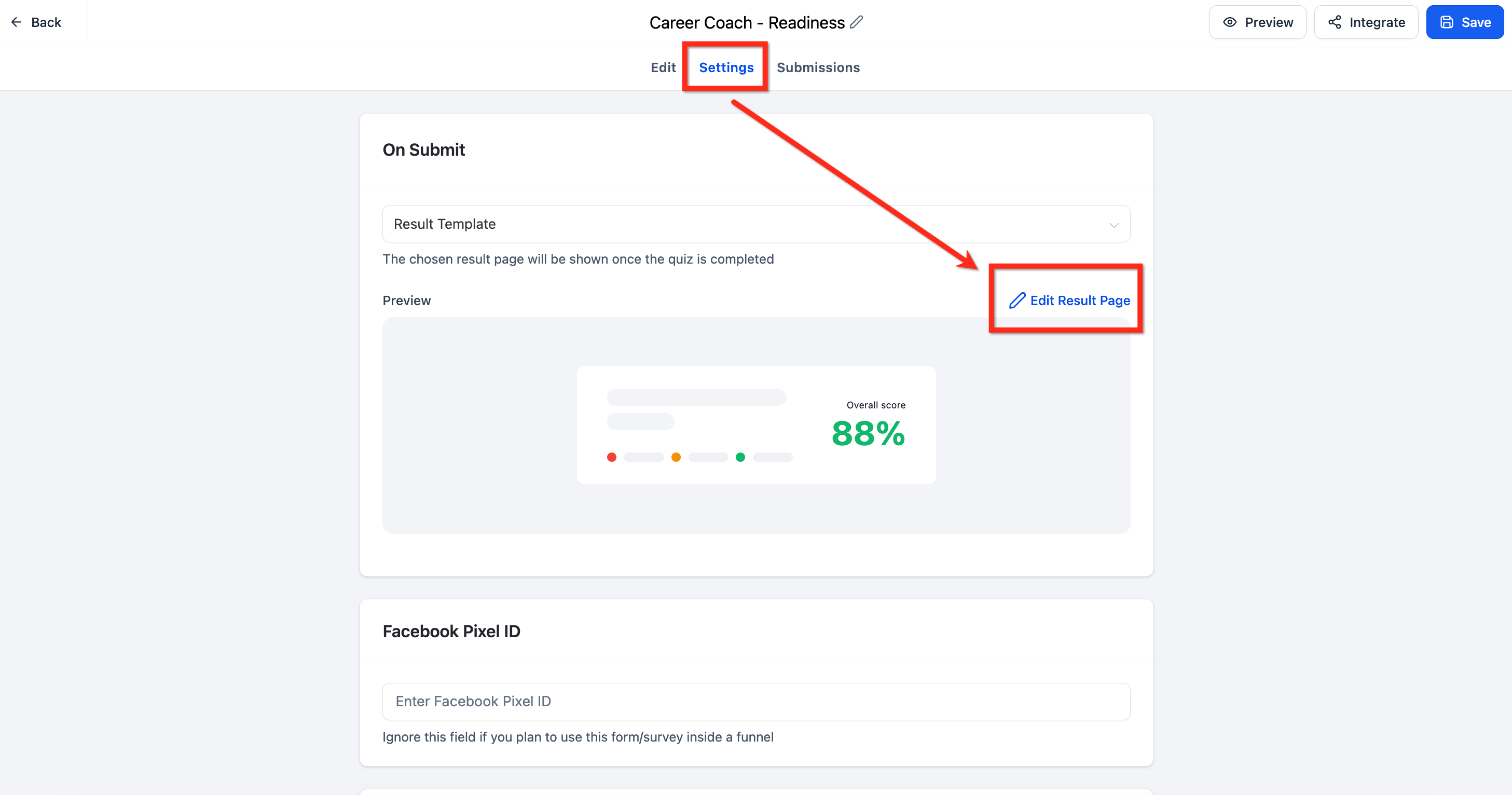
Score tiers let you display different results content based on the contact’s total score. This keeps results personalized without requiring separate quizzes.
From the quiz editor, navigate to Settings then select Edit Results Page.
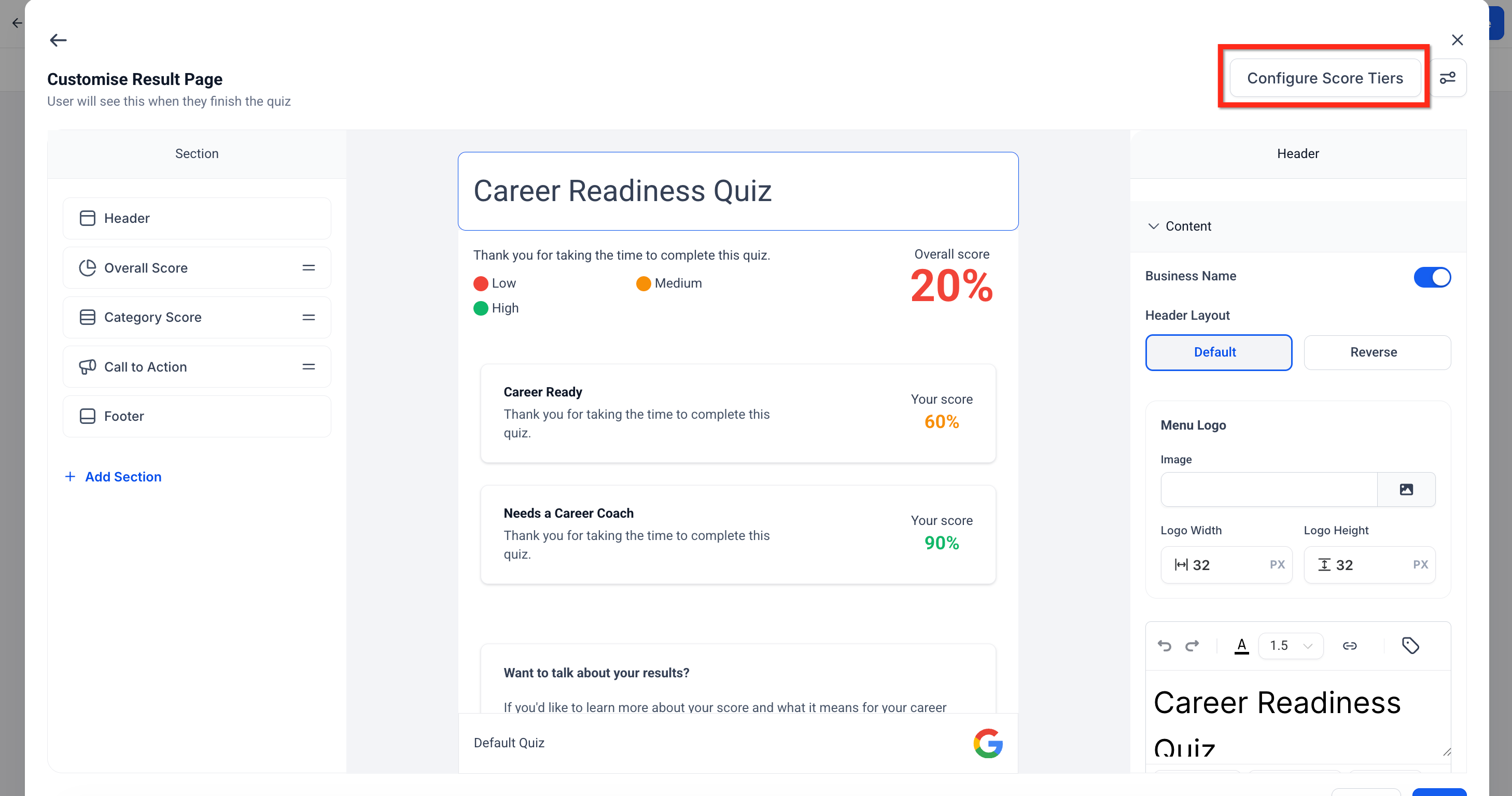
Click Configure Score Tiers
Edit the names, colors and and ranges for each of the tiers. You can also remove existing tiers or add new ones.
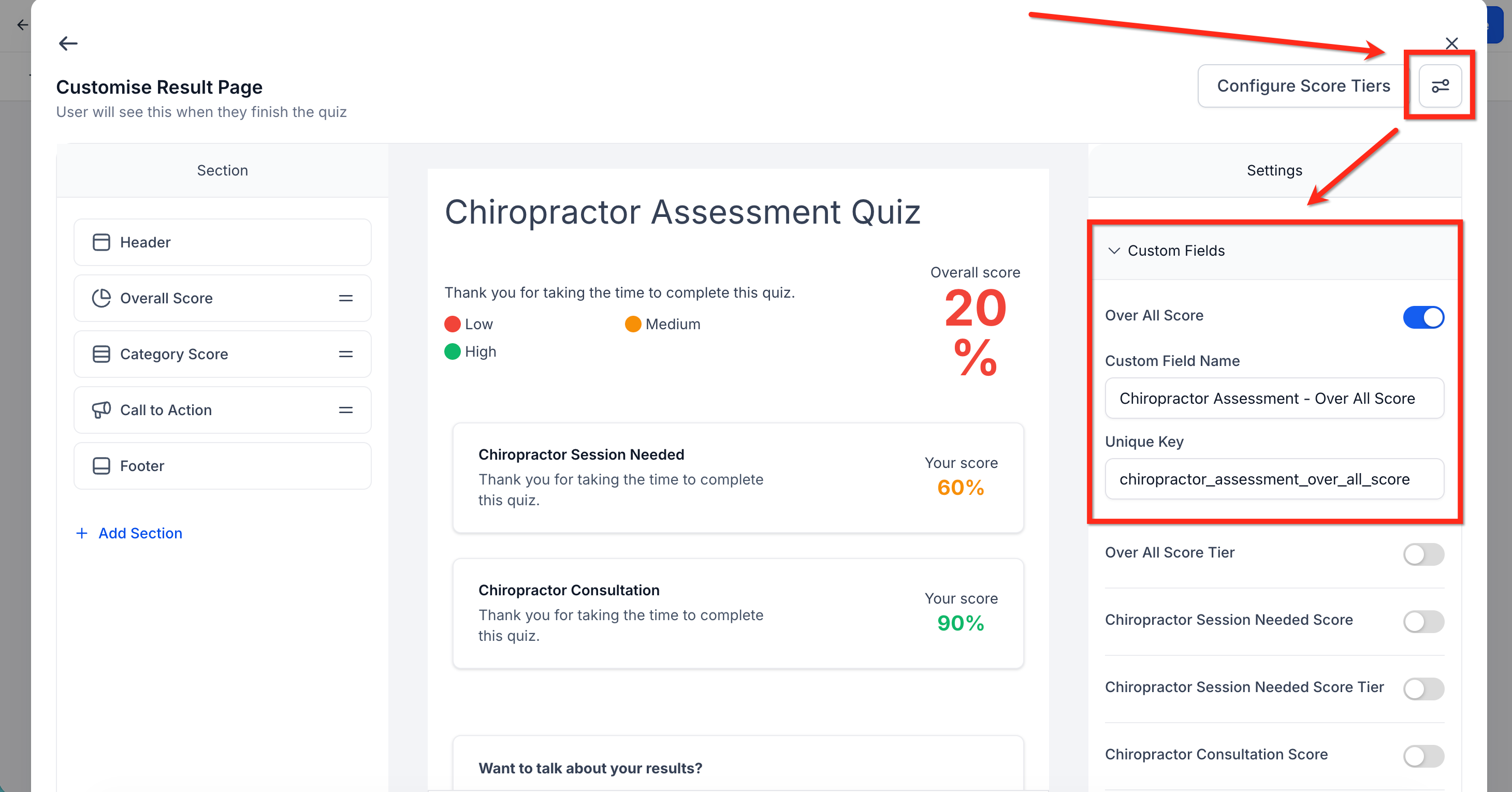
Submissions and CRM Mapping
CRM Field Mapping stores a contact’s quiz results in CRM custom fields. This can include details such as the overall score and tier, per-category scores and tiers, as well as the highest and lowest category results.
Once quiz data is mapped into the CRM, you can put it to work in several ways:
Segment Contacts: Organize and filter contacts based on how they performed on the quiz. For example, you can create a Smart List of users with an Overall Score of 80 or higher, or group contacts by a field like Fitness Tier = Beginner for more targeted messaging.
Personalize Automations: Use quiz outcomes to shape follow-up workflows based on each contact’s results. For example, you can send different nurture emails depending on a contact’s highest or lowest category, or trigger actions when a category score reaches a specific threshold.
How to Create a Quiz
Step 1: Open Quiz Editor
Navigate to Funnels→ Quizzes → + Add Quiz or select a quiz to edit.
Step 2: Choose a Template
Choose Start From Scratch or From Template. In the Template Library you can browse, filter, and search for a template. Preview and activate one to load it into the Quiz Builder.
Step 3: Configure the Quiz
Configure the quiz based on your needs. You can add as many questions and pages as needed!
Add and Delete Pages: All pages will appear in the order listed (Page 1 first, Page 2 second, etc).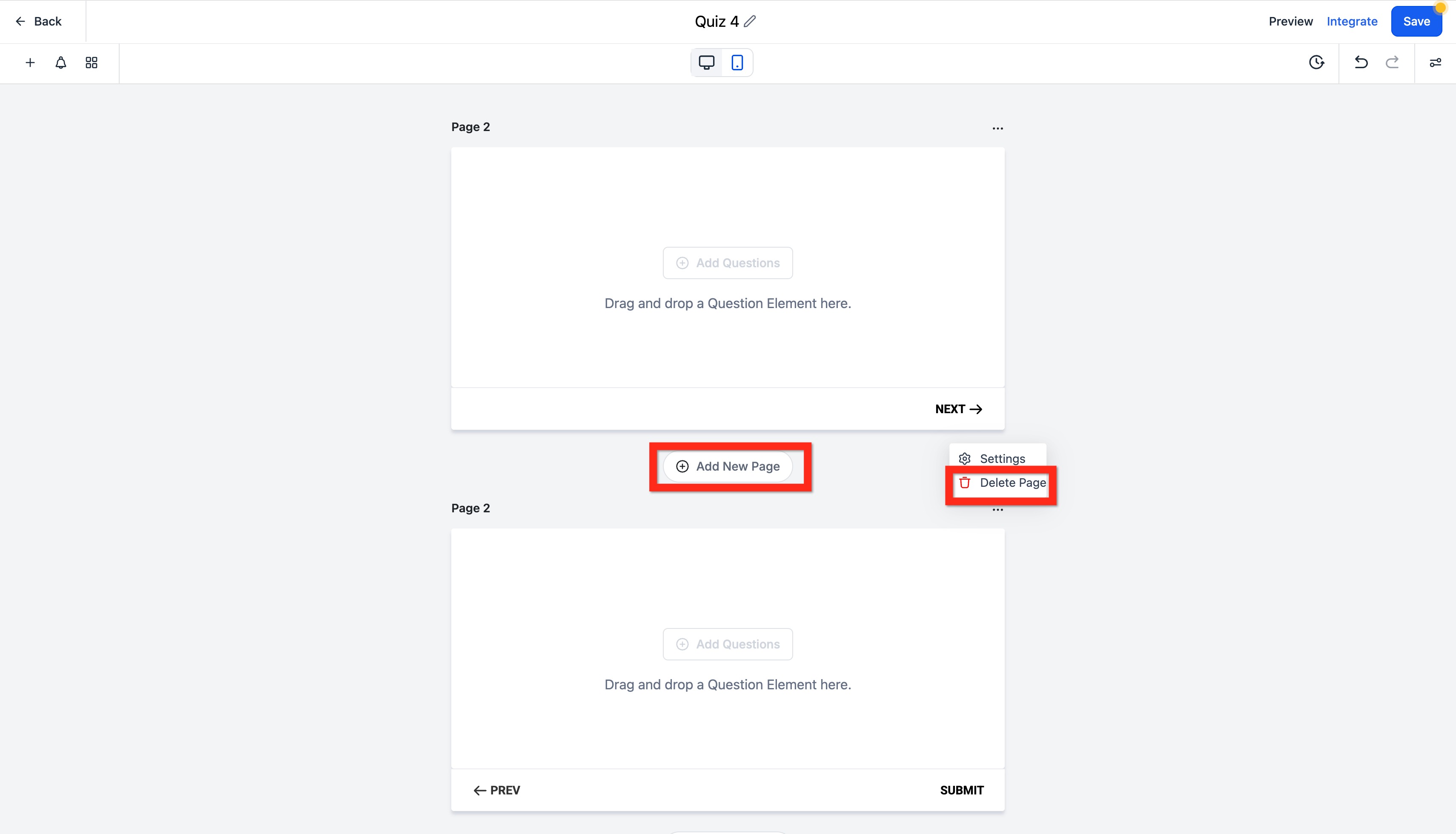
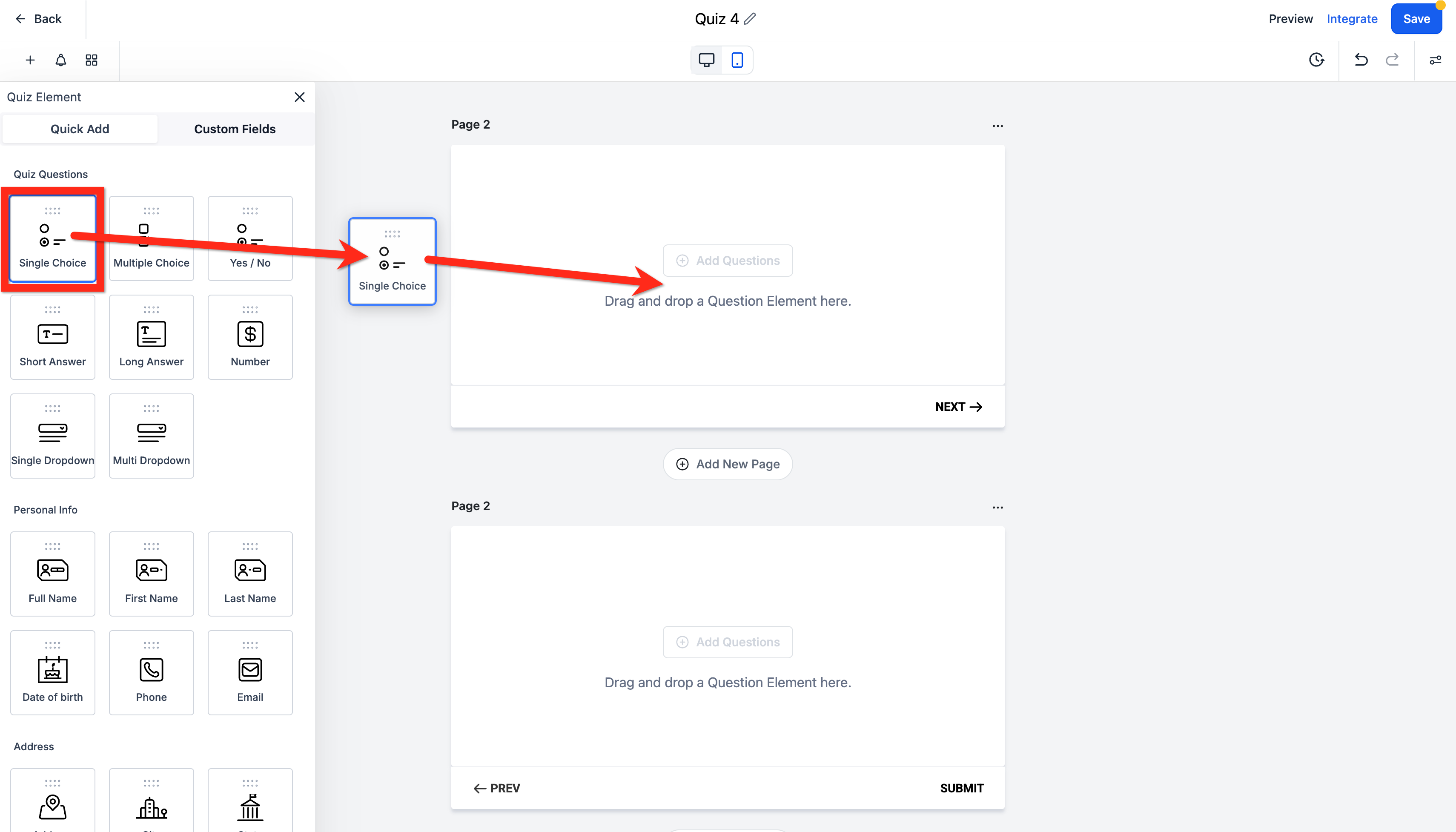
Add and Delete Elements: Elements must be added to a Page. Elements can be dragged and dropped to reorder them inside a Page or to move them to a different Page.
Edit Element: Click an Element to highlight it and open its settings in the Right Panel. In most cases, an Element includes a Question, which is the text shown to the quiz user, along with standard settings such as the Query Key for pre-filling the field from a URL parameter, and options like Required or Hidden.
Each Element also includes its own unique settings depending on the type of question. For example, choice-based Elements include Options, which can also be used with Jump To branching logic.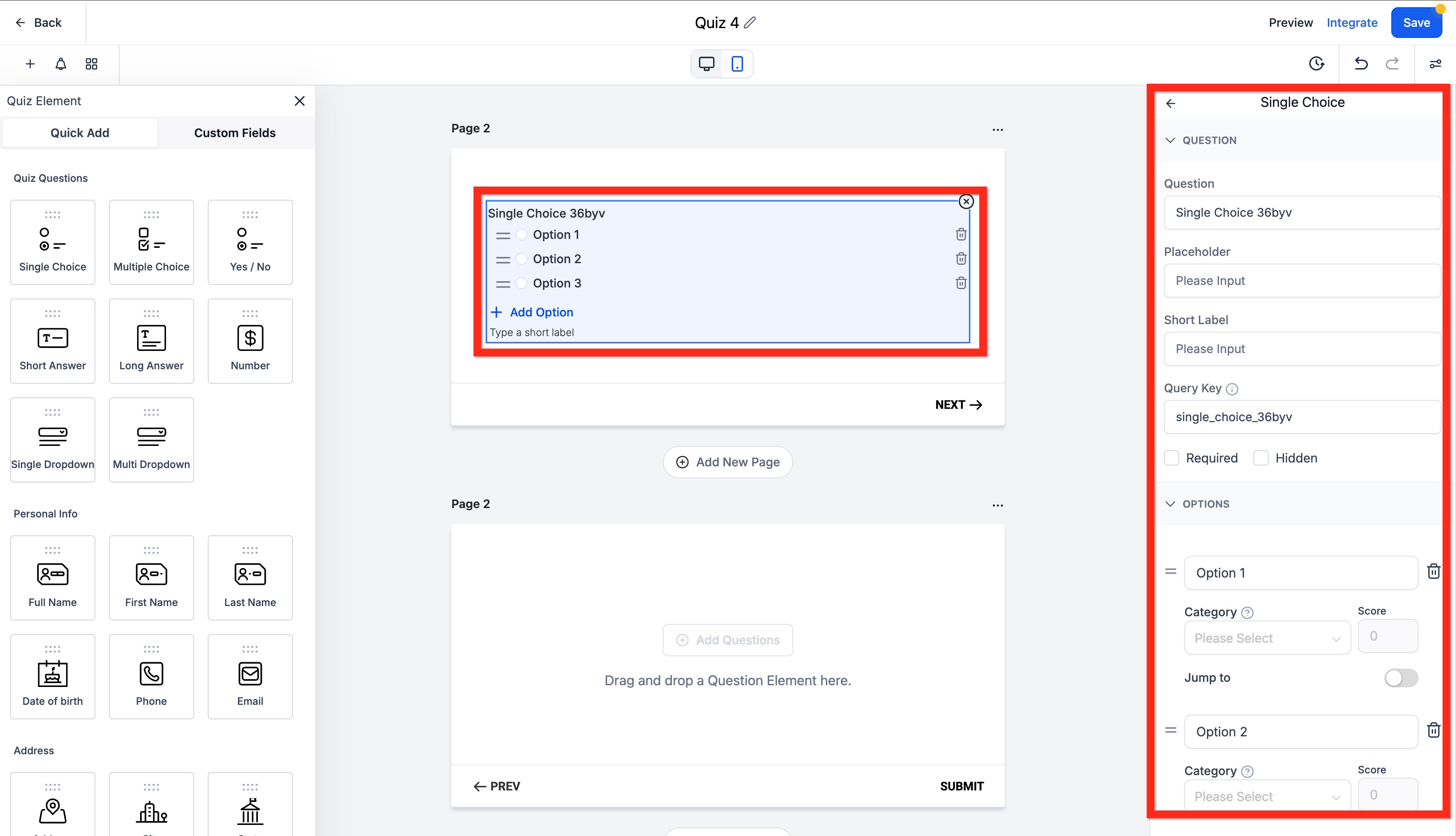
Notifications: Click the Bell icon to open notification settings in the Left Panel. From here, you can enable or disable your personal Email Notification as well as an Auto Responder for the quiz user. You can also configure the Subject, Email To, Reply To, and Sender Name fields.
Quiz email notifications can include the following attachments:
Quiz Submission PDF: A PDF containing the submitted quiz responses.
Quiz Results Page PDF: A PDF version of the evaluated or scored results page.
To have the PDF sent automatically to recipients, enable the Auto Responder in the quiz notification settings.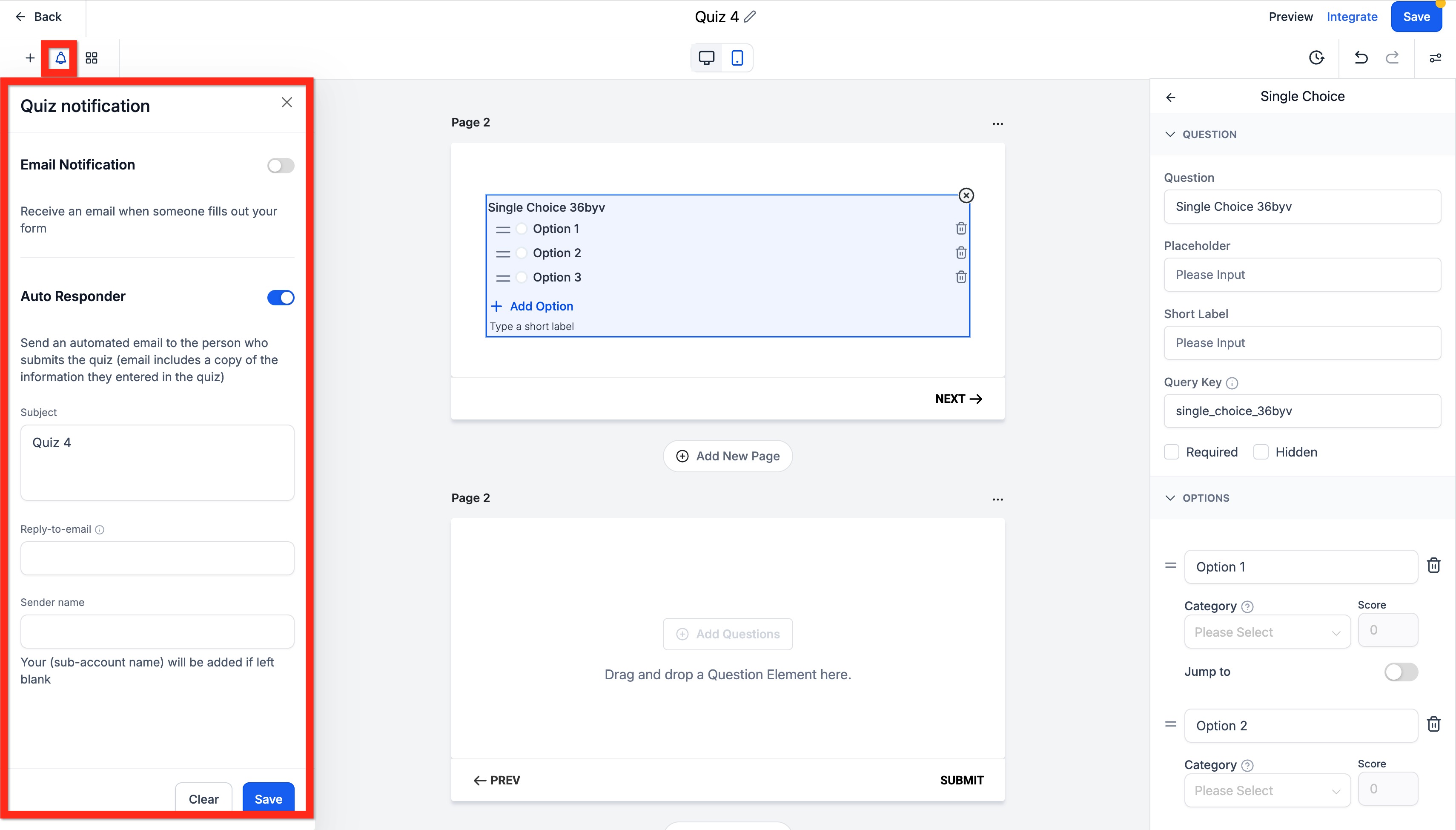
Categories: Click the Grid icon to open the category popover. From there, you can add, rename, and delete categories, then assign both categories and scores to specific answer options.
The popover also explains how categories carry through to the Results Page, so you can understand how category-based scores and outcomes will be displayed.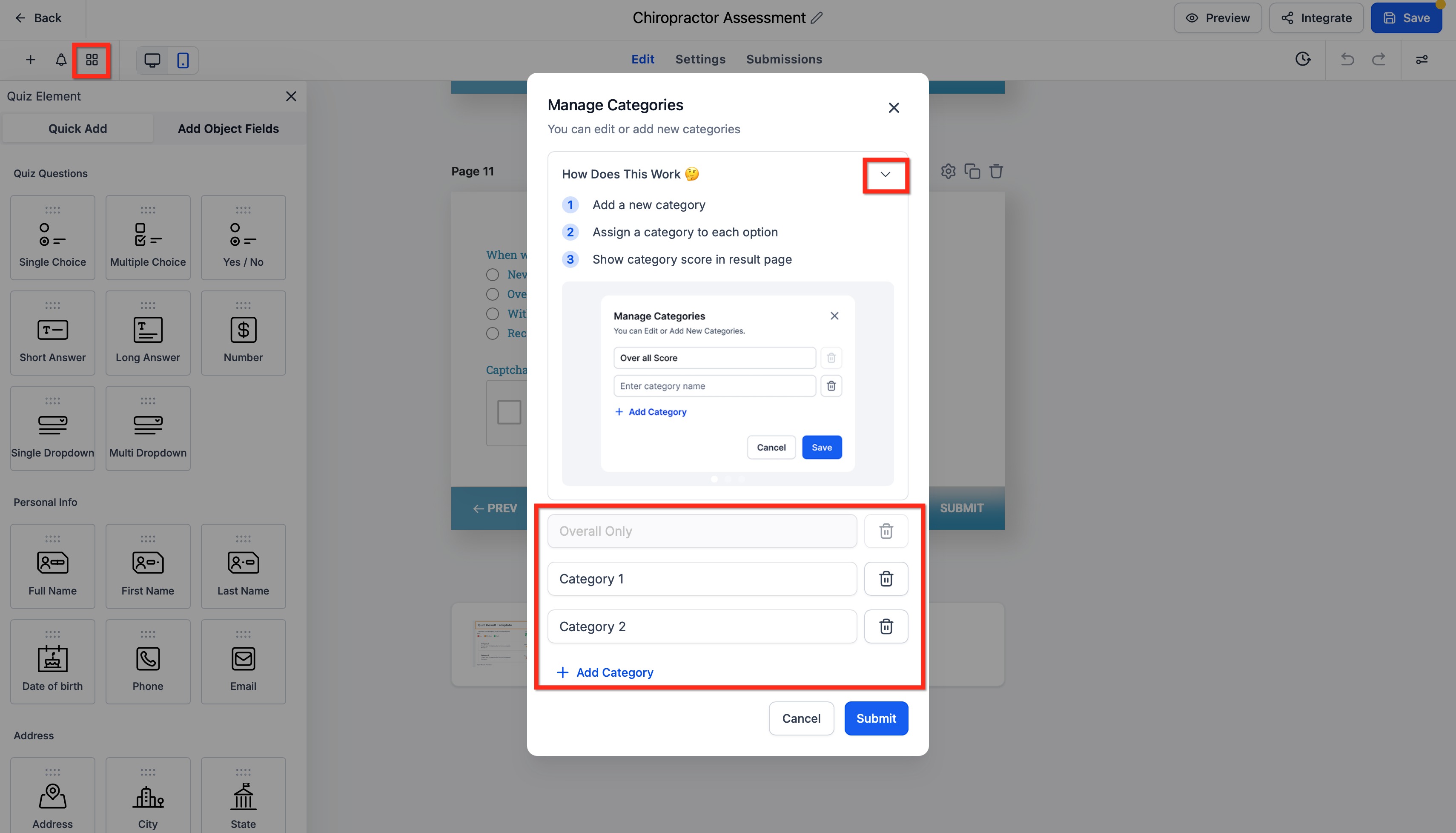
Styles & Options: Click the lines and dots icon on the right side of the Top Panel to open the quiz settings.
Under Styles, you’ll find options for Layout, Footer, Colors & Background, and Miscellaneous. The Layout section includes spacing controls, such as the top margin, so you can adjust the space above your quiz content without needing custom CSS.
Under Options, you’ll find settings for On Submit, which controls what happens when the quiz is completed, along with Facebook Pixel ID, Facebook Pixel Events, Quiz Settings, and Footer HTML.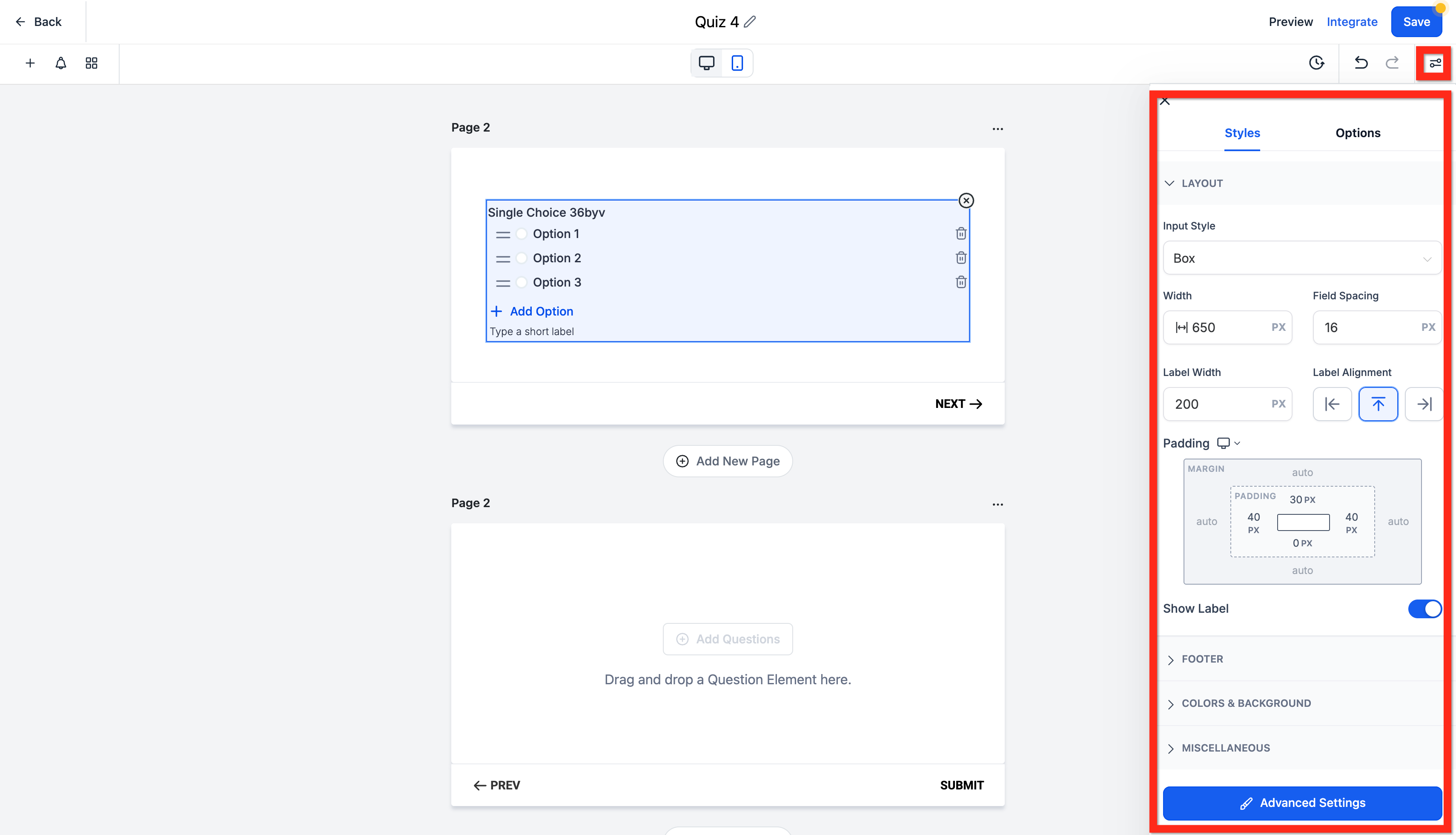
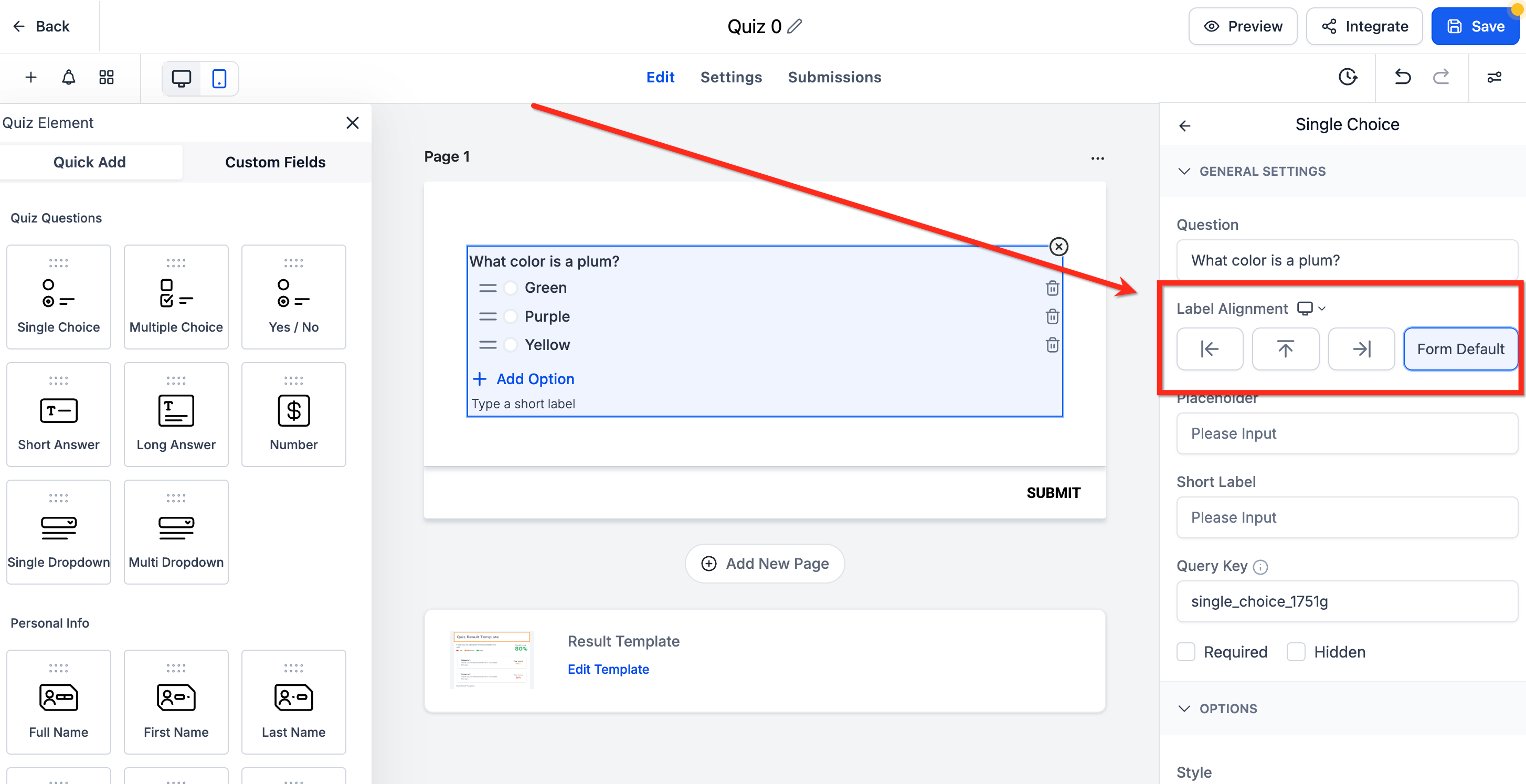
Element-Level Label Alignment: Element-level label alignment allows you to choose a different label position for each field rather than using one global alignment setting for the entire quiz. This gives you more control over visual rhythm and spacing, especially in tighter or more compact layouts.
To set element-level label alignment, first select a question. Then, in the right sidebar, use the Arrows selector under Label Alignment to choose the position you want.
Keep in mind that on mobile, label alignment automatically defaults to Top, helping maintain a clean and user-friendly layout regardless of your desktop settings.
Step 4: Customize the Results Page
You are able to customize the results page to match your use and branding.
Step 5: Integrate and Publish
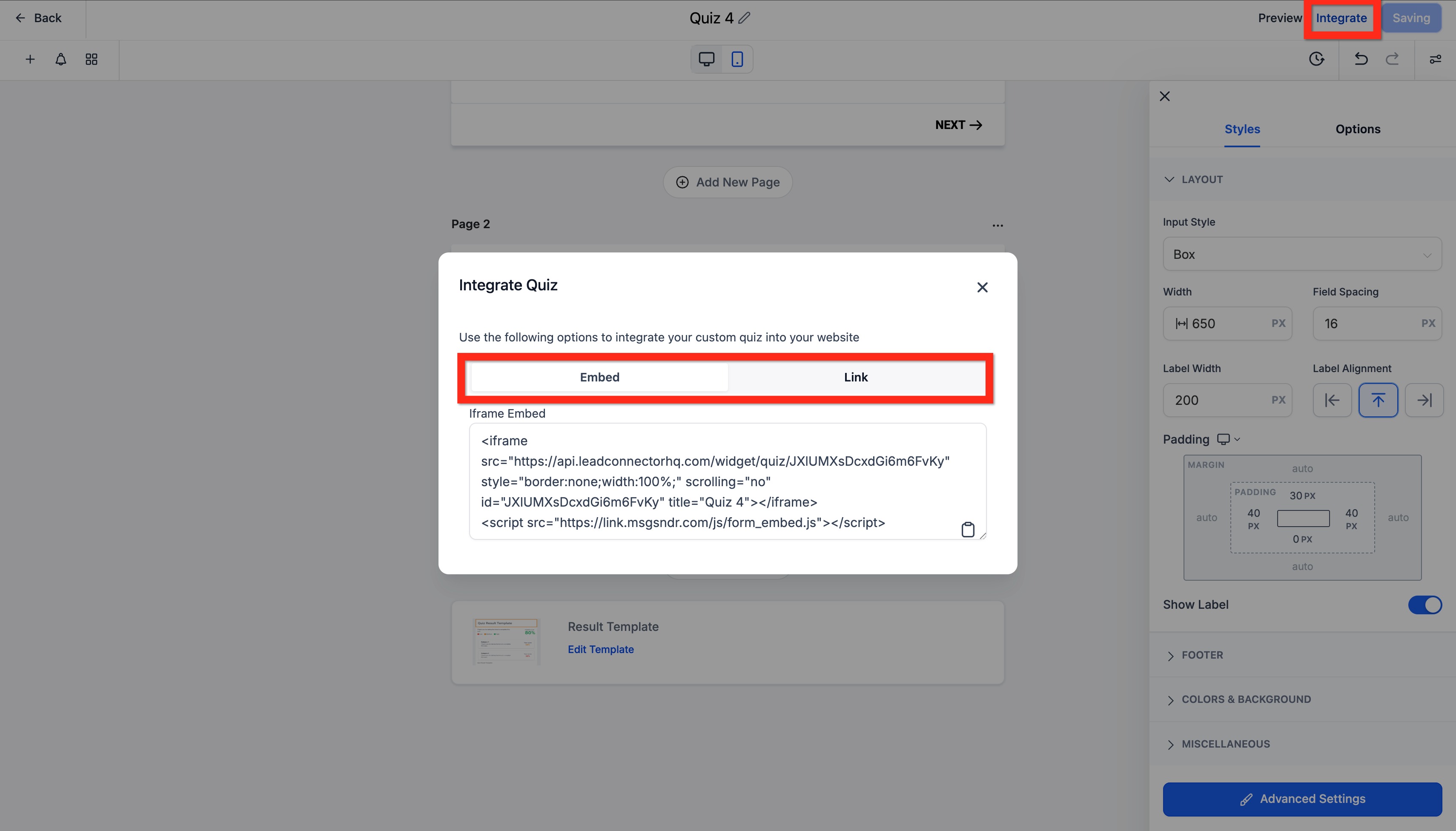
Once you've saved your quiz, click the Integrate button in the top-right corner. You have two options:
- Embed: Copy the iframe code to embed the quiz directly onto your website or funnel pages.
- Link: Copy the direct link to share in emails, social media, or conversations.
Frequently Asked Questions
Q: Can I integrate Quiz Builder with my website?
Yes. You can add a quiz to your website using the provided embed code, or share it through a direct link.
Q: Can I customize the scoring system?
Yes. You can assign different point values to each answer or question and create multiple score categories based on how the quiz is structured.
Q: Does Quiz Builder support branching logic?
Yes. You can make the quiz respond dynamically by setting up Jump To rules based on a user’s selected answer.
Q: How can I analyze quiz results?
You can review all quiz submissions and analyze performance from the Quiz dashboard. To access this, go to Sites > Quizzes and choose Submissions from the dropdown menu.
Q: Can I automate follow-ups based on quiz scores?
Yes. You can use the Quiz Submitted trigger in the Workflow Builder to create automated follow-up sequences based on a user’s score or category.
Q: Is Quiz Builder suitable for certification exams?
Yes. You can build quizzes for certifications, set pass/fail criteria, and use workflows to send certificates automatically based on the result.
Comments
0 comments
Article is closed for comments.