
Payment Links give you a quick way to sell a product or service without building a full checkout page or online store. You create the link, share it, and your customer pays on a secure hosted checkout page.
Before You Start: Set Up Your Product
A payment link is built from a product, so make sure the product exists first. When you create a product, you'll add:
- The product name, description, and type (for example, a digital product, physical item, or service)
- The price, either as a one-time payment or a recurring subscription
- For subscriptions, the billing frequency (such as weekly or monthly) and any trial period
- An optional "compare at" price if you want to show a discount
When you select the product in your payment link, its pricing details fill in automatically.
Step 1: Create a Payment Link
- Go to Payments > Payment Links.
- Click Create New Payment Link.
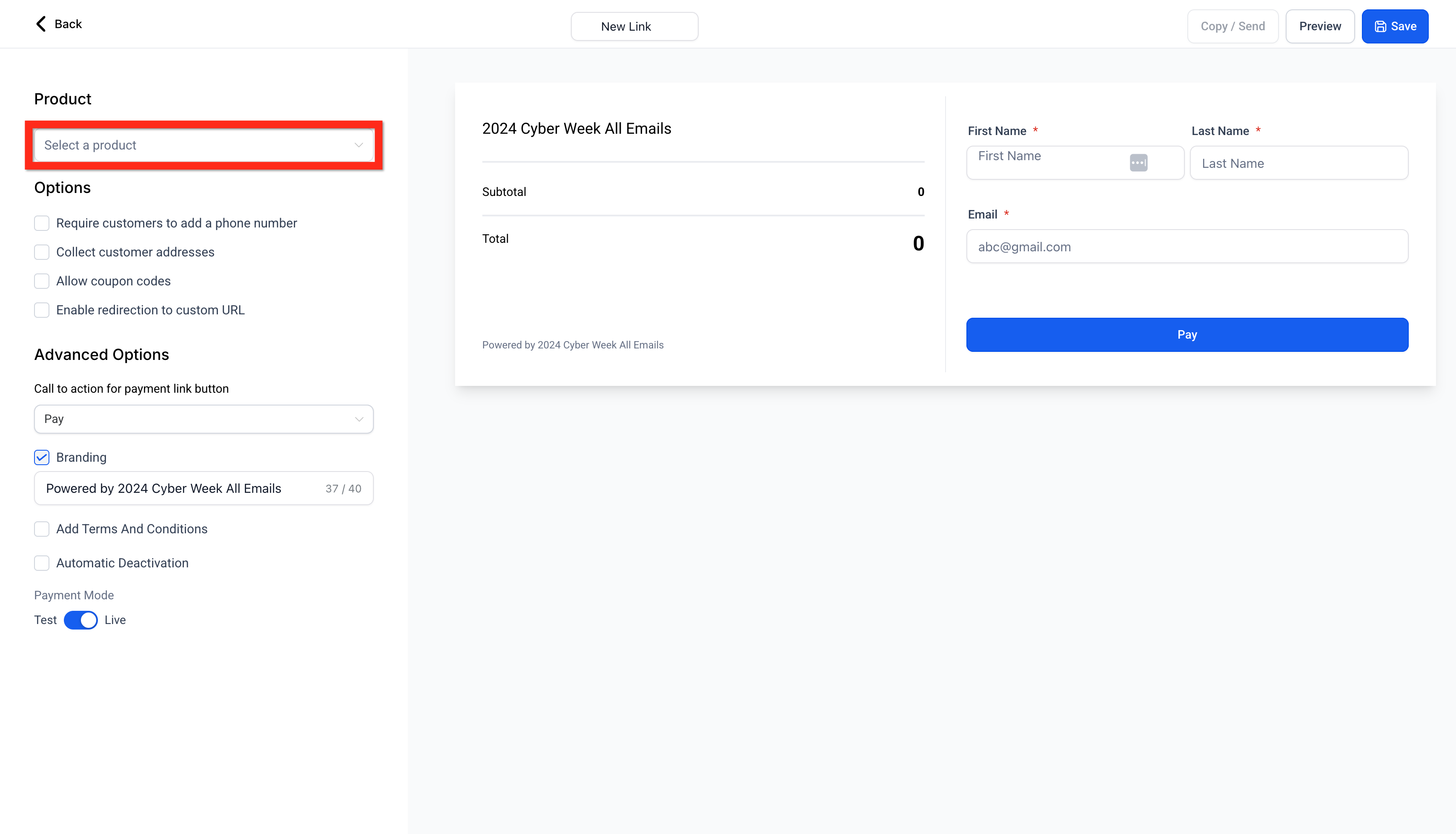
- Select your product.
- Set your preferences, such as quantities and other options.
- Use the preview on the right side of the screen to see how the checkout page will look to your customer.
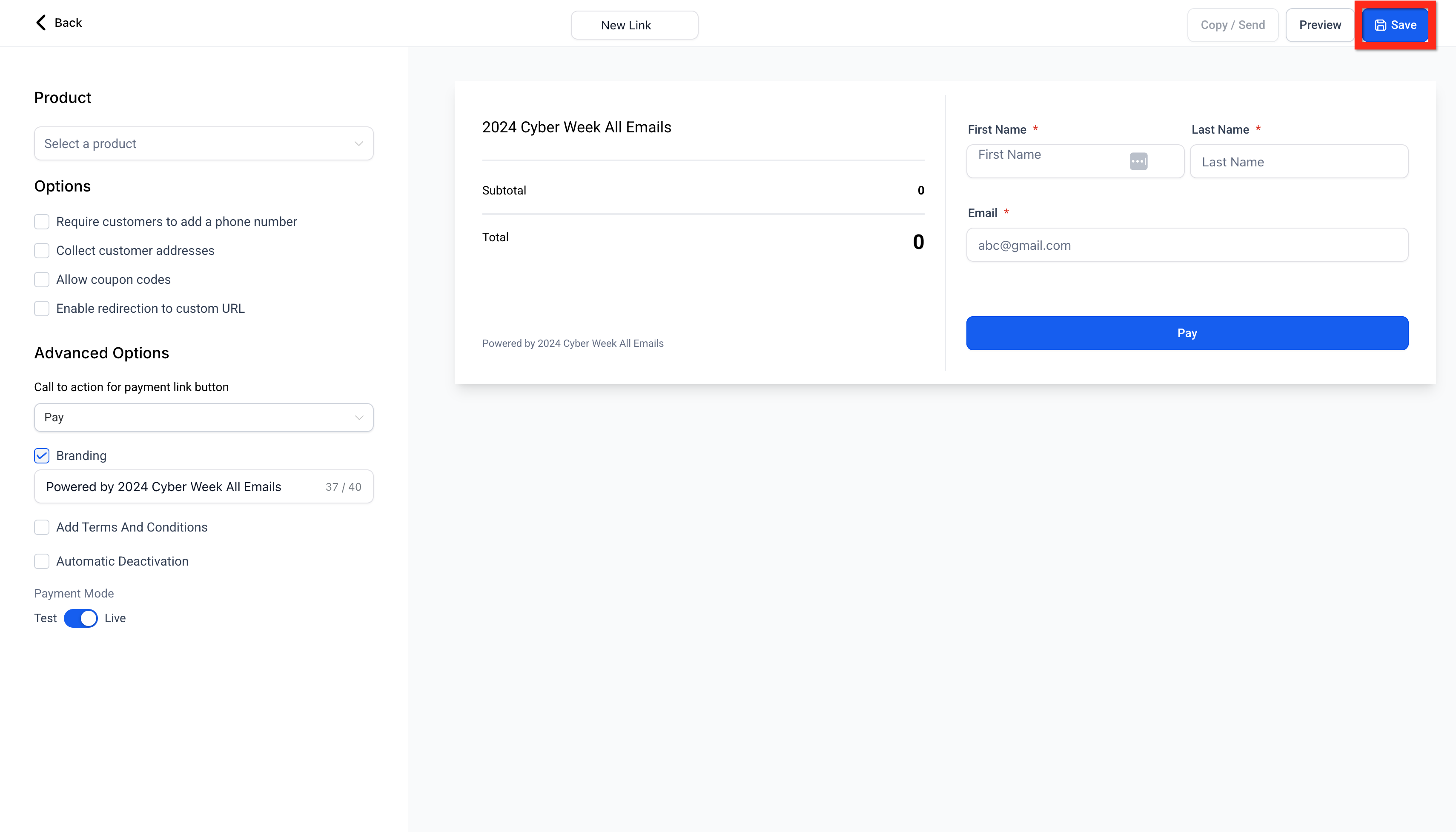
- Click Save.
Tip: The checkout page automatically uses the Platform Language set in your Business Profile. Supported languages include English, Danish, German, Spanish, Finnish, French, Italian, Dutch, Norwegian, Portuguese, and Swedish.
Step 2 (Optional): Add a Coupon Code
Want to offer a discount? You can allow coupon codes on your payment link.
- While setting up your payment link, find the coupon code option.
- Check the box to turn coupon codes on.
- Enter the coupon code you want customers to use.
- Save your payment link.
Your customers can then enter the code at checkout to get their discount.
Step 3: Share Your Payment Link
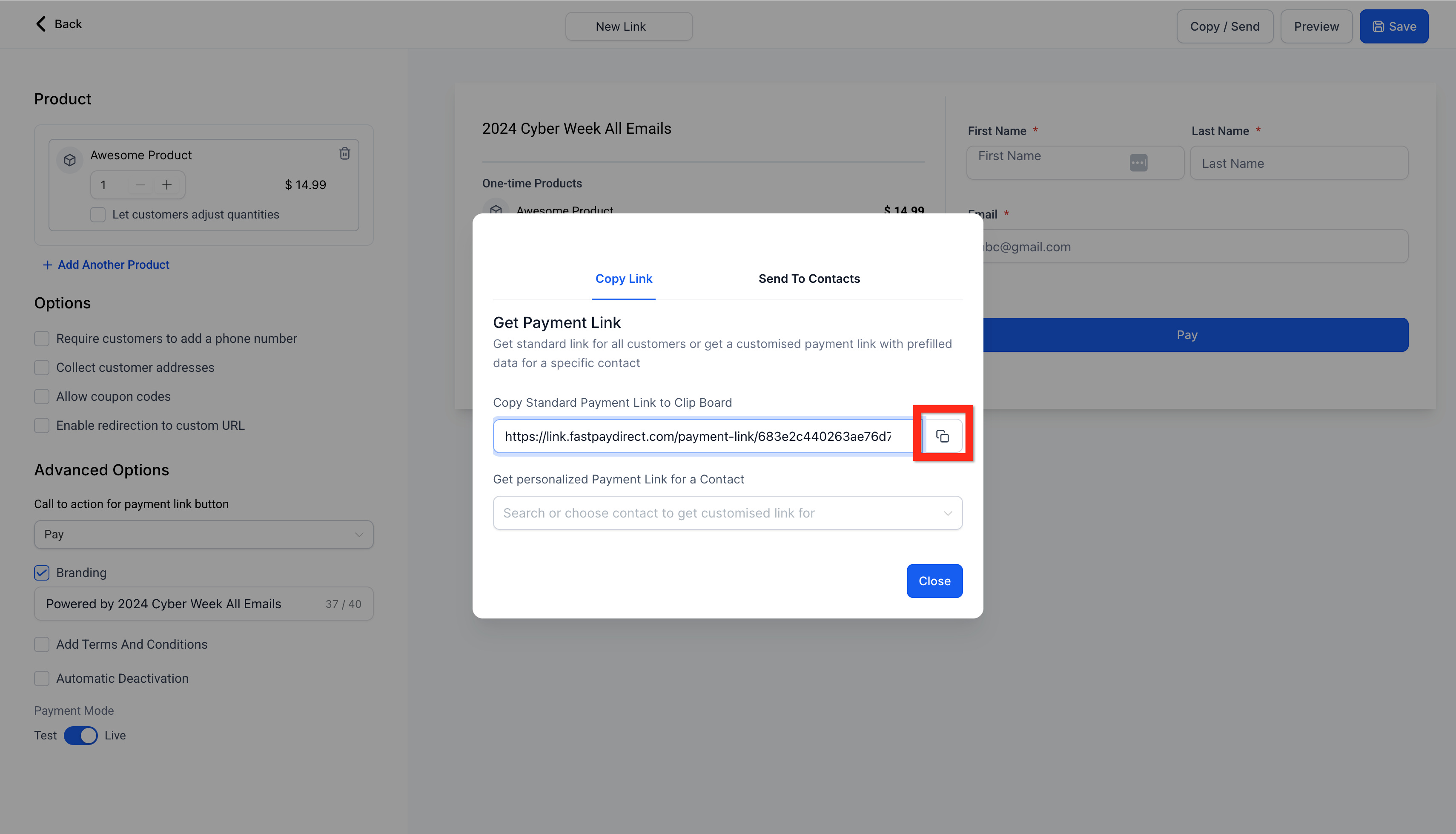
Click Send and choose how you want to share it:
- Generic link: Anyone with the link can use it. This works well for email, text, or social media.
- Personalized link: Only the person you send it to can use it.
- Send to contacts: Send the link directly to contacts already saved in your account.
What's Next?
Once your payment link is working, you can make the checkout experience even better:
- Customize your payment link with your brand colors for a polished, on-brand checkout.
- Turn on editable quantities so customers can choose how many they buy.
- Set up automatic taxes so pricing is accurate at checkout.
- Send personalized payment links to several contacts at once.
Comments
0 comments
Please sign in to leave a comment.