
TikTok has millions of active customers, but without the right tools managing conversations, contacts, and automations can be overwhelming. Captivation Hub's TikTok Messaging integration brings TikTok DMs and comment automations directly into your account — so you can manage everything from one place.
This guide explains how to configure each component correctly.
About TikTok Messaging & Comment Automation
With TikTok Messaging in Captivation Hub, you can automate conversations and interactions on TikTok just like you do on Facebook and Instagram. All touchpoints are managed inside the Captivation Hub Conversations inbox and stored on contact records.
Eligible Geographies
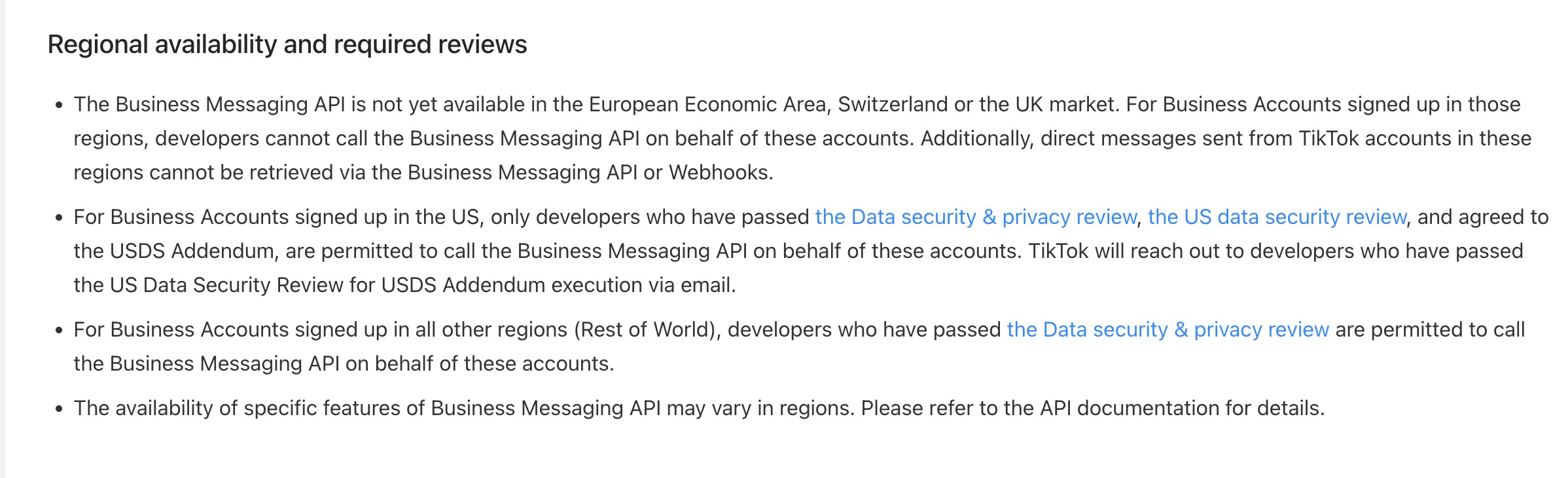
TikTok Messaging & Comment Automation is not yet available in the European Economic Area (EEA), Switzerland, or the United Kingdom (UK). Currently, this feature is available only for business accounts registered in the United States. This limitation is due to restrictions within TikTok's public APIs.
Integrating your TikTok Account
Before proceeding, make sure your TikTok accounts are integrated with your Sub-Account. Go to Settings > Integrations > TikTok and connect your account.
Components
Triggers:
- TikTok Comment on a Reel — workflow starts when there is a new comment on your TikTok post.
- Customer Replied — select a reply channel like TikTok messenger.
Actions:
- Reply In Comments — reply to a comment with a comment under it.
- TikTok Interactive Messenger — automate DM replies and nurture sequences.
How will TikTok Comment Automation Work?
Setup Trigger: TikTok Comment(s) on Reel
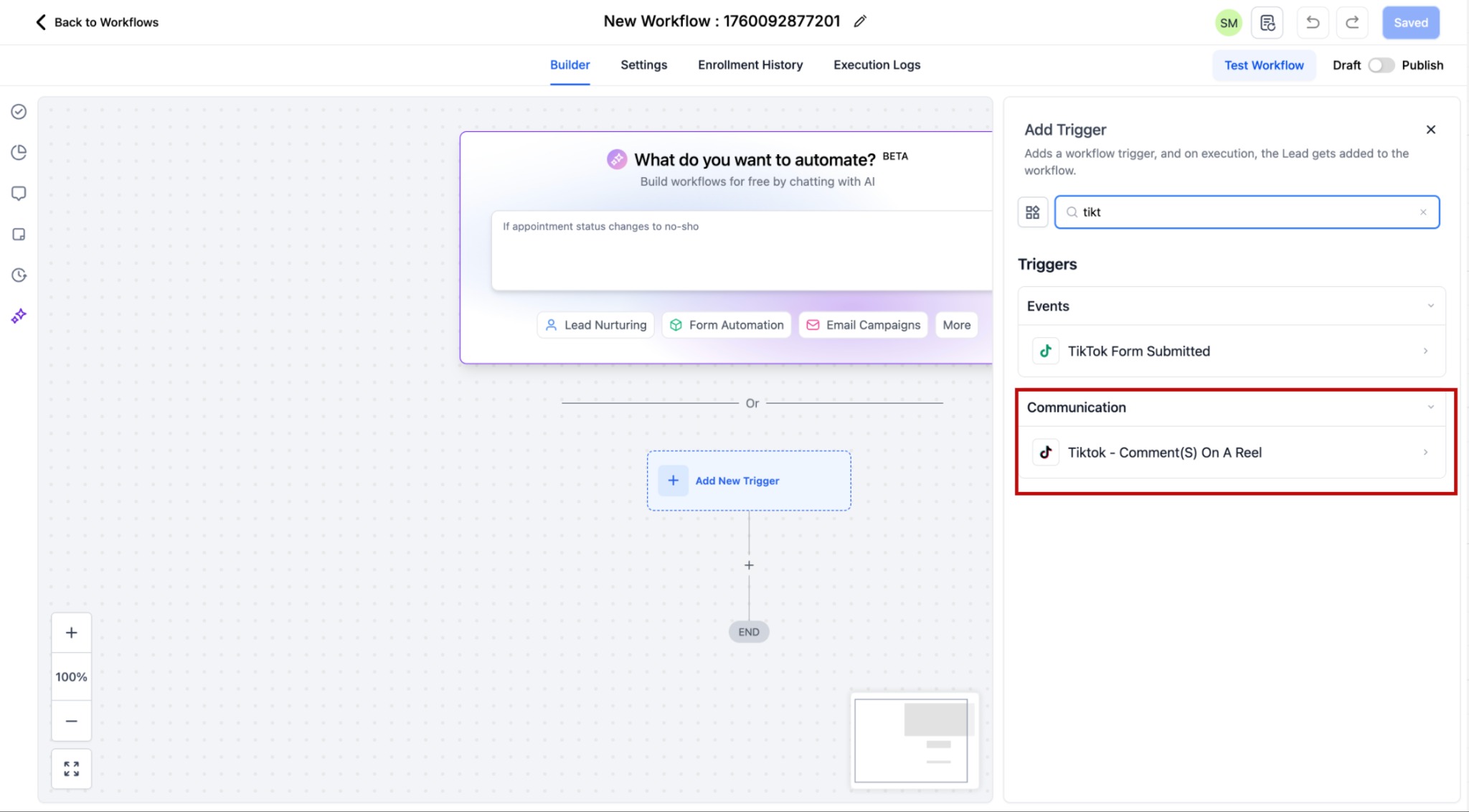
When creating a workflow, click Add Trigger. The triggers related to comment automation are found in the TikTok section.
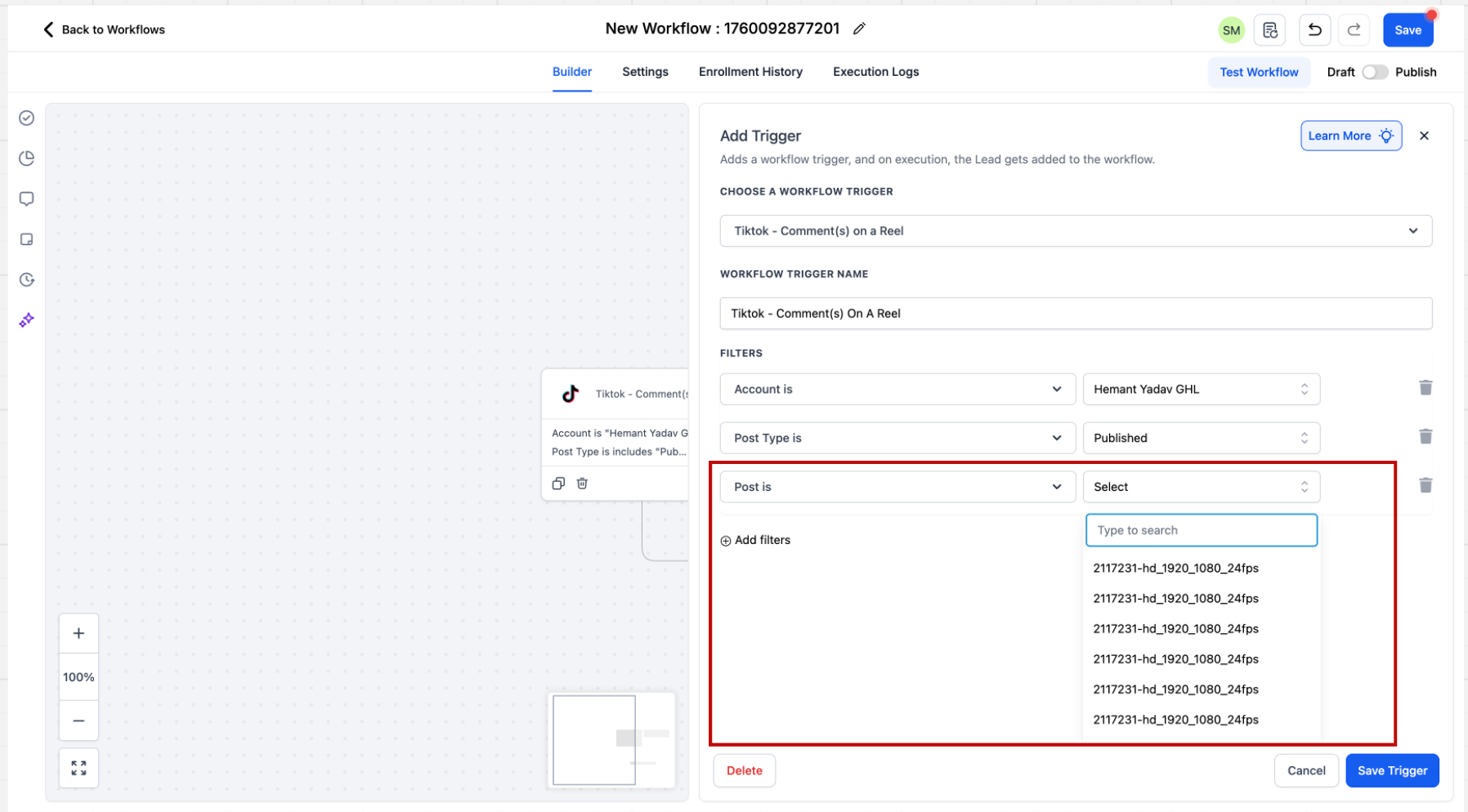
1. Go to Triggers and select TikTok – Comment(s) on a Post from the available triggers.
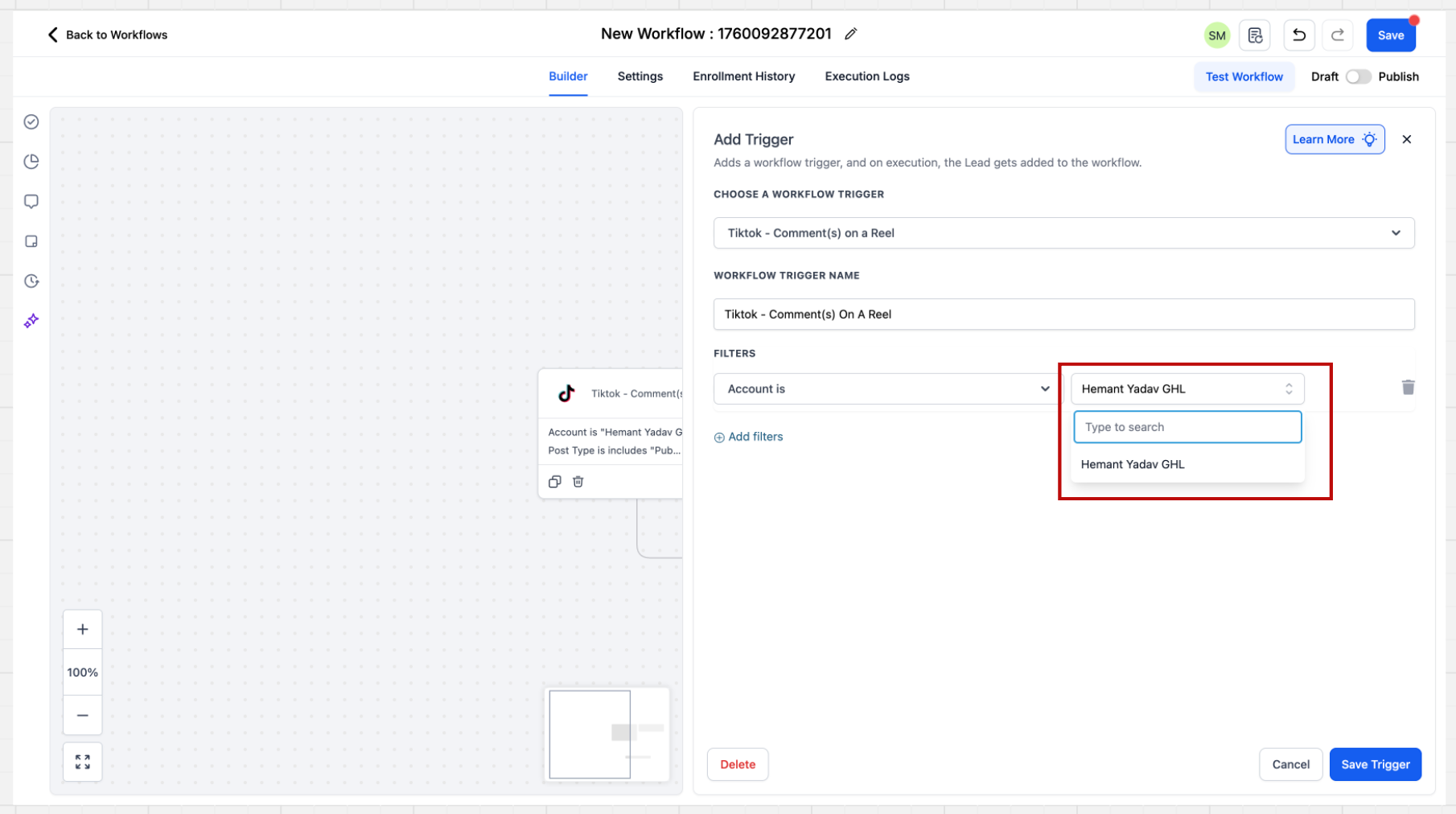
2. After clicking on the trigger, the sidebar will open with multiple filters. The first filter is the Account filter. Select the TikTok account you want to monitor. If no specific account is selected, the system will automatically consider all connected accounts.
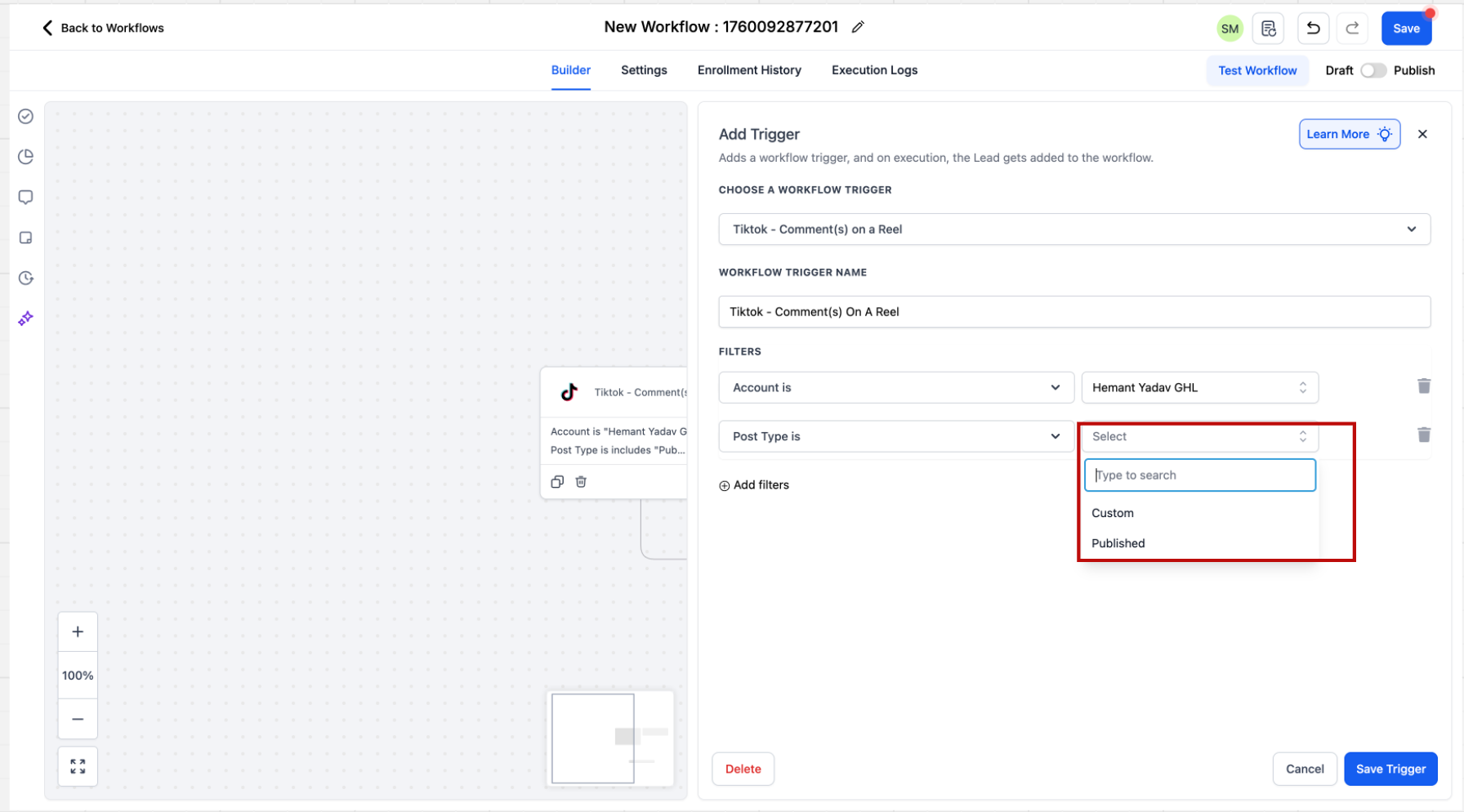
3. After selecting the account, choose the Post Type: Published or Custom.
- Published Post — fetches all posts on your business page; all existing posts will be listed for selection.
- Custom Post — allows you to define the post by providing a URL.
Post Selection Behavior: If no specific post is selected, the system will automatically include all posts associated with the account.
4. Select the post or provide the URL you want to run the automation on.
5. Enter what you are looking for in the comment. You can select from matching options:
- Exact Match – "Price" → Inbound: "Price" → Pass
- Exact Match – "Share the Price" → Inbound: "Share the Price" → Pass
- Exact Match – "Share the Price" → Inbound: "Please share the Price" → Fail
- Contains Exact Phrase – "I bought from you" → Inbound: "I bought from you" → Pass
- Contains Exact Phrase – "I bought from you" → Inbound: "I bought from you yesterday" → Pass
- Contains Exact Phrase – "I bought from you" → Inbound: "I bought one from you" → Fail
When will the contact be saved? When a contact comes through this trigger, they will be saved as a contact and their First Name and Last Name will be captured automatically.
Setup Action: Reply in Comments
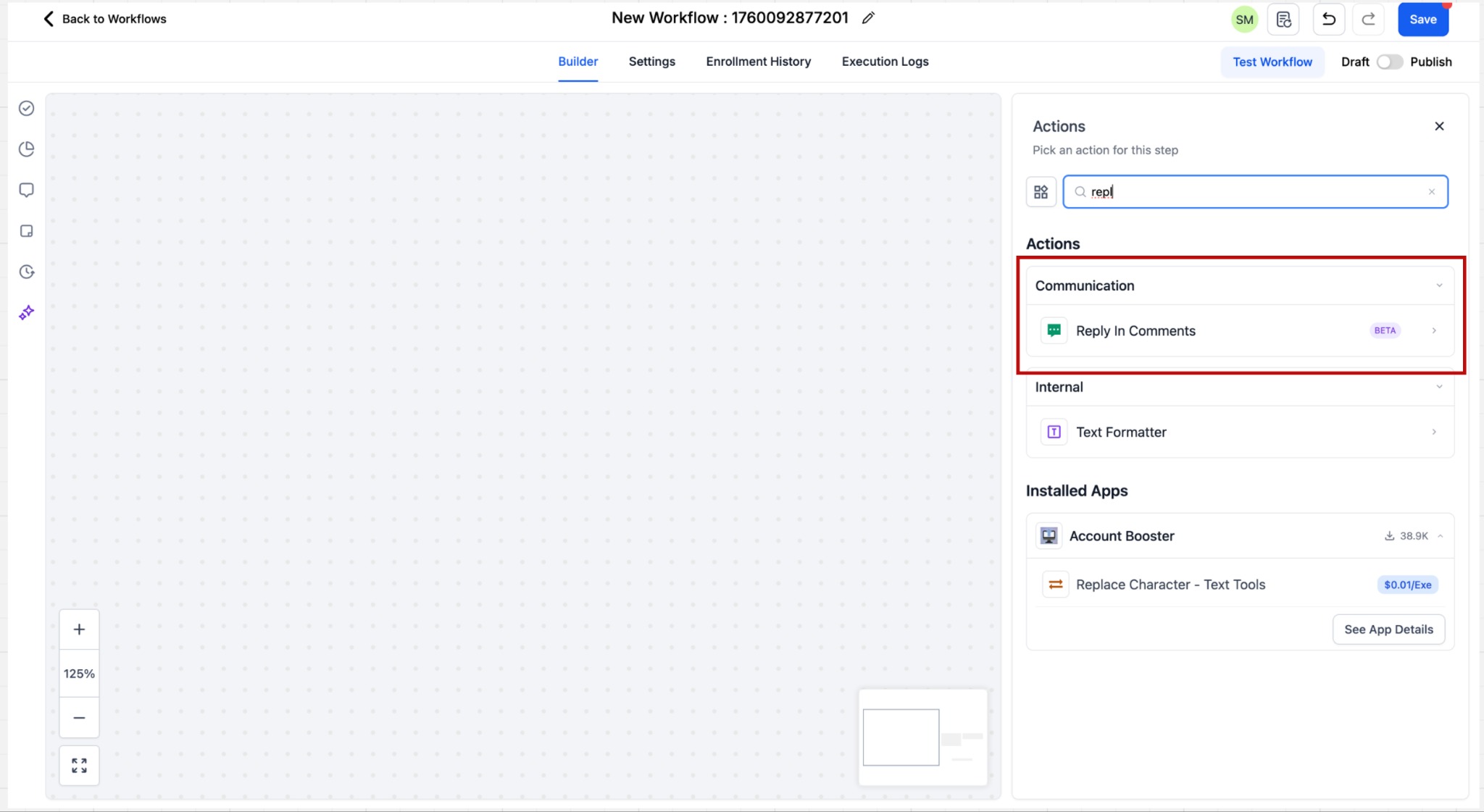
Go to Actions and select Reply in Comments from the Communications section.
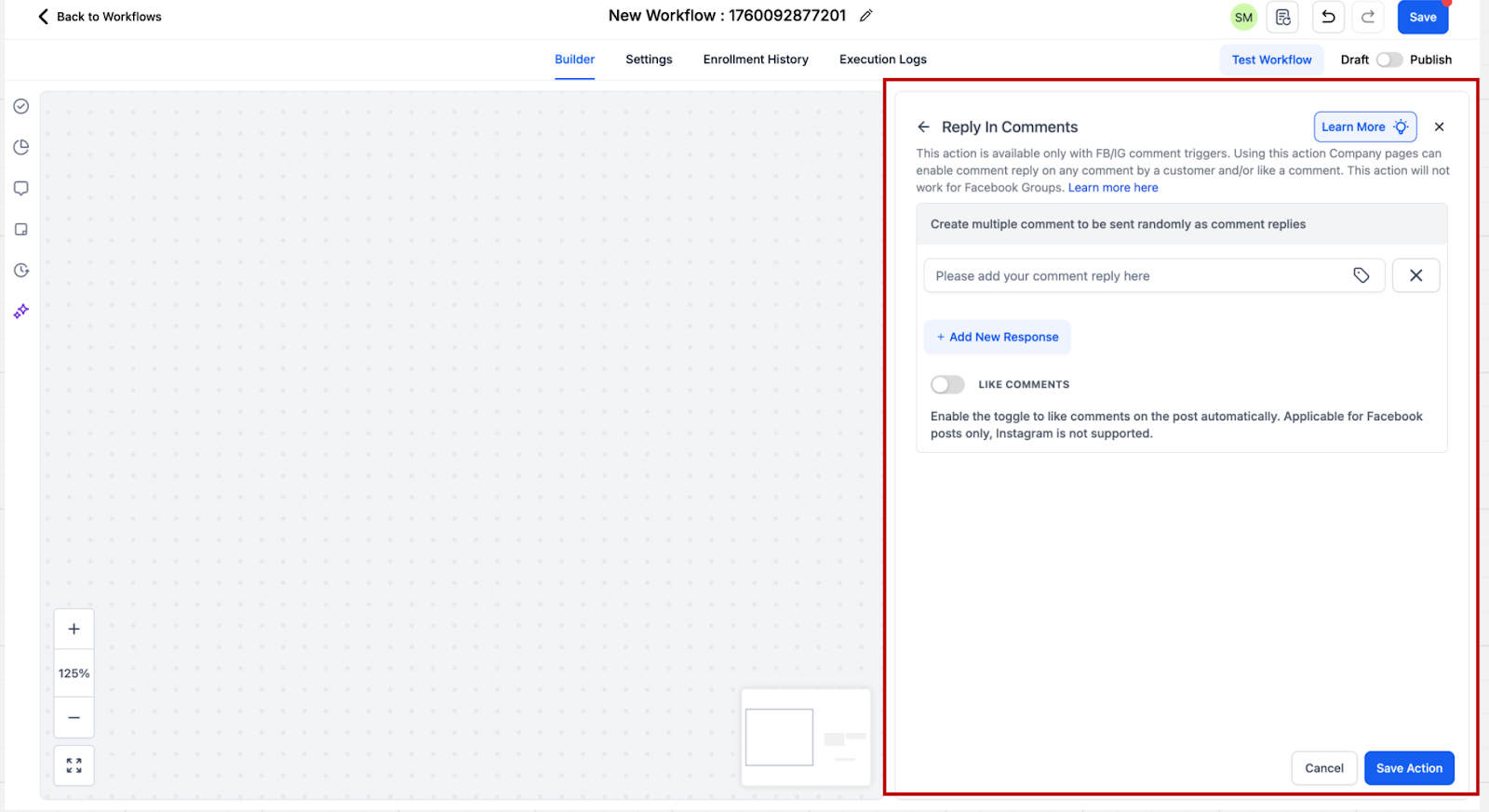
You can configure up to 10 reply comments, which will be randomly selected during execution.
How will TikTok DM Automation Work?
Trigger: Customer Replied
When creating a workflow, click Add Trigger. The trigger related to DM automation is Customer Replied.
1. Go to Triggers and select Customer Replied from the available triggers.
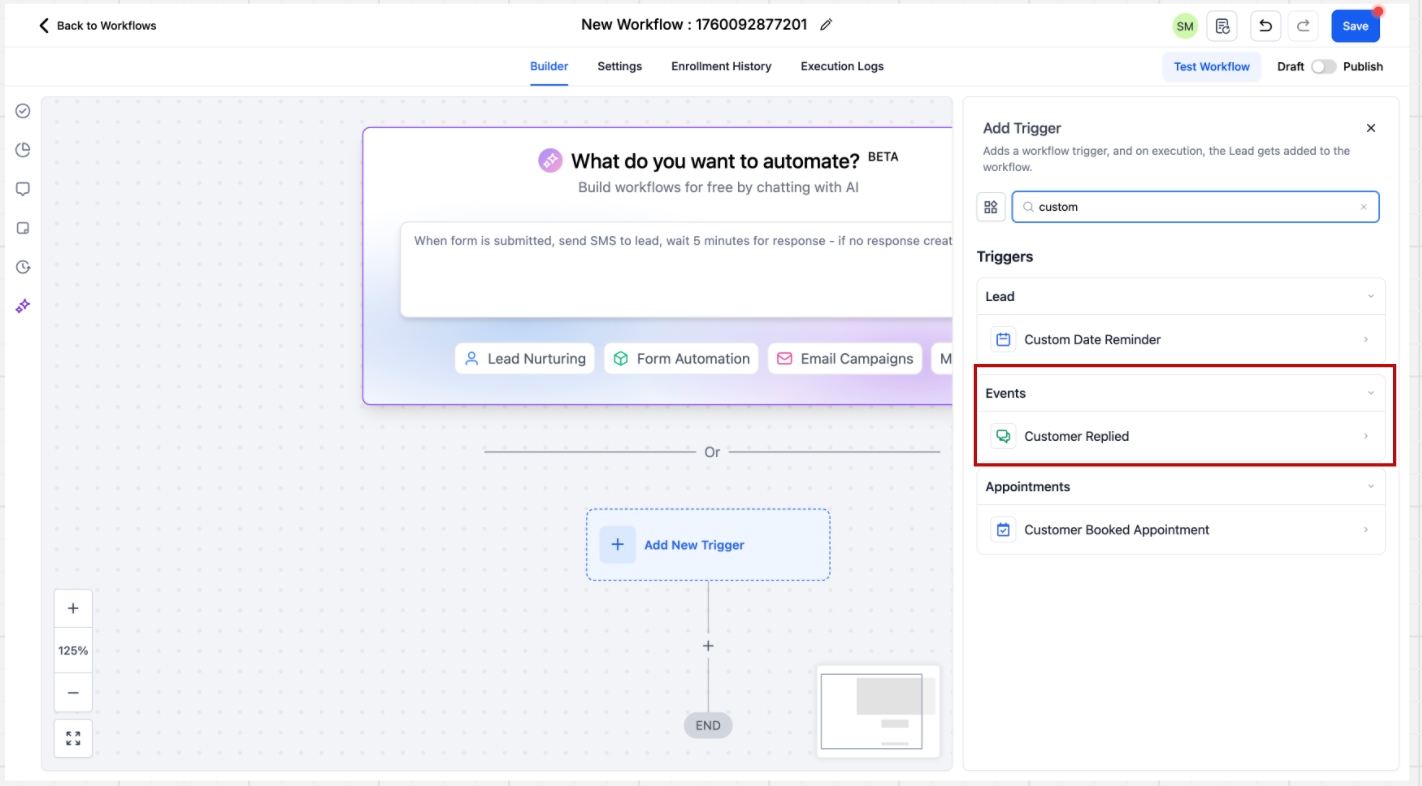
2. After clicking on the trigger, the sidebar will open with multiple filters. Select TikTok as the Reply Channel.
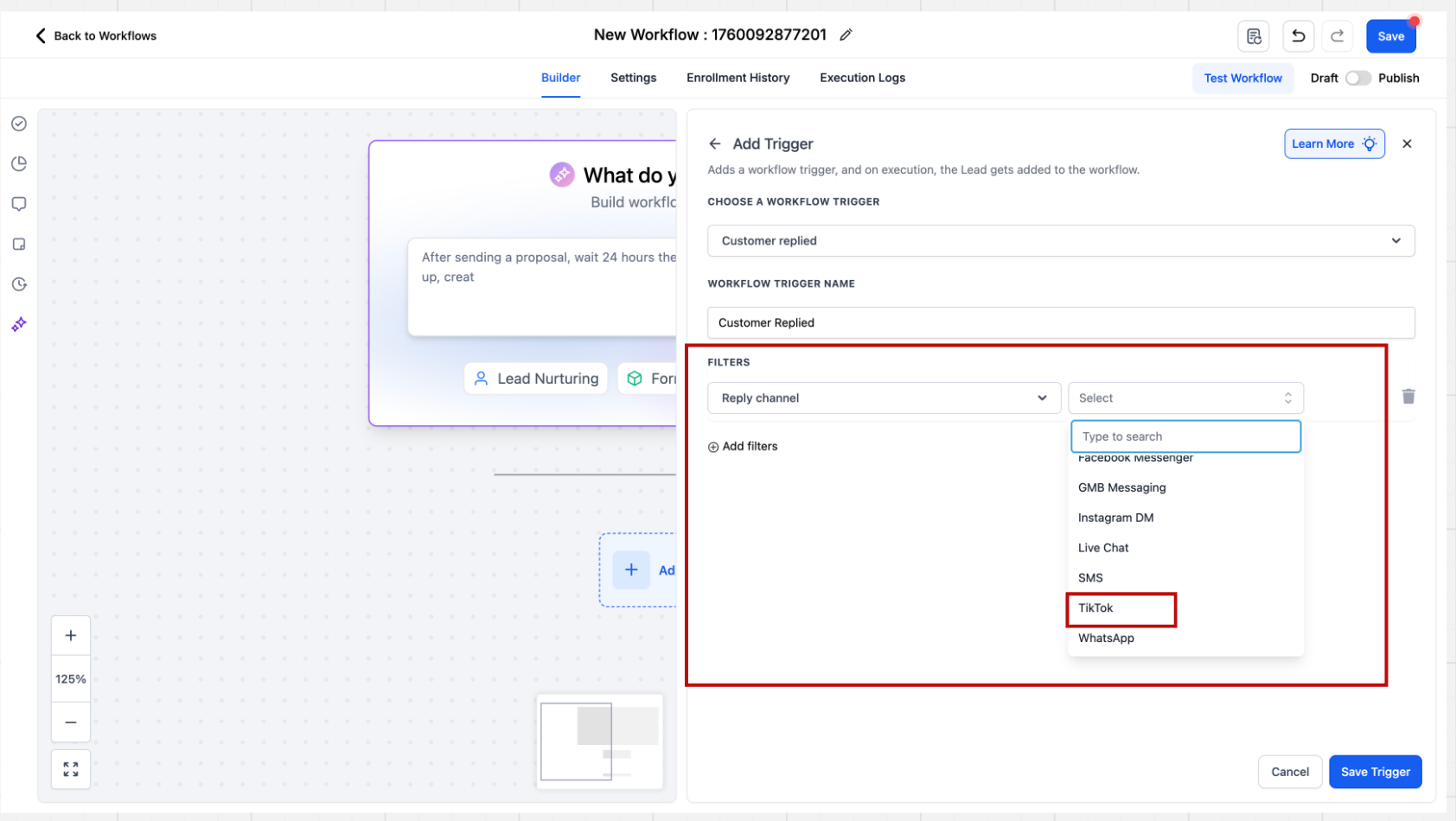
3. Configure automation rules for direct messages by setting specific matching conditions, such as keyword filters, to control when the workflow fires.
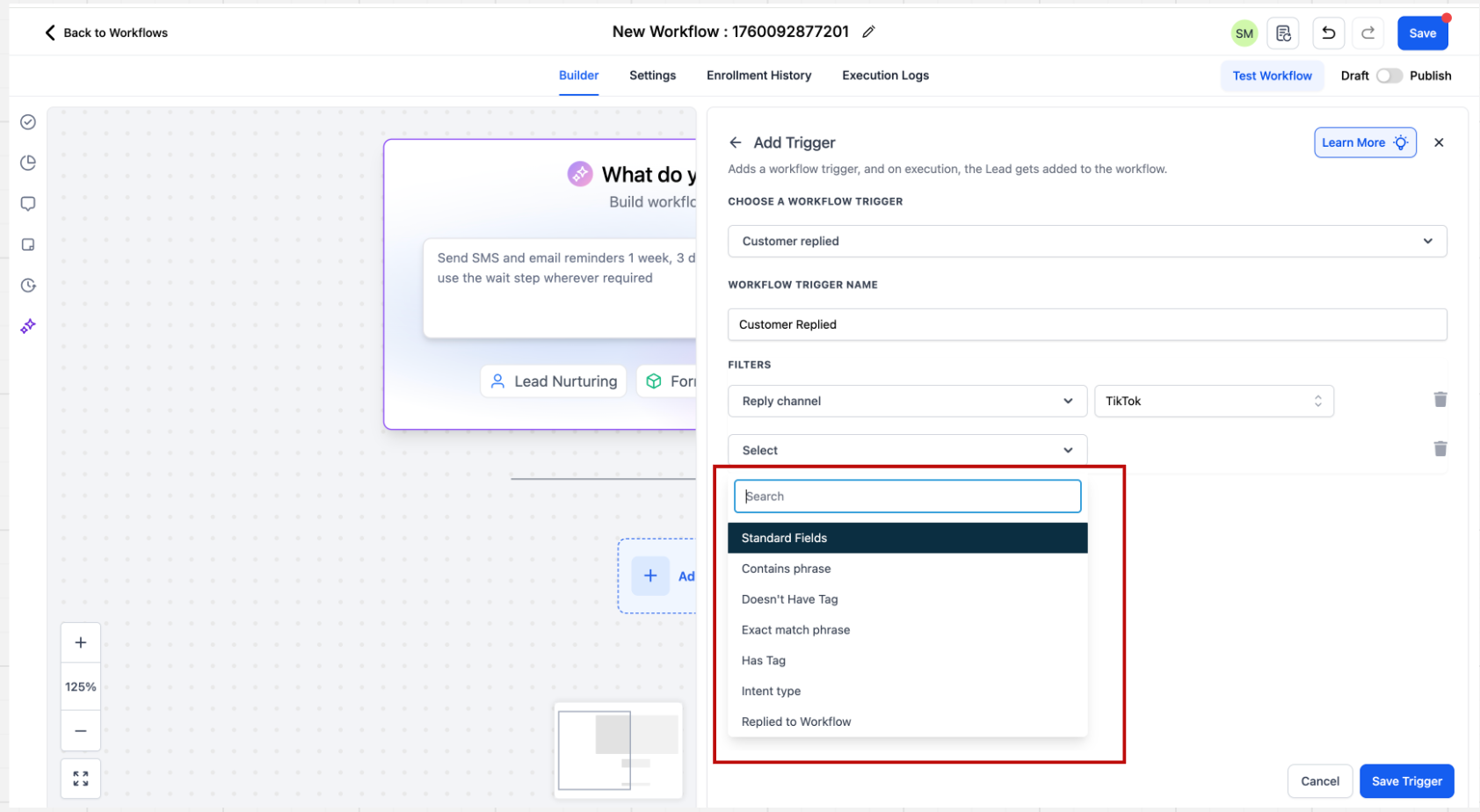
4. Based on the above configurations, define the trigger for your automation.
Setup Action: TikTok Interactive Messenger
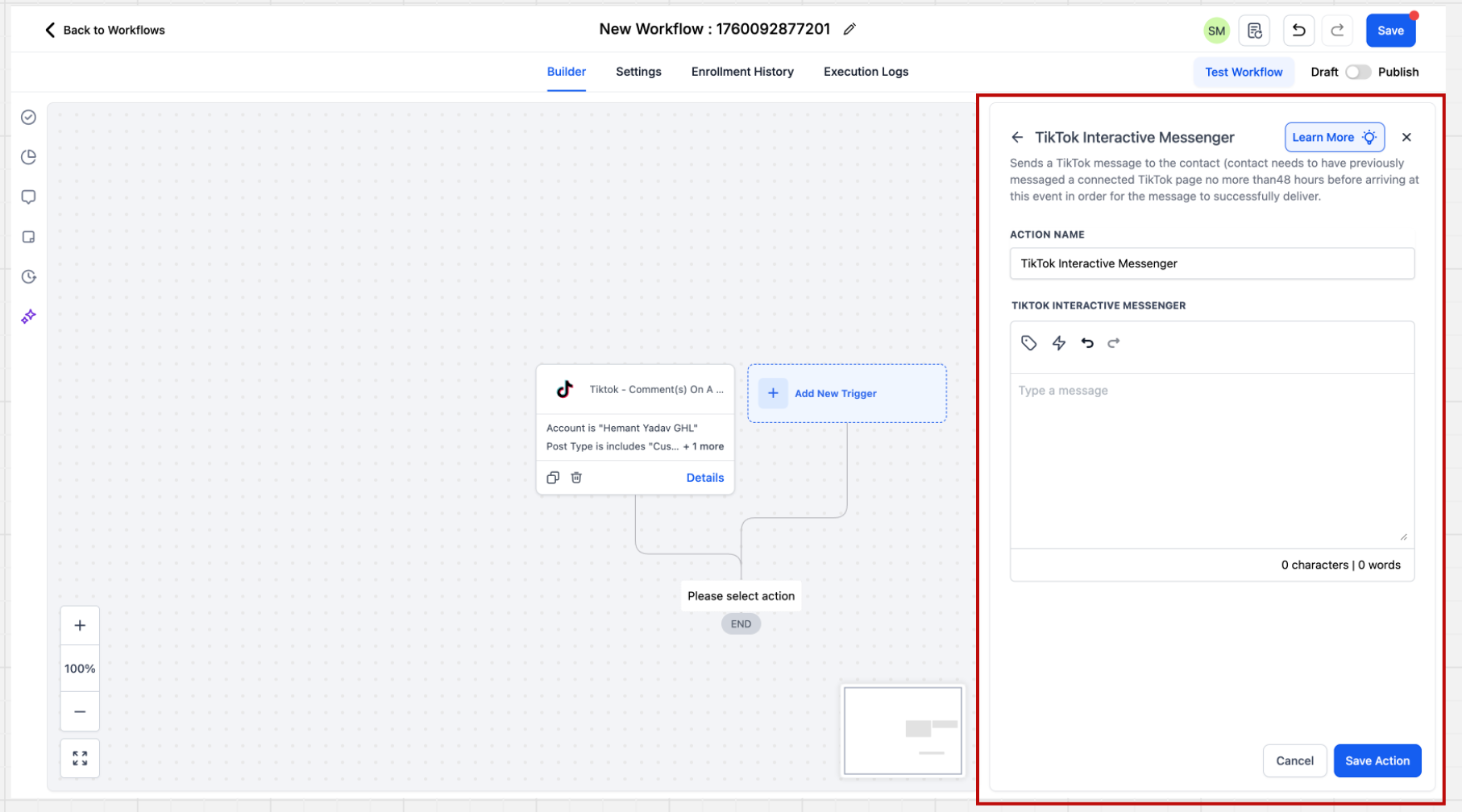
In the Communications category of Workflow Actions, select TikTok Interactive Messenger. On selecting the action, the sidebar will open where you can provide the message you want to send.
Important Points to Note
- The TikTok Interactive Messenger action, unlike Facebook & Instagram, does not support a "Reply Type" field — only direct messages are sent.
- The TikTok Interactive Messenger action, unlike Facebook & Instagram, does not support Templates (this will be enabled in a future update).
- The TikTok Interactive Messenger action does not support Attachments, Buttons, or Quick Replies (these will be enabled in a future update).
Comments
0 comments
Please sign in to leave a comment.