
Adding a domain to your account enables website and funnel functionalities to be created and utilized. A domain refers to the web address — for example, a root domain like mydomain.com or a subdomain like www.mydomain.com. To begin, establish a domain with a registrar like Cloudflare, GoDaddy, or others. Afterward, you can integrate the domain into the system for use.
Please Note: This article covers how to manually configure a domain. To learn how to use the automated Domain Connect feature, click here.
How to Configure Domains for Funnels and Websites
To set up your new domain, follow the instructions below:
Step 1: DNS Setup — Add an A Record or CNAME Record
You must complete this step within your domain registrar, such as Cloudflare or GoDaddy. Based on your domain host, you can choose one of the following two methods:
CNAME Method
You can add a CNAME record for your subdomains using the value sites.ludicrous.cloud.
Important:
- In your DNS provider, the Host/Name should be only the subdomain part (for example,
wwwforwww.mydomain.com, orsubforsub.mydomain.com). - The Value/Target should be
sites.ludicrous.cloud. - Do not create both a CNAME and an A record for the same host (for example,
www). Choose either the CNAME method or the A record method below.
Instructions on adding a CNAME record to various domain registrars:
- Namecheap instructions
- GoDaddy instructions
- Cloudflare instructions
- Wix instructions
- Hostinger instructions
- BlueHost instructions
Please Note: If you are using Cloudflare, please make sure that the Proxy status is set to DNS only as we do not support Cloudflare Proxy.


A Record Method
Alternatively, you can add an A record for your root domain or subdomain, directing it to 162.159.140.166.
- Namecheap instructions
- GoDaddy instructions
- Cloudflare instructions
- Wix instructions
- Hostinger instructions
- Bluehost instructions
Please Note: If you are using Cloudflare, please make sure that the Proxy status is set to DNS only as we do not support Cloudflare Proxy.


After adding your domain to the domain registrar, it might take some time for the DNS settings to propagate, so if it doesn't work immediately, give it some time (up to 24 hours) and try again.
Step 2: Add a Domain/Subdomain to Your Account
Go to Settings in the left navigation menu.
Next, go to Domains & URL Redirects > click the + Connect a domain button.
Click on Connect for the option Funnel/Website/Store/Blog/Webinar.
Type in the domain or subdomain and click the Continue button.
For Root Domains (e.g. mydomain.com)
Enter your domain in the Domain URL field (use the root domain, not the subdomain), then click the Add record manually link.
- By default, the system will enable adding the
wwwsubdomain in addition to the root domain. - This option will also enable a 301 redirect so that all traffic to the
wwwsubdomain will be sent to the root domain.
Note: Clicking the Continue button will initiate the "Domain Connect" feature, which will look up where the domain is registered and attempt to authorize a connection to automatically add the necessary DNS records. If your registrar is not supported yet, you will be prompted to manually add the DNS records with your domain registrar. Click here for more information about that process.
For Subdomains (e.g. sub.mydomain.com)
Enter your subdomain in the Domain URL field, then click the Add record manually link.
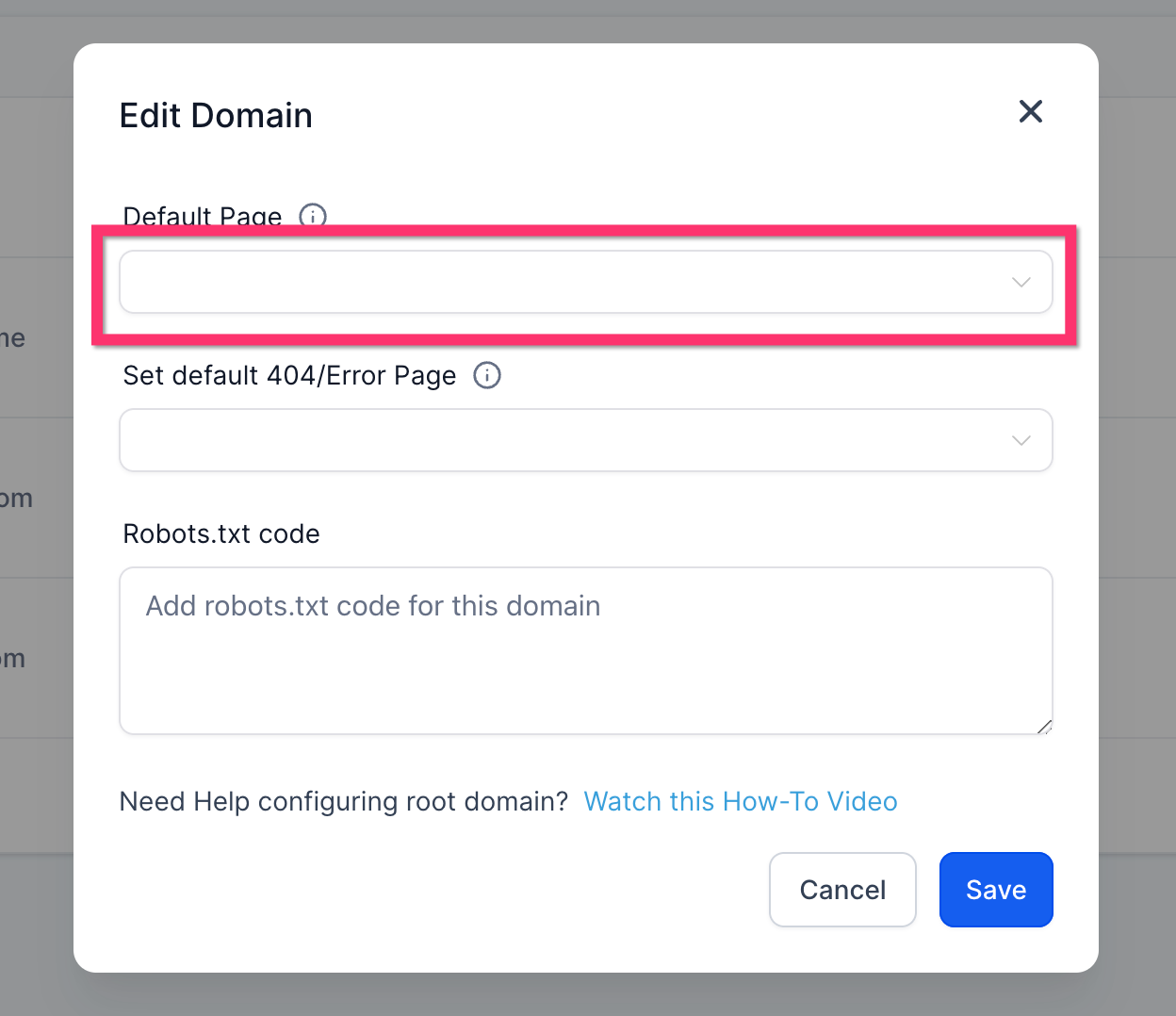
Note: If you want a funnel step or website page to open without a path (domain.com instead of domain.com/home), you can select that page as the default page for that domain. A default page can be selected from Settings > Domains & URL Redirects > Manage Domain > Edit Domain.
Step 3: Associate the Domain to a Funnel/Website
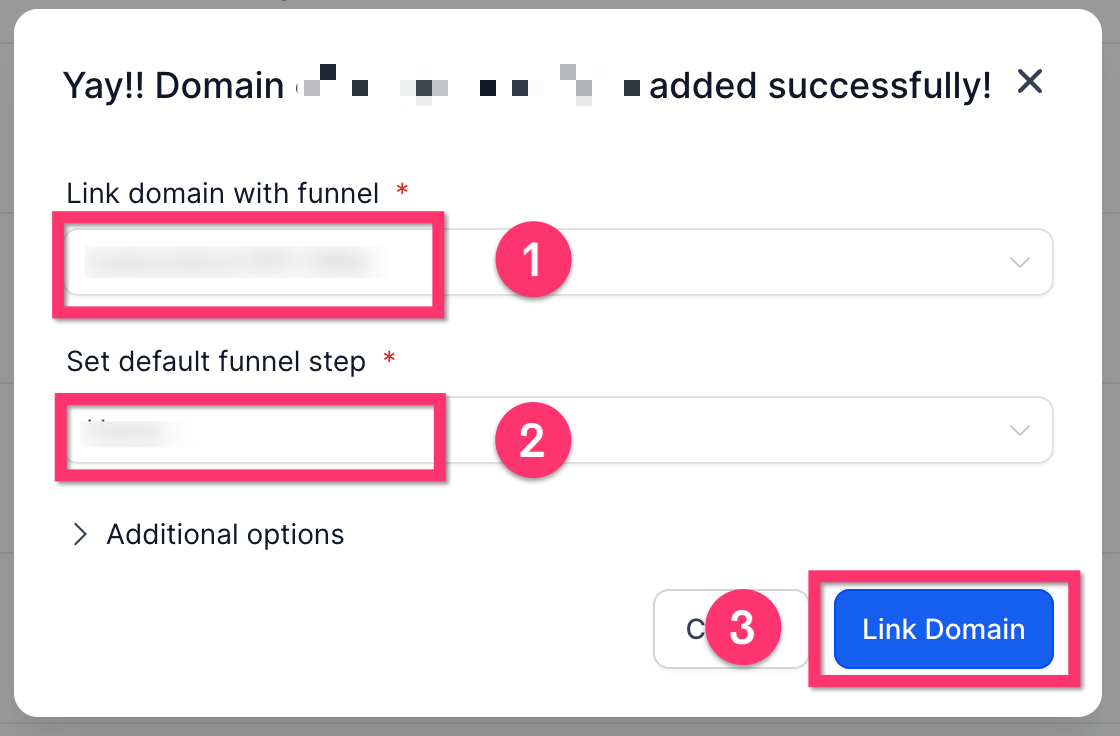
Once the DNS records have been verified, you will be presented with a screen where you can choose which funnel or website you'd like to link.
- First, choose the funnel or website.
- Then, you'll be presented with a choice of which funnel step or page of a website you'd like to be the default landing page.
- Finally, click the Link Domain button. This will complete the process and add an SSL certificate automatically. Please note that it will take a few minutes to complete on the backend.
How to Check Your DNS Records (DNS Lookup Tool)
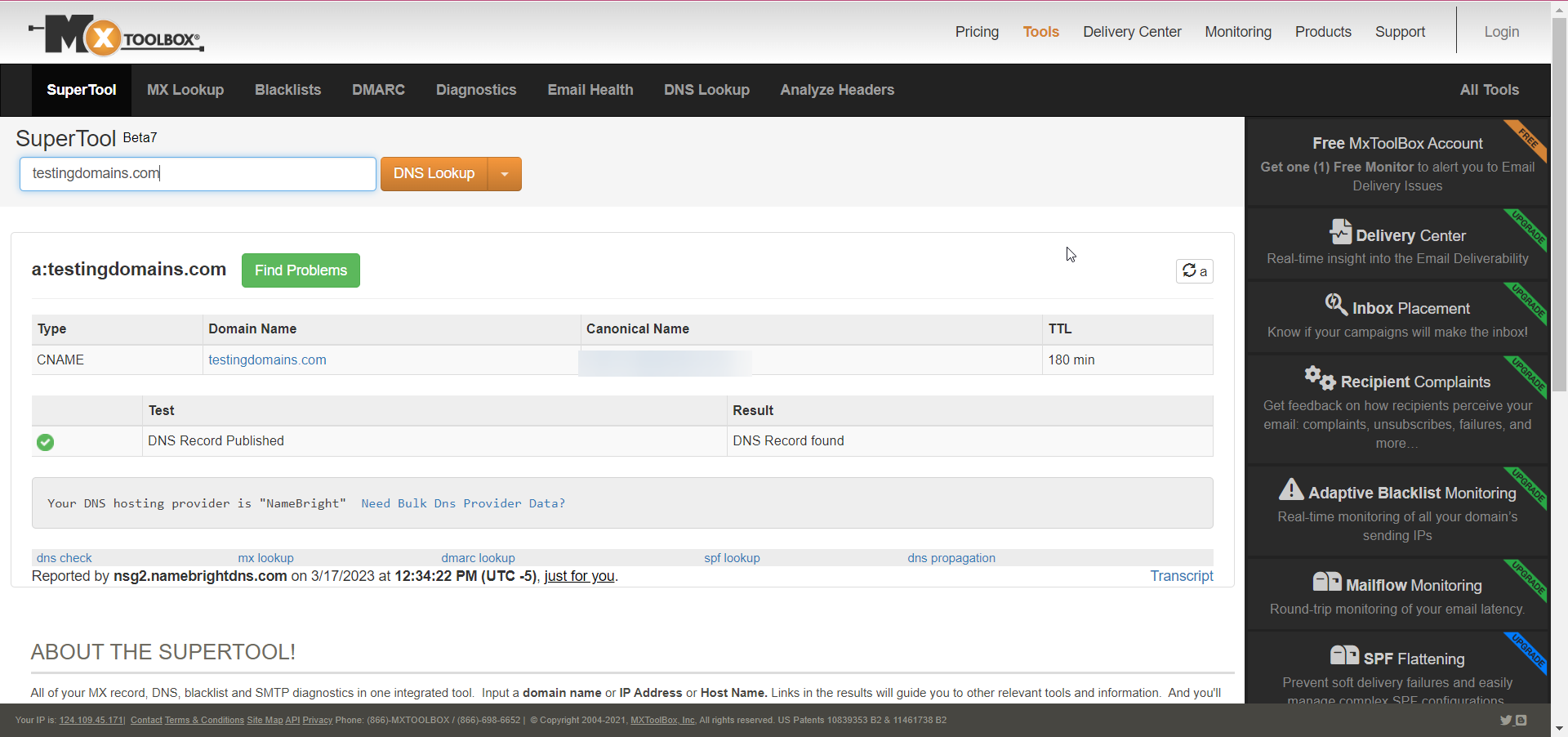
MXtoolbox is a popular online tool that can help you check your domain's DNS records. Follow these steps to use MXtoolbox:
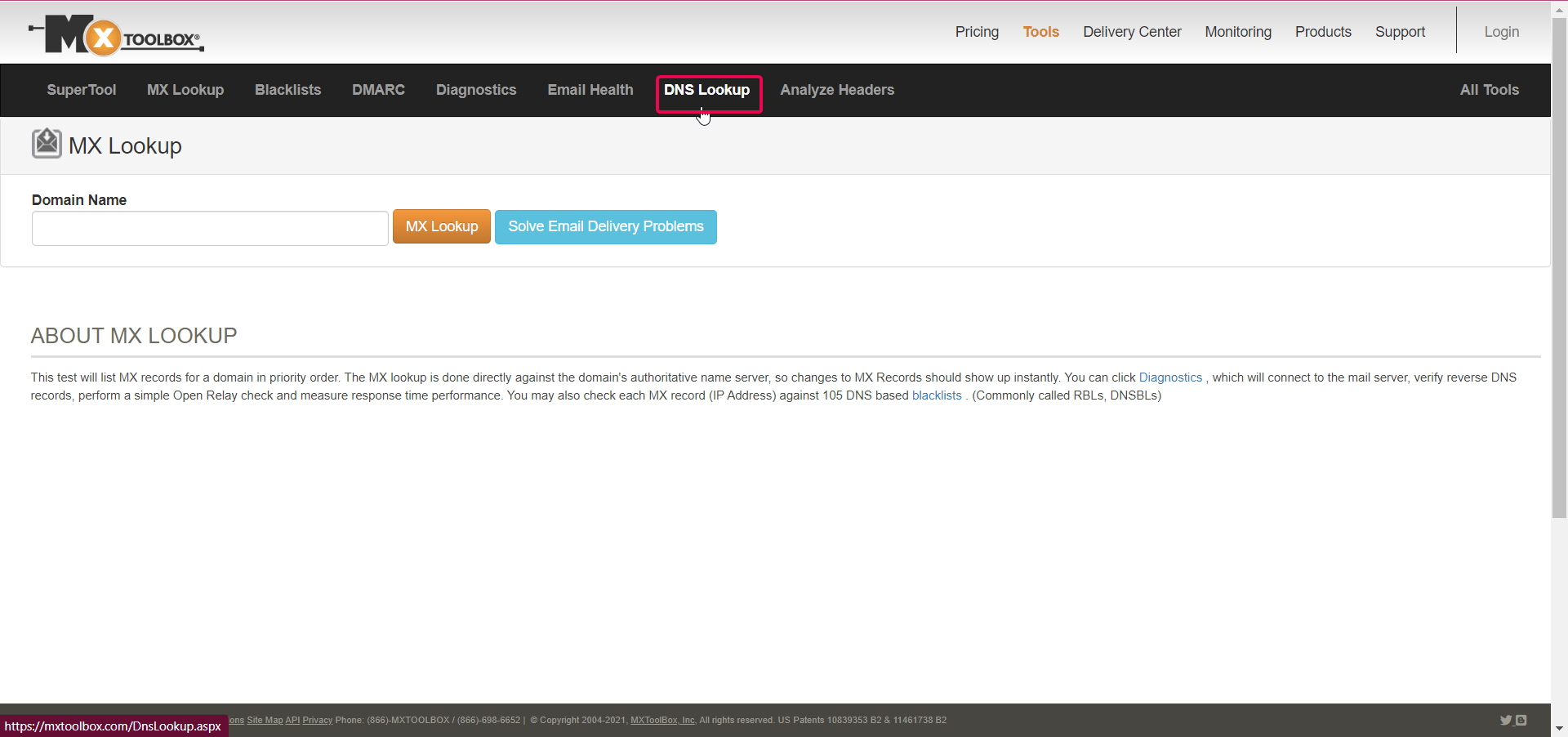
- Go to the MXtoolbox website at https://mxtoolbox.com.
- On the homepage, you will see a dropdown menu with options like MX Lookup, DNS Lookup, Blacklists, etc. Click on the dropdown and select the type of DNS record you want to check:
- MX Lookup: Check your domain's mail exchange (MX) records.
- DNS Lookup: Check various DNS records like A, AAAA, CNAME, NS, etc.
- TXT Lookup: Check the text (TXT) records for your domain (SPF, DKIM, DMARC).
- CNAME Lookup: Check your domain's canonical name (CNAME) records.
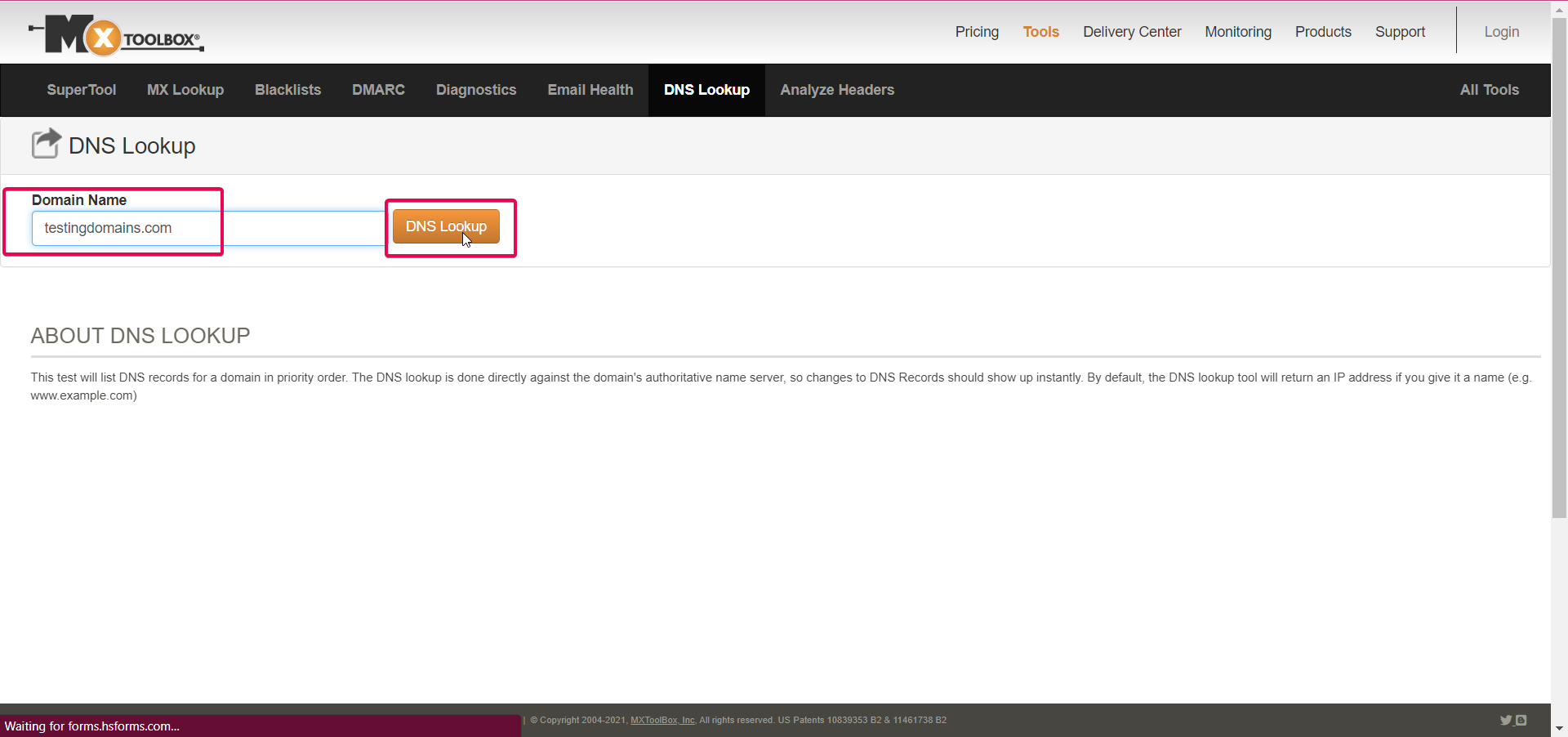
- Enter your domain name (e.g.,
example.com) in the input field next to the dropdown menu. - Click the DNS Lookup button to initiate the search.
- The tool will display the DNS records for the domain you entered. You may need to scroll down to see all the results.
Remember that DNS records might not be updated instantly if you've recently changed your domain's configuration. Changes can take up to 24–48 hours to propagate globally.
Removing a Domain from the Account
To remove a domain from your account, go to Settings > Domains & URL Redirects > Manage. Click on the three dots > Delete > confirm your choice on the confirmation dialog box.
Troubleshooting
What Causes an SSL Error?
An SSL (Secure Sockets Layer) error occurs when there is a problem with the SSL certificate or the SSL/TLS (Transport Layer Security) configuration on a website. SSL/TLS is a security protocol that provides encryption and secure communication between a user's browser and the web server.

If your domain is showing a privacy/SSL error, it can be due to one of the following reasons:
- Multiple DNS (A or CNAME) records exist for the same domain/subdomain. One domain or subdomain can only work with one platform/server at a time, so you need to have only one DNS record set up for that domain/subdomain.
- There is no DNS record added for the domain.
- The domain has an AAAA record added, other than the A/CNAME record.
What Causes the Error "CNAME / A Record Not Found"?
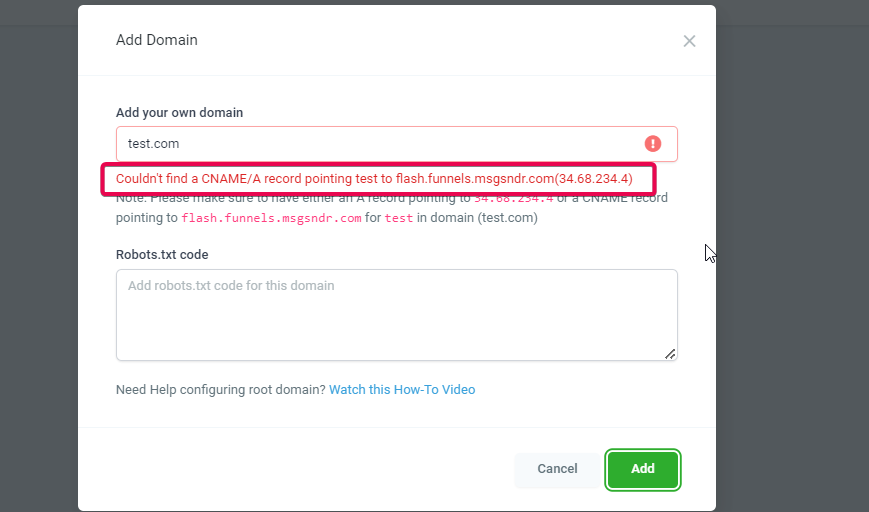
When adding a domain manually in Captivation Hub, you may see an error such as:
"Couldn't find a CNAME/A record pointing
wwwtosites.ludicrous.cloud/162.159.140.166"
This does not mean you should enter the whole text sites.ludicrous.cloud/162.159.140.166 into a single field. It means Captivation Hub could not find either of the following DNS records for the host www:
- A CNAME record with Host/Name:
wwwand Value/Target:sites.ludicrous.cloud - An A record with Host/Name:
wwwand Value/IP:162.159.140.166
If neither of those records exists (or they're set up on the wrong DNS provider), Captivation Hub can't verify the domain and shows the "CNAME / A record not found" error.
How to Fix This Error
- Confirm where your DNS is actually hosted — Use a DNS lookup tool or your registrar dashboard to see which nameservers your domain is using. Make sure you're editing DNS at the correct provider (for example, if your nameservers point to Cloudflare, you must add the records in Cloudflare, not GoDaddy).
-
Check for an existing
wwwrecord — Look for any existing A or CNAME records with Host/Namewww. Ifwwwalready points somewhere else (old website, another platform), you'll need to remove or update that record. Only one record forwwwshould be active. -
Create the required DNS record for
www— Choose one of these methods (do not use both forwww):-
CNAME method (recommended for subdomains): Type:
CNAME| Host/Name:www| Value/Target:sites.ludicrous.cloud -
A record method: Type:
A| Host/Name:www| Value/IP:162.159.140.166
Make sure you only enter
www(or your subdomain) in the Host/Name field — notwww.mydomain.comand nothttps://www.mydomain.com. -
CNAME method (recommended for subdomains): Type:
-
If you're also using the root domain — For a root domain like
mydomain.com, add an A record: Type:A| Host/Name:@| Value/IP:162.159.140.166. The system can automatically enablewwwand a 301 redirect so visitors towww.mydomain.comare redirected tomydomain.com. - If you are using Cloudflare — Make sure the CNAME or A record for your domain/subdomain is set to "DNS only", not "Proxied." Captivation Hub does not support Cloudflare's proxy on the records used to connect funnels/websites.
- Allow time for DNS propagation — After making changes, DNS can take up to 24 hours to update globally. If the error persists immediately after updating DNS, wait a bit and then click Retry/Continue in the domain connection screen inside Captivation Hub.
-
Re-check with a DNS lookup tool if needed — Confirm that
www.yourdomain.comhas either a CNAME →sites.ludicrous.cloudor an A record →162.159.140.166. Once that record is visible, Captivation Hub should successfully verify the domain.
If your domain shows a 404 error intermittently, you might be using the www/root domain with your funnel/website. In that case, ensure you have added a redirect from www to the non-www (root) domain or from the non-www domain to www.
Why Do My Cloudflare Domains Not Work with a Proxy?
If your DNS setup is accurate but you're still getting a privacy error, your funnel/website is not showing images, or you cannot add the domain — you need to make sure you've set the proxy status inside Cloudflare to "DNS Only."
When the CNAME/A record has proxy status set to "Proxied," it shows an error. Cloudflare proxy status is only to be set to "Proxied" when setting up a redirect (only use this by following the exact instructions mentioned in the steps to set up a redirect).

Frequently Asked Questions
Q: Can I use the same domain with more than one platform?
No, one domain/subdomain can only be used with one platform/server at a time (WordPress, Wix, etc.). If you already use mydomain.com with WordPress, use site.mydomain.com with Captivation Hub or a different domain. Also, if you're using a domain/subdomain with funnels/websites, it can't be used with memberships or some other feature hosted on a different server.
Q: Can I add the same domain to more than one account?
Yes, you can add the same domain to multiple sub-accounts within the same agency.
Q: How many domains can I add to one account?
You can add as many as needed. There is no limit.
Q: Do I have to purchase SSL for the domain separately?
No, our system generates SSL automatically once you've added the domain successfully. You don't need to purchase it separately.
Q: Can I buy a domain from you directly?
Yes! You can now purchase domains directly through Captivation Hub using our integrated Domain Marketplace.
Q: How many funnels/websites can I connect with one domain?
You can connect as many as needed within the same agency. There is no limit.
Comments
0 comments
Please sign in to leave a comment.