
All messaging transmitted through Captivation Hub, regardless of use case or phone number type, including long code or toll-free, must comply with Application-to-Person (A2P) messaging requirements. All A2P messages sent through the system are subject to this Messaging Policy, which outlines messaging rules and prohibited uses, including the following:
Consent (opt in): Consent cannot be bought, sold, or exchanged. For example, you cannot obtain consent from message recipients by purchasing a phone list from another party. SMS messages should only be sent to contacts who have explicitly opted in.
Revocation of Consent (opt out): The initial message sent to an individual must include language such as “Reply STOP to unsubscribe,” or equivalent wording, so individuals can revoke consent at any time by replying with a standard opt out keyword.
Sender Identification: Every initial message must clearly identify you, meaning the party that obtained the recipient’s opt in, as the sender. This is not required in follow up messages within an ongoing conversation.
Messaging Usage: Messages must not be sent in connection with alcohol, firearms, gambling, tobacco, or other adult content.
Filtering Evasion: Content must not be designed to evade unwanted messaging detection and prevention mechanisms. This includes intentionally misspelled words or non standard opt out phrases created to bypass these safeguards. Snowshoeing is also not permitted. This means sending similar or identical messages across multiple phone numbers with the intent or effect of avoiding unwanted messaging detection and prevention measures.
This policy applies to all customers who use Captivation Hub phone messaging services in order to protect messaging capabilities and maintain service integrity.
How We Handle Violations?
When we identify a violation of these principles, we will, where possible, work with customers in good faith to help bring them back into compliance with the messaging policy. However, in order to protect the continued ability of all customers to use Captivation Hub messaging services for legitimate purposes, we reserve the right to suspend or remove access to the platform for any customer, or that customer’s end users, if we determine they are not complying with the Messaging Policy, applicable laws, or relevant communications industry guidelines or standards. In cases involving serious violations, access may be limited, suspended, or removed with little or no advance notice.
1. SMS Ramp-Up Model (V2):
Starting February 1st, 2024, all the sub-accounts created under LC Phone will have an 8-level ramp instead of the 7-day ramp with a lower limit. Below is the table which will give you a detailed idea of the ramp:
Level | SMS |
1 | 100 |
2 | 250 |
3 | 500 |
4 | 750 |
5 | 1500 |
6 | 2250 |
7 | 3000 |
8 | 3000+ |
How it Works:
Accounts begin at Level 1, which allows up to 100 SMS messages within a 24 hour period.
To increase a sending limit, the sub-account must send the full number of messages allowed for its current level within that 24 hour window.
Once the full sending limit for that level has been reached within 24 hours, the sub-account will be temporarily restricted from sending SMS for the next 24 hours. During that temporary restriction, SMS sending will be disabled.
After the 24 hour restriction period ends, SMS sending will be restored and the sub-account will move up to the next sending level, which increases the available daily limit.
Example
A new sub-account starts at Level 1, with a sending limit of 100 SMS messages within 24 hours.
To unlock Level 2, the sub-account must send 100 SMS messages within a 24 hour period.
Once those 100 messages have been sent, the sub-account will be temporarily restricted from sending SMS for 24 hours. After that 24 hour period, SMS sending will be restored and the account will unlock Level 2, increasing the sending limit to 250 messages.
To unlock Level 3, the sub-account must then send 250 SMS messages within a 24 hour period. Once that limit is reached, the account will again be temporarily restricted from sending SMS for 24 hours. After the restriction ends, the account will unlock Level 3, increasing the sending limit to 500 messages.
This same process continues through each level until Level 8, which allows 3,000 or more messages.
FAQs on SMS Ramp Up
Can I change or remove this ramp up model?
No. Agencies previously had the ability to adjust SMS limits during or after the ramp period, but that option is no longer available.Do one to one messages and Missed Call Text Back messages count toward the daily sending limit?
Yes. Previously, one to one messages and Missed Call Text Back messages were not included in the daily total. They are now counted toward the daily sending limit.Can I send one to one messages during the 24 hour temporary restriction after reaching my level limit?
No. Previously, one to one messages could still be sent during a temporary restriction period. That is no longer allowed.
Why the change?
LC - Phone policy was implemented to:
- Avoid SMS Spam blasts from fake signups. New sub-accounts on LC - Phone will follow the Ramp-Up Model
- Avoid getting sub-accounts blocked due to suspicious activity
- Avoid legal actions due to increased spamming to non-consenting customers. Only bulk SMS sending will have daily limitations to avoid sub-account suspension due to non-compliant messaging activity.
What error screens or notifications will a sub-account see during a violation?
- Conversation Error: You have exceeded your SMS sending limit.

- Bulk Action: You are allowed to send 5000 message(s) in a day. You have already sent 5000 message(s). If you wish to proceed, 1 Message(s) will be failed.

2. Spam Message Handling:
Each of the messages sent out from the sub-account ends up with the following 4 statuses:
- Sent: The messages whose response we did not receive from the carrier, can be in any of the three statuses below.
- Delivered: The messages which were successfully delivered and sent to the contact.
- Failed: The messages which were canceled or were not sent to the carrier to forward to the contact.
- Undelivered: The message sent was suspicious or did not fulfill the messaging policy.
As part of this feature, only undelivered messages will be considered. Undelivered messages return specific error codes, and those codes will be tracked at each messaging level.
This information will then be used to apply either temporary or permanent Do Not Disturb status at the contact level, when appropriate, so that new SMS messages are not sent to those contacts. This helps protect your sender reputation and improve overall deliverability rates.
The table below outlines the relevant undelivered SMS error codes, what each one means, and the corrective action we take in response.
Response Code | Code Description | Remediation |
30005 | User Inactive/Number does not exist | Enable Temporary DND |
30003 | Unreachable- Out of Service | Enable Temporary DND |
30004 | Do not want SMS/DND enabled | Enable Permanent DND |
30006 | Landline/Incapable to receive SMS | Enable Temporary DND |
30008 | None of the above scenarios matched | Do nothing |
Temporary DND: The DND set at a contact level can be revoked by the agency or location.
Permanent DND: The DND set at the contact level cannot be revoked by the agency or the location as the contact is incapable to receive the message or had opted out from receiving messages.
Opt-Out Keyword: Individuals must have the ability to revoke consent at any time by replying with a standard opt-out keyword like STOP, Unsubscribe, etc. In this case, also a permanent DND will be enabled at the contact level.
Advantage:
- This will restrict the location from sending SMS to non-relevant contacts, eventually increasing the deliverability rate and decreasing the possibility of getting blocked.
- The locations will only send out messages to the contacts who have opted in.
Spam messaging error screens:
- Conversation: Cannot send messages as DND is active for SMS.
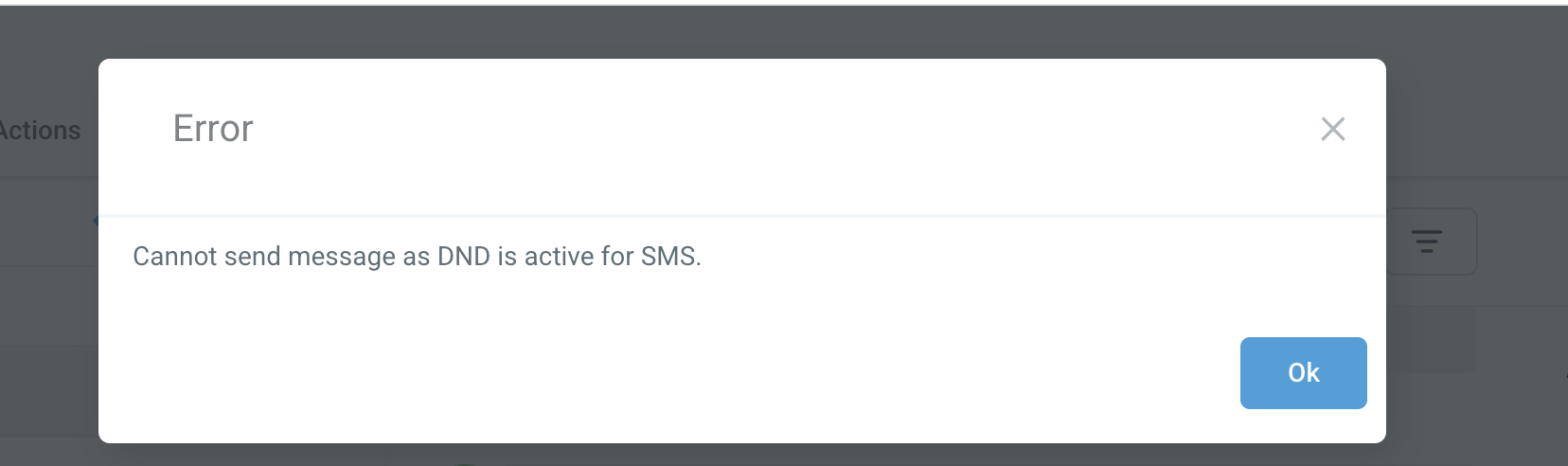
- Bulk Action: All SMS sent via features like workflow, and bulk SMS will automatically skip the DND-marked contacts from the sender list.
How to revoke the DND for a contact?
- For Temporary DND, go to the contact details and remove the DND flag, below is the screenshot of the sample screen:
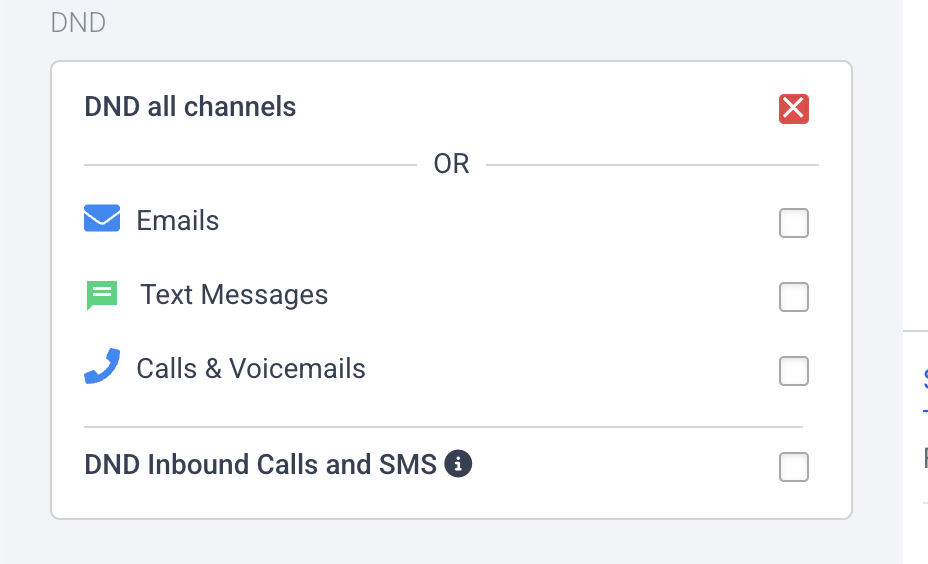
- For Permanent DND, you cannot revoke the same from UI. To revoke the permanent DND, request the contact to send a reply with the "START", "YES", and "UNSTOP" keywords to the number. This should automatically remove the DND from the contract.
3. Opt-Out Language addition
Consent for sending communications cannot be bought, sold, or transferred. The only acceptable method is to obtain explicit consent directly from the user for SMS campaigns and other related communications.
That consent must be collected by the specific entity sending the messages, which in this case is the sub-account acting as the sender of the communication.
To comply with messaging policies, each initial message sent to an end user must include two required elements: clear sender identification and opt out language.
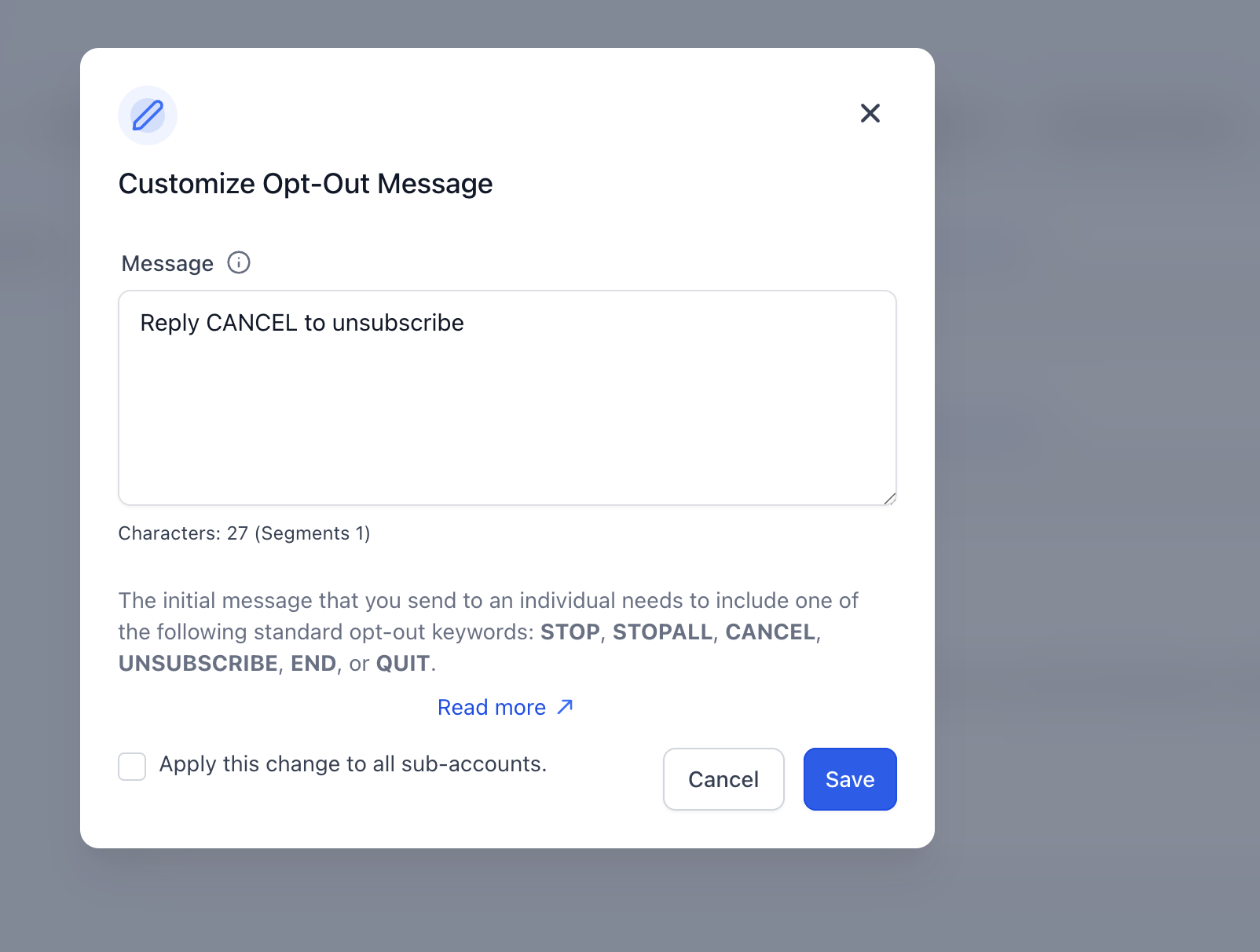
Opt out language: The end user must be able to withdraw consent at any time. Because of that, each initial message must include standard opt out instructions using keywords such as STOP or UNSUBSCRIBE. We will also include the following opt out language: “Reply STOP to unsubscribe.”
Sample Opt-Out Language message screen:
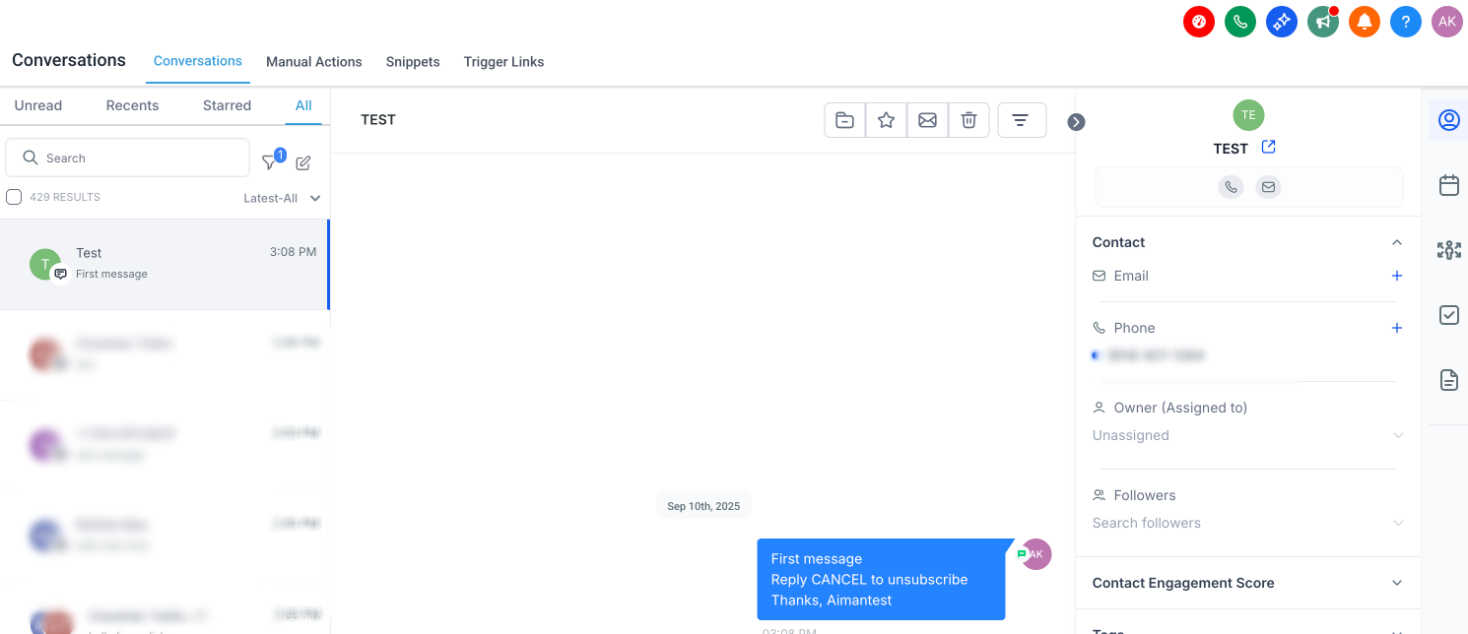
How can I customize the opt-out message?
Go to Sub-account -> Settings -> phone numbers -> advanced setting -> sms complaince where you can customize the opt-out message, below is the screenshot for reference: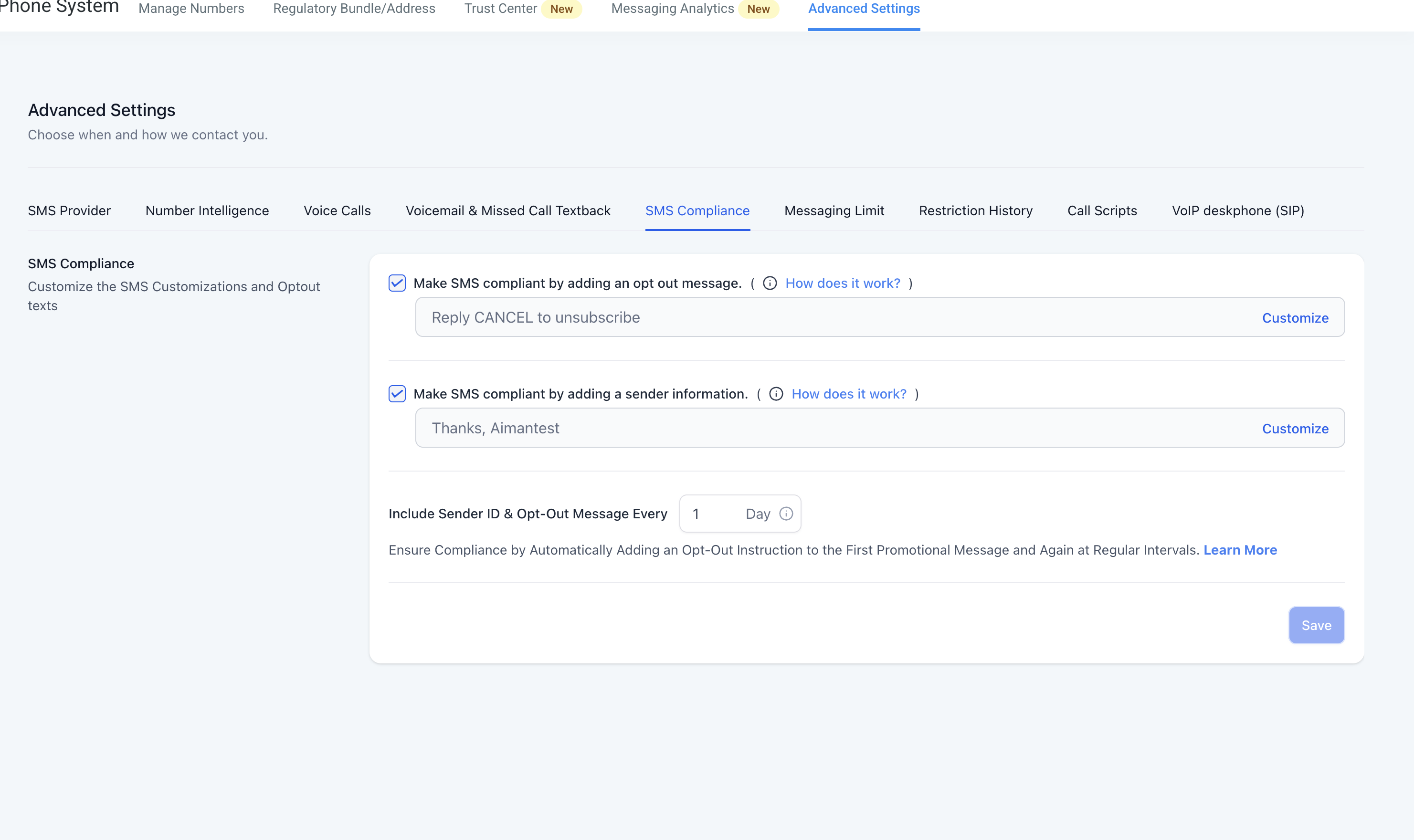
What happens if my message already has opt-out language?
The platform suppresses the auto-added opt-out line only when it detects a full opt-out instruction already included in the message (for example, an unsubscribe phrase). It does not suppress insertion for incidental keywords used in normal sentences.
Examples (suppresses insertion if already present):
“Reply STOP to unsubscribe.”
“Text STOP to opt out.”
“Reply STOP to end.”
Non-suppression example (does not suppress):
“If you want to stop by the office tomorrow, we’re open 9–5.”
What happens when an end-user replies with the STOP keyword?
If individuals reply with a standard opt-out keyword like STOP, the consent to send SMS will be revoked. All upcoming and queued messages will be failed. Also, a permanent DND will be enabled at the contact level.
4. Sender Information addition
Consent for sending communications cannot be bought, sold, or transferred. The only acceptable method is to obtain explicit consent directly from the user for SMS campaigns and related communications.
That consent must be collected by the specific entity sending the messages, which in this case is the location acting as the sender of the communication.
To comply with messaging policies, each initial message sent to an end user must include two required elements: sender identification and opt out language.
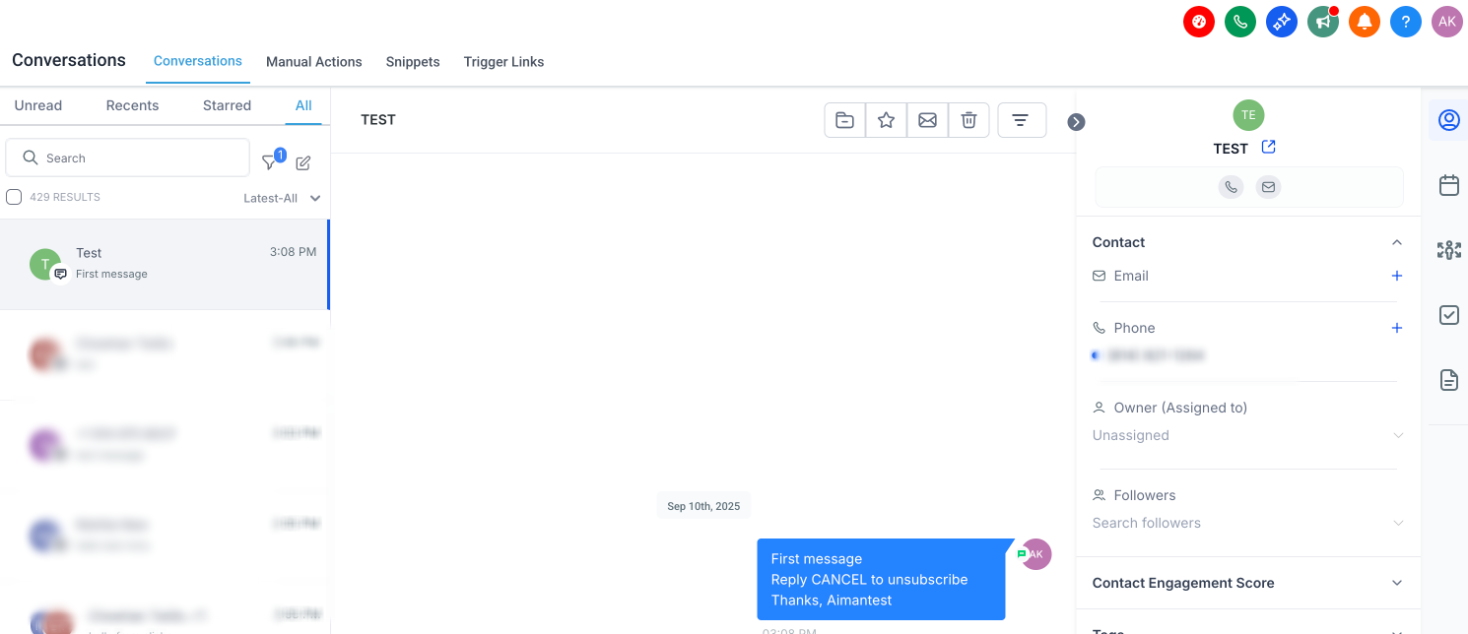
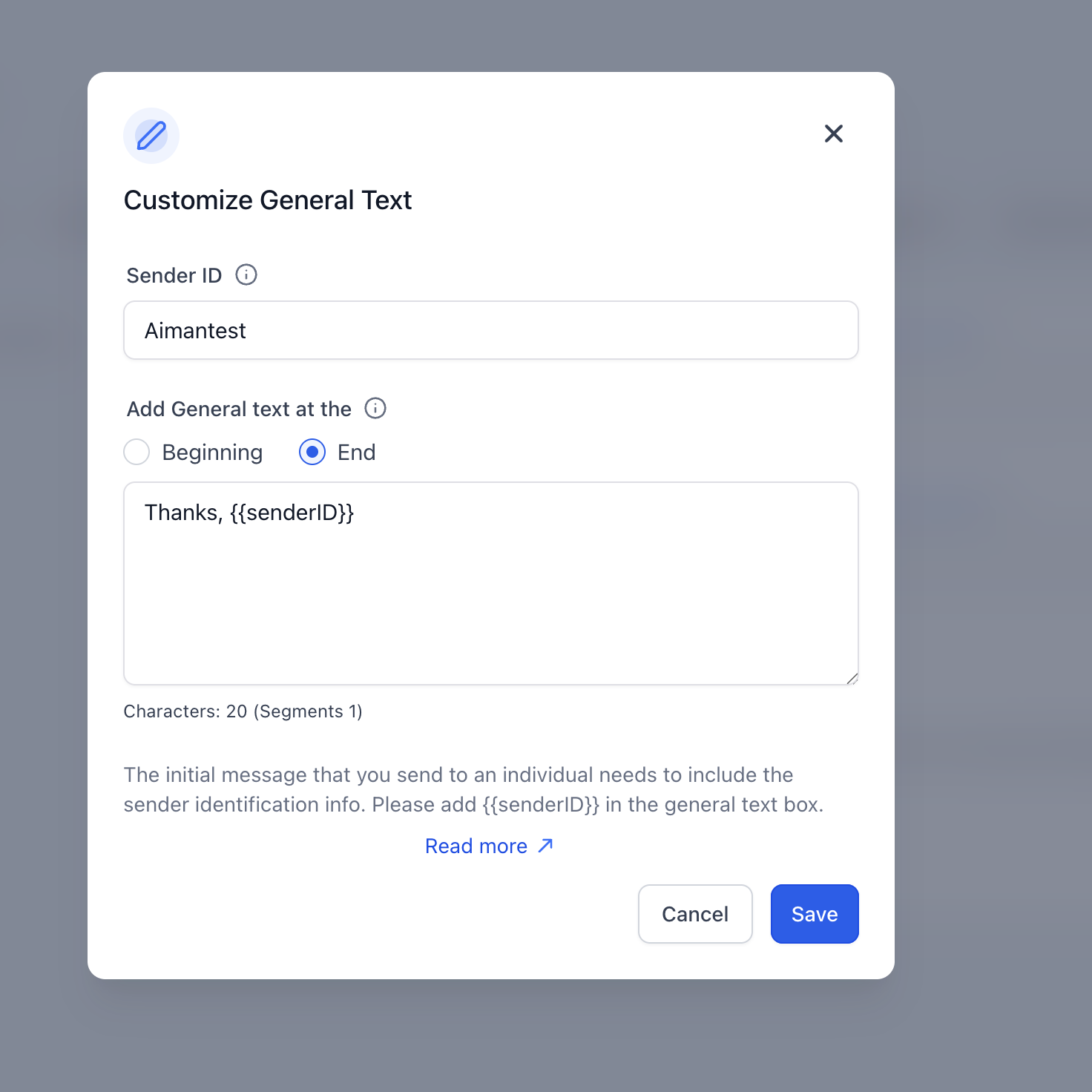
Sender Identification: Every initial message must clearly identify the sender, meaning the party that obtained the recipient’s opt in, unless it is a follow up message within an ongoing conversation. To support this requirement, we will also include sender information in the message, such as: “Thanks, <Location Name>.”
Sample message screen:
How can I customize the Sender ID?
Go to Sub-account -> Settings -> phone numbers -> advanced setting -> sms compliance where you can customize the Sender ID message, below is the screenshot for reference:
5. Error and Opt-Out Rate Monitoring
We are committed to helping our customers send trusted, compliant communications through Captivation Hub. To reduce the risk of carriers blocking messages or permanently suspending accounts due to poor messaging practices, we actively monitor messaging performance and take proactive steps to support healthy delivery rates.
We track the overall delivery performance of each account and apply corrective actions, as outlined below, to help keep delivery rates within acceptable ranges.
Opt-Out and Bounce Rate Monitoring
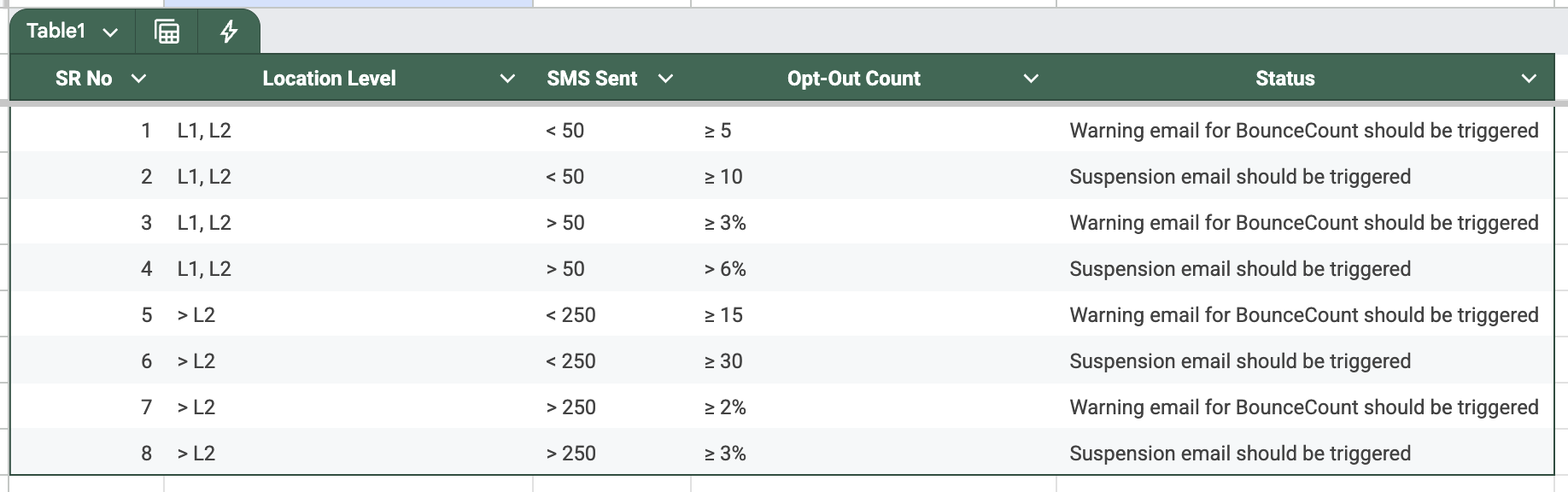
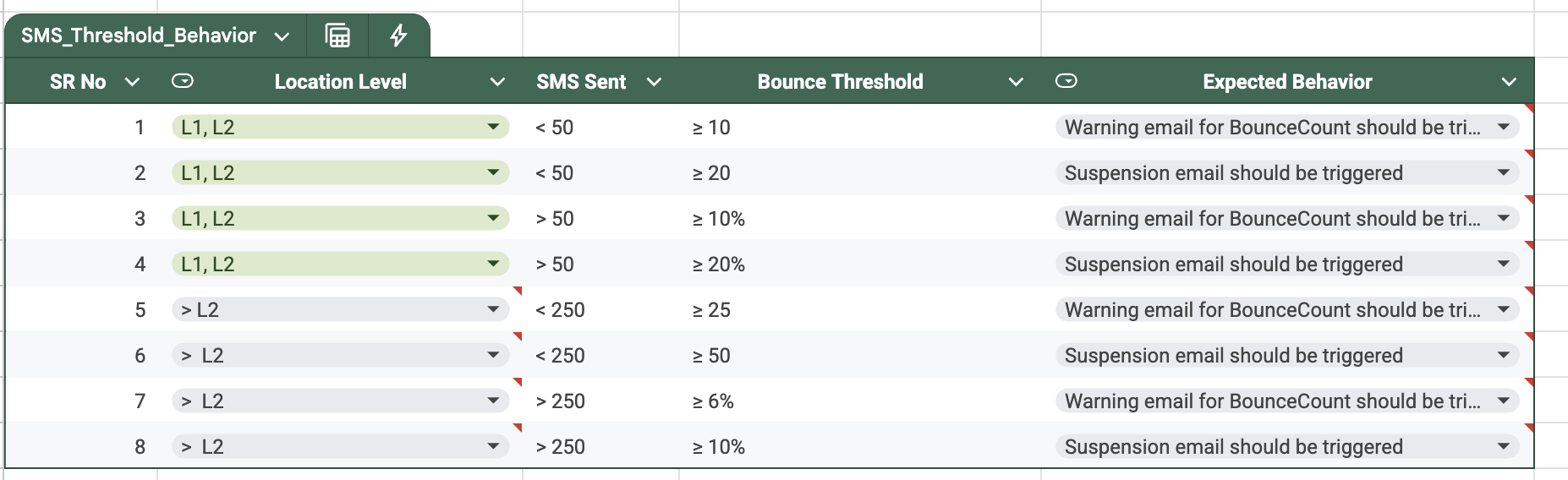
Below is the chart outlining the opt-out and bounce rate thresholds at which Warnings (W) and Suspensions (S) are triggered.
1. Locations Following Ramp-Up
This table defines when a warning or suspension is applied based on:
Location level L1,L2 (represents the ramp level the location is on)
Number of SMS messages sent
Opt-out count or opt-out percentage
2. Locations Created Before 4th February 2024 and locations Following Messaging Limits
This table specifies when warning or suspension emails are triggered based on:
Total SMS messages sent
Bounce count or bounce percentage
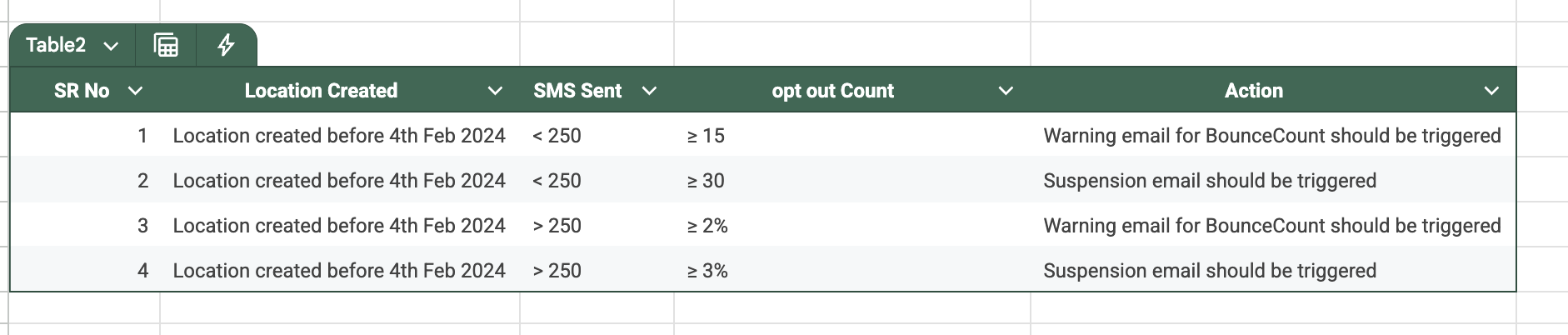
Error Rate Monitoring
Below is the chart outlining the error rate thresholds at which Warnings (W) and Suspensions (S) are triggered.
1. Locations Following Ramp-Up
This table defines when a warning or suspension is applied based on:
Location level L1,L2(represents the ramp level the location is on)
Number of SMS messages sent
Error count or error percentage
2. Locations Created Before 4th February 2024 and Following Messaging Limits
This table specifies when warning or suspension emails are triggered based on:
Total SMS messages sent
Error count or error percentage

Note:
Locations created before 4th February 2024 did not follow the ramp-up process and were placed directly on messaging limits.
Important:
Once an account enters temporary suspension, all outbound SMS messages will fail until 00:00 AM UTC, when the suspension is automatically lifted.
What should we do when we get a violation email?
Please stop all workflows, campaigns, triggers, and any other bulk actions that send messages to contacts who have not explicitly opted in to receive communications from the sub-account.
Please also enable and customize your opt out language and sender identification based on your use case so that future messages are less likely to be flagged.
We also ask that you speak with your client and ensure that no bulk messaging, message blasts, or cold prospecting campaigns are sent until we receive your reply to this ticket and can confirm next steps.
What are error and opt-out rates are good to have a threshold?
A high opt out rate means that a larger than acceptable number of contacts are objecting to your messages, submitting complaints, or marking your SMS as spam. A healthy opt out rate typically falls between 0% and 1%.
A high delivery error rate means messages are being sent to contacts whose numbers may no longer be active, may be unreachable, or may belong to a device that cannot receive SMS, such as a landline. It can also indicate that outside carrier filters are blocking delivery due to poor sending behavior associated with the account in the past.
What do I do to get the suspension removed early?
- The suspension will be lifted in 24 hours. However, if the sub-account is permanently suspended. Please refer to the article Why is your account suspended to unsuspend the sub-account.
Frequently Asked Questions
Q1. I would like to send more than 5,000 SMS messages per day. How can I increase my limit?
Once your location reaches Level 8, which allows 3,000 or more SMS messages per day, you may contact Captivation Hub Support to request a limit increase.
Q2. What happens when we reach our daily limit? Will we still be able to respond if a lead replies?
No. Once the daily SMS limit has been reached, you will not be able to send manual replies to incoming messages. Daily SMS limits apply to all messaging activity, including manual messages in Conversations, workflow automations, and bulk actions.
Q3. How long does the SMS limit stay in place?
The SMS limit refreshes every 24 hours. For brand new accounts, the sending limit increases gradually each day according to the ramp up schedule outlined above. Once the account reaches Level 8, the daily sending limit will remain capped at 3,000 or more messages per day unless an increased limit is approved.
Q4. Can we remove DND status in bulk?
No. Bulk removal of DND status is not available. This restriction is in place to help prevent repeated bulk SMS sending to contacts after DND has been applied.
Q5. Does the automatic Sender ID and opt out language apply to every first text in a workflow or manual SMS as well?
Yes. The opt out message setting applies when the message is the first SMS being sent to a new contact and that contact has never previously sent an SMS message to your system phone number.
This applies to SMS messages sent through the following methods:
- Bulk actions in the Contacts area, such as selecting multiple contacts and choosing Send SMS
- Workflow Send SMS actions
- Campaigns
- One to one messages sent through the Conversations area
Comments
0 comments
Article is closed for comments.